
Adding an Instagram Reels section Liquid to your Shopify store is a simple way to showcase short-form video content directly on your storefront. You can use it to display product demonstrations, customer videos, tutorials, creator content, or selected Instagram-style videos without installing another feed app.
This Instagram Reels section Liquid uses Shopify Liquid along with HTML, CSS, and JavaScript to create a responsive video section. You can place it on your homepage or another suitable Shopify theme template and customize the heading, layout, spacing, colors, and video cards to match your store.
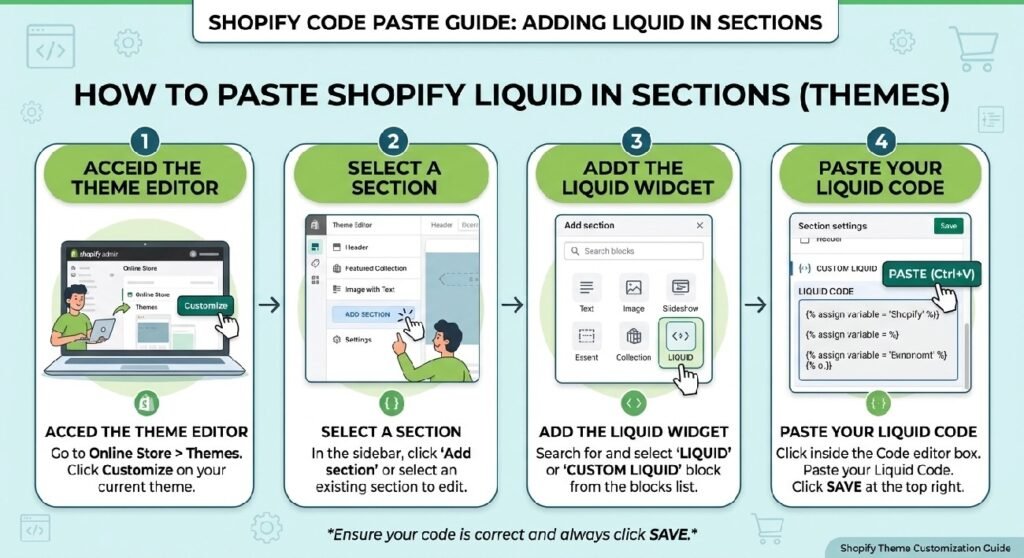
Where to Paste This Shopify Code
- Open your Shopify Admin.
- Go to Online Store → Themes.
- Select Edit code for your active theme.
- Open the Sections folder.
- Create a new section, such as
instagram-reels. - Paste the provided code into the new section.
- Save the file.
- Open Customize and add the section to your desired page.
If the code is specifically designed for a Custom Liquid block, you can instead add it through the Shopify Theme Editor.
How This Instagram Reels Section Liquid Works
The Instagram Reels section Liquid combines several parts of your Shopify theme:
- Liquid handles the Shopify section structure and settings.
- HTML creates the video cards and links.
- CSS controls the layout, sizing, spacing, and responsive design.
- JavaScript can handle video interactions such as play and pause.
- Instagram links can take visitors to the original social content.
The section is intended for selected videos rather than automatically importing the latest posts from an Instagram account. This keeps the implementation relatively simple and avoids depending on an external Instagram feed service.
Shopify Liquid Code
<style>
.zx-reels{
    padding:30px 15px;
    background:#fafafa;
    border-radius:18px;
    margin:22px 0;
}

.zx-reels h2{
    text-align:center;
    font-size:30px;
    margin:0 0 8px;
    color:#111;
}

.zx-reel-grid{
    display:grid;
    grid-template-columns:repeat(4,1fr);
    gap:14px;
}

.zx-reel{
    border-radius:18px;
    overflow:hidden;
    aspect-ratio:9/16;
    box-shadow:0 8px 22px rgba(0,0,0,.12);
    background:#000;
}

.zx-reel video{
    width:100%;
    height:100%;
    object-fit:cover;
    display:block;
}

@media(max-width:767px){
.zx-reel-grid{
    grid-template-columns:repeat(2,1fr);
}
}
</style>

<section class="zx-reels">
    <h2>Watch Our Latest Videos</h2>

    <div class="zx-reel-grid">

        <div class="zx-reel">
            <video controls playsinline preload="metadata">
                <source src="YOUR_VIDEO_LINK_1.mp4" type="video/mp4">
            </video>
        </div>

        <div class="zx-reel">
            <video controls playsinline preload="metadata">
                <source src="YOUR_VIDEO_LINK_2.mp4" type="video/mp4">
            </video>
        </div>

        <div class="zx-reel">
            <video controls playsinline preload="metadata">
                <source src="YOUR_VIDEO_LINK_3.mp4" type="video/mp4">
            </video>
        </div>

        <div class="zx-reel">
            <video controls playsinline preload="metadata">
                <source src="YOUR_VIDEO_LINK_4.mp4" type="video/mp4">
            </video>
        </div>

    </div>
</section>
Why Add an Instagram Reels Section Liquid to Your Shopify Store?
An Instagram Reels section Liquid gives you another way to present visual content while visitors are browsing your Shopify store. Instead of relying only on product images and text, you can use short videos to demonstrate products or show how customers interact with them.
This type of section can be useful for:
- Product demonstrations
- Customer-generated content
- Product tutorials
- Creator collaborations
- Behind-the-scenes content
- Fashion and styling videos
- Beauty and lifestyle products
For example, a clothing store could display short styling videos, while a beauty store could use the section for product demonstrations or tutorials.
It can also help connect your Shopify storefront with your social media presence. Visitors who want to see more content can follow the Instagram link associated with a particular video.
Tips for Customizing the Instagram Reels Section Liquid
You can modify the Instagram Reels section Liquid to fit the design of your Shopify theme.
Change the Section Heading
You can use a heading that fits your brand, such as:
- Instagram Reels
- Follow Us on Instagram
- See Our Products in Action
- From Our Instagram
- Watch Our Latest Videos
Adjust the Reel Layout
Instagram Reels are normally displayed in a vertical format, so portrait video cards work particularly well. You can change the grid columns, card width, spacing, and aspect ratio through the CSS.
Match Your Store’s Branding
Change the background, text, buttons, borders, and other design elements so the section looks consistent with the rest of your Shopify storefront.
Optimize Your Video Files
Large video files can slow down a page. Use appropriately compressed videos and avoid loading an excessive number of videos in one section.
Common Problems and Fixes
The Video Does Not Play
Make sure the video source is a valid browser-supported video file. An Instagram webpage URL is not the same as a direct video file URL.
The Instagram Link Is Incorrect
Check each Instagram link and make sure it points to the intended Reel or post.
The Videos Look Stretched
Use a consistent portrait aspect ratio and CSS such as object-fit: cover to keep the cards visually consistent.
The Section Does Not Appear
If you created a Shopify section, make sure the file is inside the Sections folder and contains valid Shopify section schema.
Frequently Asked Questions
What is an Instagram Reels section Liquid?
An Instagram Reels section Liquid is a custom Shopify theme section that uses Liquid and frontend code to display selected short-form videos on a storefront.
Can I add an Instagram Reels section without a Shopify app?
Yes. You can use custom Shopify Liquid code to create a video section without installing an additional Instagram feed app. Automatically importing Instagram content is a separate process.
Will an Instagram Reels section Liquid work with Shopify 2.0?
Yes. A properly structured Shopify section can be added to compatible Online Store 2.0 themes through the Shopify Theme Editor.
Can I customize the Instagram Reels section Liquid?
Yes. You can change the heading, colors, spacing, card dimensions, number of videos, links, and other design elements.
Explore More Shopify Code
Premium Customer Reviews Section for Shopify
A Shopify customer reviews section can make your store feel more trustworthy without requiring a separate review app. This customization gives you a clean way to display customer feedback, star ratings, names, and short testimonials directly on your storefront.
Explore: https://css-liquids-for-shopify.site/premium-customer-reviews-section-for-shopify/
Add a live visitors counter to your Shopify product page without installing an app. This lightweight Custom Liquid snippet displays a changing visitor count to create a sense of real-time activity around the product.
Explore: https://css-liquids-for-shopify.site/live-visitors-counter-for-shopify/
Shopify Liquid Tutorials
Learn how Shopify Liquid works with practical tutorials covering variables, conditions, loops, and theme customization.
One Response