
A Premium Footer Trust Liquid section can add a quiet layer of reassurance near the bottom of a Shopify store, especially when shoppers want quick answers about delivery, checkout security, support, or store credibility before they leave the page.
The supplied design takes a more editorial approach than the usual row of generic trust icons. It uses four circular “seal” graphics, dashed dividers, a small verification header, and a restrained green accent. The result feels closer to a printed quality stamp than a typical ecommerce badge strip.
The visual idea is strong. The code still needs a few Shopify-specific adjustments before I would use it on a live theme, though. It is currently a full standalone HTML document, it loads three Google Fonts, it places color variables on :root, and several trust claims are hard-coded rather than connected to real store data.
Where to Paste This Shopify Code
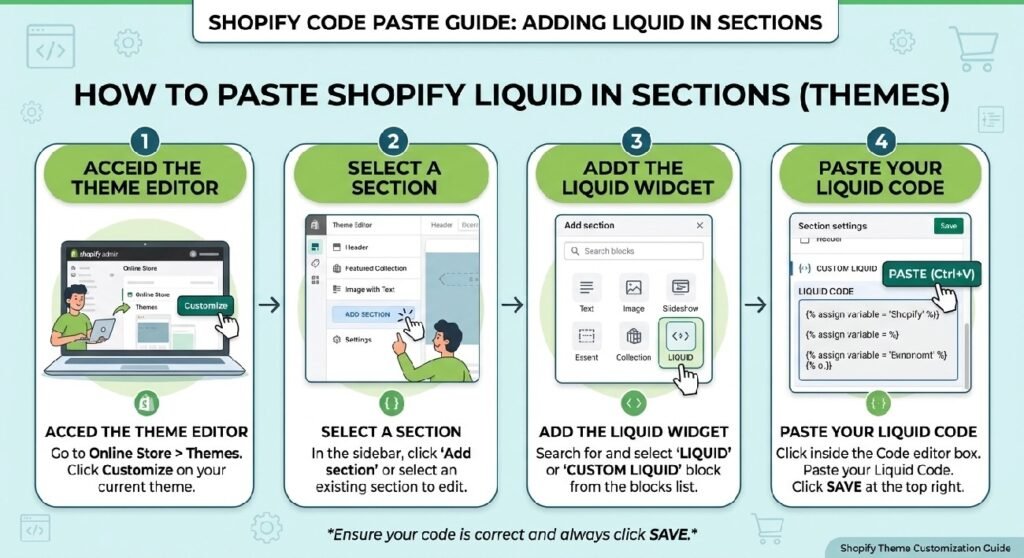
For Shopify, save the cleaned version as:
premium-footer-trust.liquid
Go to Shopify Admin → Online Store → Themes, duplicate the theme you plan to edit, then open Edit code.
Inside the Sections folder, create a new file named:
premium-footer-trust.liquid
Before pasting the snippet into a theme section, remove the document-level pieces:
<!DOCTYPE html>
<html>
<head>
<meta>
<title>
<body>
</body>
</html>
You should also review the Google Fonts <link> tags. They belong in the document head, not inside a Shopify section file. If your theme already has a typography system, using the theme’s existing fonts is usually cleaner than loading Fraunces, Inter, and IBM Plex Mono only for one trust block.
The section makes the most sense near the footer, below a product or collection experience, or just above the actual site footer where reassurance still feels useful without interrupting the main shopping flow.
How Premium Footer Trust Liquid Works
The main wrapper is .zx-footer-trust.
It creates a centered white card with a thin border, small corner radius, and a soft shadow. The maximum width is 960px, so the trust strip stays compact even on wide screens.
The top line is split into two pieces:
- a “Verified” message on the left
- a
04 / 04count on the right
Below that, .zx-grid creates four equal columns.
Each column contains:
- a circular seal
- an inline SVG icon
- a short label
- a small supporting code line
The four supplied examples are:
Fast Delivery
Secure Checkout
Quick Support
Trusted Store
The visual treatment is what makes the section different from a normal icon row. The circular seal uses two SVG rings, and an SVG filter adds a slightly rough ink-stamp effect. Small rotations are applied to each card, which keeps the row from looking overly mechanical.
On smaller screens, the four-column grid becomes a two-column layout. The dashed borders are rearranged so the section still reads like a deliberate stamp sheet rather than a broken desktop grid.
Shopify Liquid Code
<!DOCTYPE html>
<html lang="en">
<head>
<meta charset="UTF-8">
<title>Trust Seals — Redesign</title>
<link rel="preconnect" href="https://fonts.googleapis.com">
<link href="https://fonts.googleapis.com/css2?family=Fraunces:opsz,wght@9..144,500;9..144,600&family=Inter:wght@400;500;600&family=IBM+Plex+Mono:wght@500&display=swap" rel="stylesheet">
<style>
  :root{
    --ink:#12181F;
    --paper:#F3F4EF;
    --card:#FFFFFF;
    --seal:#1F6D4C;
    --seal-dim:#1F6D4C99;
    --line:#CBCFC4;
    --muted:#5B6259;
  }

  *{box-sizing:border-box}

  body{
    margin:0;
    padding:48px 16px;
    background:var(--paper);
    font-family:'Inter',sans-serif;
    color:var(--ink);
    display:flex;
    align-items:center;
    justify-content:center;
  }

  .zx-footer-trust{
    width:100%;
    max-width:960px;
    background:var(--card);
    border-radius:4px;
    padding:0;
    position:relative;
    box-shadow:0 1px 2px rgba(18,24,31,.06), 0 20px 40px -24px rgba(18,24,31,.18);
    border:1px solid var(--line);
  }

  /* ticket-stub perforation along the top edge */
  .zx-footer-trust::before{
    content:"";
    position:absolute;
    top:-1px; left:0; right:0;
    height:1px;
    background-image:radial-gradient(circle, var(--paper) 2.5px, transparent 2.6px);
    background-size:16px 1px;
    background-position:0 0;
  }

  .zx-trust-head{
    display:flex;
    align-items:baseline;
    justify-content:space-between;
    padding:18px 28px 14px;
    border-bottom:1px dashed var(--line);
  }

  .zx-trust-eyebrow{
    font-family:'IBM Plex Mono',monospace;
    font-size:11px;
    letter-spacing:.12em;
    text-transform:uppercase;
    color:var(--muted);
  }

  .zx-trust-eyebrow b{color:var(--seal);font-weight:500}

  .zx-trust-count{
    font-family:'IBM Plex Mono',monospace;
    font-size:11px;
    color:var(--muted);
    letter-spacing:.06em;
  }

  .zx-grid{
    display:grid;
    grid-template-columns:repeat(4,1fr);
    margin:0;
    gap:0;
  }

  .zx-grid > div{
    position:relative;
    text-align:center;
    padding:30px 14px 22px;
    background:transparent;
    border-radius:0;
    font-weight:500;
    color:var(--ink);
  }

  .zx-grid > div + div{ border-left:1px dashed var(--line); }

  .zx-seal{
    width:64px;
    height:64px;
    margin:0 auto 14px;
    position:relative;
    display:flex;
    align-items:center;
    justify-content:center;
  }

  .zx-seal svg.ring{
    position:absolute;
    inset:0;
    width:100%;
    height:100%;
    filter:url(#zx-ink-rough);
  }

  .zx-seal svg.icon{
    width:26px;
    height:26px;
    position:relative;
    z-index:2;
    stroke:var(--seal);
  }

  .zx-seal-label{
    font-family:'Fraunces',serif;
    font-size:15px;
    font-weight:600;
    letter-spacing:.01em;
    color:var(--ink);
    margin-bottom:4px;
  }

  .zx-seal-code{
    font-family:'IBM Plex Mono',monospace;
    font-size:10px;
    letter-spacing:.08em;
    color:var(--muted);
    text-transform:uppercase;
  }

  @media(max-width:640px){
    .zx-grid{ grid-template-columns:repeat(2,1fr); }
    .zx-grid > div:nth-child(2n+1){ border-left:none; }
    .zx-grid > div:nth-child(3),
    .zx-grid > div:nth-child(4){ border-top:1px dashed var(--line); }
    .zx-grid > div:nth-child(2){ border-left:1px dashed var(--line); }
    .zx-trust-head{ padding:16px 20px 12px; }
  }

  @media(prefers-reduced-motion:no-preference){
    .zx-seal{ transition:transform .25s ease; }
    .zx-grid > div:hover .zx-seal{ transform:rotate(-4deg) scale(1.04); }
  }
</style>
</head>
<body>

<svg width="0" height="0" style="position:absolute">
  <filter id="zx-ink-rough">
    <feTurbulence type="fractalNoise" baseFrequency="0.9" numOctaves="2" result="noise" seed="7"/>
    <feDisplacementMap in="SourceGraphic" in2="noise" scale="3.2"/>
  </filter>
</svg>

<div class="zx-footer-trust">

  <div class="zx-trust-head">
    <span class="zx-trust-eyebrow"><b>●</b> Verified — every order, checked</span>
    <span class="zx-trust-count">04 / 04</span>
  </div>

  <div class="zx-grid">

    <div style="transform:rotate(-1.2deg)">
      <div class="zx-seal">
        <svg class="ring" viewBox="0 0 64 64"><circle cx="32" cy="32" r="29" fill="none" stroke="#1F6D4C" stroke-width="1.4"/><circle cx="32" cy="32" r="24" fill="none" stroke="#1F6D4C" stroke-width="1"/></svg>
        <svg class="icon" viewBox="0 0 24 24" fill="none" stroke-width="1.6" stroke-linecap="round" stroke-linejoin="round"><rect x="1" y="7" width="14" height="9"/><path d="M15 10h4l3 3v3h-7z"/><circle cx="6" cy="18" r="1.6"/><circle cx="18" cy="18" r="1.6"/></svg>
      </div>
      <div class="zx-seal-label">Fast Delivery</div>
      <div class="zx-seal-code">Dispatched < 24h</div>
    </div>

    <div style="transform:rotate(0.8deg)">
      <div class="zx-seal">
        <svg class="ring" viewBox="0 0 64 64"><circle cx="32" cy="32" r="29" fill="none" stroke="#1F6D4C" stroke-width="1.4"/><circle cx="32" cy="32" r="24" fill="none" stroke="#1F6D4C" stroke-width="1"/></svg>
        <svg class="icon" viewBox="0 0 24 24" fill="none" stroke-width="1.6" stroke-linecap="round" stroke-linejoin="round"><rect x="4" y="10" width="16" height="11" rx="1.5"/><path d="M8 10V7a4 4 0 0 1 8 0v3"/></svg>
      </div>
      <div class="zx-seal-label">Secure Checkout</div>
      <div class="zx-seal-code">256-bit encrypted</div>
    </div>

    <div style="transform:rotate(-0.6deg)">
      <div class="zx-seal">
        <svg class="ring" viewBox="0 0 64 64"><circle cx="32" cy="32" r="29" fill="none" stroke="#1F6D4C" stroke-width="1.4"/><circle cx="32" cy="32" r="24" fill="none" stroke="#1F6D4C" stroke-width="1"/></svg>
        <svg class="icon" viewBox="0 0 24 24" fill="none" stroke-width="1.6" stroke-linecap="round" stroke-linejoin="round"><path d="M4 12a8 8 0 0 1 16 0v5a2 2 0 0 1-2 2h-1v-6h3M4 17v-5h3v6H6a2 2 0 0 1-2-2z"/></svg>
      </div>
      <div class="zx-seal-label">Quick Support</div>
      <div class="zx-seal-code">Replies in minutes</div>
    </div>

    <div style="transform:rotate(1.1deg)">
      <div class="zx-seal">
        <svg class="ring" viewBox="0 0 64 64"><circle cx="32" cy="32" r="29" fill="none" stroke="#1F6D4C" stroke-width="1.4"/><circle cx="32" cy="32" r="24" fill="none" stroke="#1F6D4C" stroke-width="1"/></svg>
        <svg class="icon" viewBox="0 0 24 24" fill="none" stroke-width="1.6" stroke-linecap="round" stroke-linejoin="round"><path d="M12 3l7 3v6c0 4.5-3 8-7 9-4-1-7-4.5-7-9V6z"/><path d="M9 12l2 2 4-4"/></svg>
      </div>
      <div class="zx-seal-label">Trusted Store</div>
      <div class="zx-seal-code">12,000+ orders</div>
    </div>

  </div>
</div>

</body>
</html>
The Design Is Good, but the Claims Need Work
This is the first thing I would fix.
The snippet contains several statements that sound factual:
Dispatched < 24h
256-bit encrypted
Replies in minutes
12,000+ orders
There is also a header that says:
Verified — every order, checked
Those are not generated by Shopify. They are simply written into the HTML.
If the store cannot prove those claims, rewrite them.
A trust section is supposed to reduce uncertainty. Publishing numbers or service promises that are not consistently true does the opposite.
For a safer version, you could use copy such as:
Fast Delivery
“Tracked shipping available”
Secure Checkout
“Protected checkout”
Customer Support
“Help when you need it”
Trusted Store
“Shop with confidence”
That wording is less dramatic, but it does not pretend the code has verified something it has not.
7 Practical Ways to Improve This Footer Trust Section
1. Keep trust badges specific to the store
Trust badges work best when they answer real customer concerns.
A fashion store may need delivery, returns, and payment reassurance. A digital-products store may care more about instant access, support, and secure checkout. A handmade store could highlight careful packing, tracked shipping, and small-batch production.
Do not keep the four supplied labels simply because the layout has four spaces.
The strongest trust section reflects how the business actually operates.
2. Be careful with “256-bit encrypted”
“Secure Checkout” is reasonable wording.
“256-bit encrypted” is much more specific.
That phrase implies a particular technical security claim, while this snippet itself does not check checkout encryption, TLS negotiation, payment-provider behavior, or Shopify’s security configuration.
For a general store-facing badge, I would keep the label simple:
Secure Checkout
and use supporting text that does not overstate what the theme can verify.
If you want to explain Shopify checkout security in a blog post, link to Shopify’s official security documentation rather than treating a badge label as technical proof.
3. Match the delivery promise to your real dispatch process
The first seal says:
Dispatched < 24h
That is a useful promise only if the store actually dispatches orders within that time consistently.
If weekends, custom items, preorders, or high-volume periods change processing time, use wording that reflects those realities.
For stores with a separate shipping article or policy, the footer badge can stay short and point shoppers toward the detailed information elsewhere.
This also pairs naturally with [INTERNAL LINK NEEDED: Shopify Delivery Info Box], where product-level delivery information can appear closer to the purchase decision.
4. Do not fake the order count
The final seal says:
12,000+ orders
This is social proof.
It should be real.
If the store has completed 860 orders, saying 12,000+ is not a design choice. It is a false claim.
If you do not have a verified order count worth showing yet, use another trust signal instead:
- Easy Returns
- Secure Payments
- Tracked Delivery
- Customer Support
- Quality Checked
The section still works visually without a big number.
5. Scope the CSS before using it in Shopify
The current demo uses:
:root { ... }
for color variables.
That makes those CSS variables globally available across the page.
It also styles body directly and uses a universal selector:
* { box-sizing: border-box; }
That is fine for a standalone HTML demo, but a Shopify section should avoid changing unrelated parts of the theme.
A cleaner approach is to move the variables onto the section wrapper itself:
.zx-footer-trust { --ink: ...; --paper: ...; }
Then keep all styling inside .zx-footer-trust and its child selectors.
This prevents the trust block from interfering with navigation, product forms, app embeds, or footer elements elsewhere in the theme.
6. Replace external fonts if the theme already has typography settings
The design loads three Google Fonts:
- Fraunces
- Inter
- IBM Plex Mono
That combination is part of the visual personality. It also adds external font requests for one relatively small component.
On a production Shopify store, I would first check whether the theme already has suitable heading, body, and utility fonts.
Using the theme’s existing typography usually gives you:
- better visual consistency
- fewer external requests
- simpler maintenance
If Fraunces and IBM Plex Mono are central to the design, keep them deliberately rather than by default.
7. Turn the trust items into Shopify blocks
Right now the four seals are hard-coded.
For a reusable Shopify section, I would make each trust item a block with editable settings for:
- label
- supporting text
- icon
- optional link
- accent color
- sort order
The top “Verified” message could also become a section setting.
That would let a merchant change Fast Delivery to Easy Returns or Secure Checkout to Cash on Delivery without opening the code editor.
A trust strip is exactly the kind of component that benefits from merchant-editable blocks.
The SVG Stamp Effect Is a Nice Touch
The code uses a hidden SVG filter:
zx-ink-rough
Inside that filter, feTurbulence generates noise and feDisplacementMap distorts the ring slightly.
That gives each circular seal a more organic printed look.
It is a clever effect because it adds personality without a PNG image or external icon library.
One thing to remember if the section is reused multiple times on the same page: SVG filter IDs must stay unique enough to avoid conflicts.
For a single footer trust section, zx-ink-rough is probably fine.
For a reusable theme component that might appear more than once, consider making the ID section-specific.
The Reduced Motion Rule Is Thoughtful
The hover animation is wrapped inside:
@media(prefers-reduced-motion:no-preference)
That means the seal rotation/scale effect is only added when the visitor has not asked the operating system to reduce motion.
That is a better choice than forcing decorative animation on everyone.
The movement itself is small:
- slight rotation
- slight scale
The trust message stays understandable even when the effect is disabled.
That is how decorative motion should behave.
Where This Section Fits Best
Despite the filename, this component does not have to sit literally inside the <footer> element.
It can work well:
- directly above the footer
- below a final CTA
- underneath collection content
- near the bottom of product pages
- after shipping or returns information
I would avoid placing it too high on the homepage.
Visitors usually need to understand the brand, products, and shopping options first. Trust seals are supporting information, not the main reason someone came to the store.
A homepage flow could look like:
Hero → Collections → Products → Brand Story → Trust Seals → Footer
That creates a more natural progression.
The [INTERNAL LINK NEEDED: Brand Story Section Liquid] can explain who the business is, while this section quickly summarizes operational reassurance near the end of the page.
Footer Trust vs. Statistics Counter
The [INTERNAL LINK NEEDED: Statistics Counter Liquid] and this trust section can look similar because both communicate confidence.
They do different jobs.
A statistics section is best for genuine measurable numbers:
- customers served
- average rating
- years in business
A trust strip is better for policies and service qualities:
- secure checkout
- tracked shipping
- support
- returns
Do not repeat the same claim in both sections just to fill space.
If your footer already says 12,000+ orders, there is little value in showing the exact same number again in a statistics section.
Footer Trust vs. Buttons & Badges
This snippet is a good example of why trust badges are not only small icons beside an Add to Cart button.
Here the badges become a full visual system.
The stamps, labels, microcopy, and dashed separators all work together as one trust component.
That makes Buttons & Badges the closest existing WordPress category for this post, even though the section itself is positioned near the footer.
The main purpose is still trust-badge presentation.
Common Mistakes to Avoid
The first mistake is obvious: leaving demo claims in place.
The second is adding too many seals.
Four works because the layout feels balanced. Eight or twelve could turn a clean trust strip into visual clutter.
Another mistake is mixing unrelated claims. If one badge says Secure Checkout, another says Worldwide Shipping, and another says Luxury Quality, the section starts feeling like a list of marketing slogans instead of a coherent trust system.
Choose a small group of points that answer the customer’s most important concerns.
Also check contrast if you change the colors. The current design uses dark text, white cards, green icons, and muted supporting copy. If you swap those values for low-contrast brand colors, readability can drop quickly.
FAQ
Is Premium Footer Trust Liquid dynamic?
Not yet. The supplied version is static HTML, CSS, and inline SVG. None of the trust claims are pulled from Shopify automatically.
Does it require JavaScript?
No. The section uses HTML, CSS, SVG, and a CSS media query for hover behavior.
Can I change the four trust seals?
Yes. The labels and supporting text are hard-coded, so they can be edited directly. A better reusable version would expose them as Shopify blocks.
Does “12,000+ orders” update automatically?
No. It is static text and should be replaced unless the number is accurate for the store.
Is “256-bit encrypted” verified by this code?
No. The snippet does not inspect or verify checkout encryption. That claim should only be used when you have an appropriate technical basis for it.
Can I use the section above the footer instead of inside it?
Yes. In many themes, placing it directly above the footer will be easier and visually cleaner.
Is the layout mobile responsive?
Yes. At widths below 640px, the four seals become a two-column grid with adjusted dashed borders.
Explore More Shopify Code
This section pairs naturally with several of your existing tutorials:
- Pricing Table Section Liquid
A Pricing Table Section Liquid is useful when a Shopify store sells services, memberships, subscriptions, packages, or products that need side-by-side comparison.https://css-liquids-for-shopify.site/pricing-table-section-liquid/
- Brand Story Section Liquid
A Brand Story Section Liquid can give a Shopify store something product grids and discount banners cannot: context. It explains why the brand exists, what it values, and how the business wants customers to remember it.https://css-liquids-for-shopify.site/brand-story-section-liquid/
For more help, you can read Shopify’s official theme customization guide :Shopify Theme Customization Guide
One Response