
A Mega Menu Showcase Liquid section can give Shopify shoppers a fast way to jump into important product groups without digging through a long navigation menu. The supplied snippet uses a clean Shop By Category block with three pill-shaped links for New, Sale, and Bundles.
The styling is polished: soft shadows, rounded edges, a subtle blue glow, a moving shine effect on hover, and a mobile layout that turns every link into a full-width button.
There is one thing I would make clear before publishing this code, though: it is not a traditional Shopify mega menu yet. A real mega menu usually opens from the site header and contains multiple columns, nested links, images, or collection groups. This snippet is better described as a category navigation showcase or shop-by-category navigation block.
That does not make it less useful. It simply means the code should be presented accurately.
Where to Paste This Shopify Code
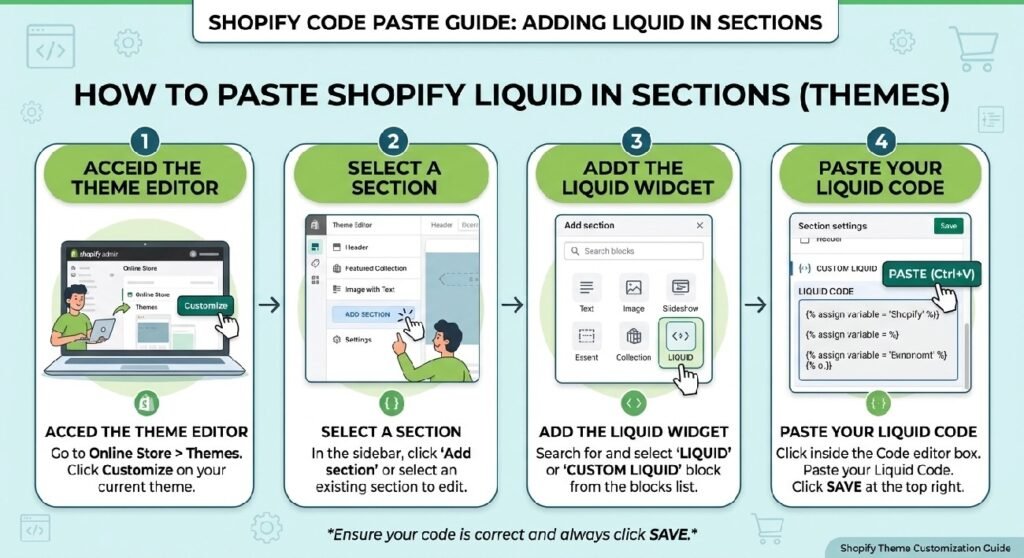
For a reusable Shopify section, save it as:
mega-menu-showcase.liquid
From Shopify Admin → Online Store → Themes, duplicate the theme you want to edit and open Edit code.
Inside the Sections folder:
- Create a new section named
mega-menu-showcase.liquid. - Paste the supplied code into the file.
- Save your changes.
- Open Customize and add the section where you want the category links to appear.
This block works especially well on:
- the homepage
- collection landing pages
- promotional pages
- category hubs
If your goal is a true header mega menu, this exact snippet is not enough on its own. Header navigation normally needs to work with Shopify menus, theme header markup, dropdown behavior, and often Liquid loops.
How Mega Menu Showcase Liquid Works
The main .zx-mega container does two jobs at once.
First, it creates the outer card:
- white-to-light-gray gradient
- rounded corners
- border
- shadow
- decorative background glow
Second, it uses Flexbox to arrange the category links.
The heading receives width:100%, so Shop By Category stays on its own row while the links appear underneath.
Each <a> element is styled as a pill-shaped navigation button with:
- white background
- rounded
999pxcorners - centered text
- border
- hover elevation
- blue hover color
- animated shine effect
The shine comes from a::before. A narrow gradient starts outside the left edge of the link and moves across the button when hovered.
On screens below 767px, every link becomes full width. That is a good choice for touch devices because it gives each category a large, easy-to-tap target.
Shopify Liquid Code
<style>
/* =========================
   PREMIUM SHOP BY CATEGORY
========================= */

.zx-mega{
    position:relative;
    overflow:hidden;
    background:linear-gradient(180deg,#ffffff,#fafbfc);
    border:1px solid rgba(15,23,42,.08);
    border-radius:28px;
    padding:32px;
    margin:28px 0;
    box-shadow:
        0 10px 35px rgba(15,23,42,.06),
        0 2px 8px rgba(15,23,42,.04);
}

.zx-mega::before{
    content:"";
    position:absolute;
    width:260px;
    height:260px;
    border-radius:50%;
    background:radial-gradient(circle,rgba(37,99,235,.10),transparent 70%);
    top:-120px;
    right:-80px;
    pointer-events:none;
}

.zx-mega::after{
    content:"";
    position:absolute;
    inset:0;
    border-radius:28px;
    padding:1px;
    background:linear-gradient(135deg,
        rgba(255,255,255,.8),
        rgba(37,99,235,.08));
    -webkit-mask:
        linear-gradient(#fff 0 0) content-box,
        linear-gradient(#fff 0 0);
    -webkit-mask-composite:xor;
            mask-composite:exclude;
    pointer-events:none;
}

.zx-mega h2{
    margin:0 0 24px;
    font-size:32px;
    font-weight:800;
    letter-spacing:-.03em;
    color:#0f172a;
    text-align:center;
}

/* Category Grid */

.zx-mega{
    display:flex;
    flex-wrap:wrap;
    gap:16px;
    justify-content:center;
    align-items:center;
}

.zx-mega h2{
    width:100%;
}

.zx-mega a{
    position:relative;
    overflow:hidden;

    display:flex;
    align-items:center;
    justify-content:center;

    min-width:180px;
    padding:18px 28px;

    background:#fff;

    border:1px solid rgba(15,23,42,.08);

    border-radius:999px;

    text-decoration:none;

    color:#111827;

    font-size:15px;

    font-weight:700;

    transition:
        transform .35s ease,
        box-shadow .35s ease,
        border-color .35s ease,
        color .35s ease;
}

/* Hover Shine */

.zx-mega a::before{
    content:"";
    position:absolute;
    top:0;
    left:-120%;
    width:60%;
    height:100%;
    background:linear-gradient(
        90deg,
        transparent,
        rgba(255,255,255,.8),
        transparent);
    transform:skewX(-25deg);
    transition:.7s;
}

.zx-mega a:hover::before{
    left:150%;
}

.zx-mega a:hover{

    color:#2563eb;

    border-color:rgba(37,99,235,.18);

    transform:translateY(-4px);

    box-shadow:
        0 16px 35px rgba(37,99,235,.12),
        0 8px 18px rgba(15,23,42,.08);
}

.zx-mega a:active{
    transform:scale(.97);
}

/* Responsive */

@media(max-width:767px){

.zx-mega{
    padding:24px 18px;
}

.zx-mega h2{
    font-size:26px;
}

.zx-mega a{
    width:100%;
    min-width:unset;
    padding:16px 20px;
}

}
</style>

<div class="zx-mega">
    <h2>Shop By Category</h2>

    <a href="/collections/all">New</a>

    <a href="/collections/all">Sale</a>

    <a href="/collections/all">Bundles</a>
</div>
The First Thing to Fix: All Three Links Go to the Same Place
The visible labels are:
New
Sale
Bundles
But all three links currently point to:
/collections/all
That means the interface suggests three different shopping paths while sending visitors to one identical destination.
Before publishing, replace each link with the real collection URL it represents.
For example:
New → your new-arrivals collection
Sale → your sale collection
Bundles → your bundles collection
Do not invent those URLs if the collections do not exist yet. Create or confirm the correct Shopify collection handles first.
This is the most important functional change in the snippet.
7 Practical Ways to Improve This Shopify Navigation Block
1. Use category names customers actually understand
Short labels work well here because the links are compact.
The supplied choices are simple:
New
Sale
Bundles
That is good interface writing if those are real shopping paths.
A fashion store might use:
New In
Women
Men
A beauty store might prefer:
Skincare
Haircare
Best Sellers
A home store could use:
Living
Bedroom
Kitchen
The point is not to fill three buttons. The point is to expose the categories shoppers are most likely to use.
2. Do not call it a mega menu if it never behaves like one
This is an important technical and editorial distinction.
A traditional mega menu usually lives in the header and opens when a visitor interacts with a top-level navigation item. It may contain several groups of links, product imagery, featured collections, promotional cards, or nested menus.
This snippet is always visible on the page.
It does not:
- open or close
- use Shopify navigation objects
- read menu links dynamically
- support dropdown behavior
- contain nested navigation levels
For a tutorial title, Mega Menu Showcase Liquid is fine if that is your snippet name. Inside the article, though, explain that the current implementation is a static category showcase rather than a full header mega menu.
That keeps the tutorial technically honest.
3. Keep the number of category links under control
The design looks clean with three links.
It can handle more, because Flexbox allows wrapping, but that does not mean you should add twenty categories.
Once the section becomes crowded, shoppers have to scan too many choices and the clean pill layout loses its value.
If your store has a large catalog, use this block for top categories and let the main navigation or collection pages handle the deeper hierarchy.
A focused navigation section is more useful than a complete sitemap disguised as buttons.
4. Use this with your Collection Showcase only when they serve different jobs
You already have [INTERNAL LINK NEEDED: Collection Showcase Liquid].
That section and this one overlap slightly, but they are not identical.
The Collection Showcase uses larger content cards with descriptions. It is better when you want category navigation to feel visual and editorial.
This Mega Menu Showcase is lighter and faster to scan. It works better when visitors already understand the category names and just need quick shortcuts.
A homepage could use one or the other.
Using both directly next to each other would probably feel repetitive unless each one points to a different level of navigation.
5. Make the mobile version intentionally simple
Below 767px, every link becomes:
width:100%
That creates a vertical stack.
I would keep that behavior.
Three small pill buttons in a single mobile row can become cramped, especially if labels are longer than New or Sale.
Full-width links are easier to tap and leave room for future names such as:
Shop All Accessories
or:
Limited Edition Bundles
The mobile version sacrifices compactness for clarity, which is usually the right tradeoff.
6. Keep the shine effect decorative
The hover shine is a nice visual detail.
It is created with the ::before pseudo-element moving from left:-120% to left:150%.
The important part is that the shine does not carry information.
A visitor who never hovers, including most mobile users, can still understand the category and use the link.
That is exactly how decorative hover effects should work.
The navigation remains functional without them.
7. Make the section dynamic if you plan to reuse it
The current links are hard-coded in HTML.
For a single store, editing three anchors manually is easy.
For a reusable Shopify section, a better version would use blocks.
Each block could have:
- category label
- link
- optional icon
- optional accent color
The merchant could then add, remove, reorder, or rename categories from the Theme Editor.
A more advanced version could even connect to Shopify menu settings and loop through a selected menu.
That would move the code much closer to a real navigation component.
Why the Current Flexbox Layout Works Well
The section originally comments its links as a “Category Grid,” but the actual implementation uses Flexbox rather than CSS Grid.
That is a sensible choice for pill-style links.
Flexbox handles uneven label lengths naturally and allows items to wrap onto another row when space runs out.
The key rules are:
display:flex;
flex-wrap:wrap;
justify-content:center;
This gives the buttons a centered, balanced layout without forcing every link into an equal-width column.
On desktop, that keeps the section lighter than a traditional card grid.
The Outer Glow Is Purely Decorative
The soft blue shape near the upper-right corner comes from .zx-mega::before.
It uses a radial gradient inside a large circular pseudo-element positioned partly outside the main card.
The ::after pseudo-element adds another subtle border treatment around the container.
Neither element affects the navigation.
That is useful because decorative layers should not get in the way of links or pointer interactions. Both pseudo-elements use pointer-events:none, which helps keep the category buttons fully clickable.
Watch the CSS Masking Technique
The outer decorative border uses:
-webkit-mask-composite:xor;
and:
mask-composite:exclude;
This technique can create a nice gradient edge, but browser behavior around masking has historically differed.
For most modern storefronts, the design will degrade gracefully because the normal border is already present.
Still, if cross-browser consistency is especially important, test the section in the browsers your customers actually use.
The navigation itself should not depend on the decorative mask.
Navigation Placement Matters
This block is most useful when customers are ready to choose a shopping direction.
A homepage flow could look like:
Hero → Category Navigation → Featured Products → Brand Story
That gives visitors a fast route into the catalog immediately after the main introduction.
The [INTERNAL LINK NEEDED: Premium Hero Banner Liquid] can handle the opening message, while this section gives users clear next steps.
If your homepage already uses the larger [INTERNAL LINK NEEDED: Collection Showcase Liquid], decide which format is clearer rather than automatically adding both.
Mega Menu Showcase vs. Announcement Bar
The [INTERNAL LINK NEEDED: Announcement Bar Pro Liquid] communicates a message.
This section provides navigation.
That difference matters.
An announcement bar might say:
Free shipping this weekend
The category showcase lets someone choose:
New → Sale → Bundles
One tells the customer something. The other takes them somewhere.
Keeping those jobs separate makes the interface easier to understand.
Accessibility Improvements I Would Make
The current links are real <a> elements, which is a good foundation.
There are still a few things worth checking.
First, make sure every href leads somewhere meaningful.
Second, add a visible :focus-visible style for keyboard users. The current CSS includes hover and active states but no dedicated keyboard focus treatment.
A simple outline or focus ring around the pill links would make navigation clearer for people using a keyboard.
Finally, keep the link text descriptive. Sale is understandable. Labels such as Explore or Discover are weaker because they do not tell the user where the link leads.
This Section Does Not Need JavaScript
Nothing in the current interaction requires JavaScript.
The layout, shine effect, hover movement, active state, and responsive behavior are all handled by CSS.
That is perfectly appropriate for a static category navigation block.
If you later turn it into a real collapsible header mega menu, JavaScript may become necessary depending on the theme implementation and accessibility requirements.
But for the current always-visible showcase, adding scripting would not provide much value.
FAQ
Is this a real Shopify mega menu?
Not in the traditional header-navigation sense. The supplied code is an always-visible category navigation showcase with three links.
Does it use Shopify navigation menus?
No. The links are hard-coded directly in the HTML.
Why do all three buttons open the same collection?
Because every anchor currently uses /collections/all. Replace each one with the correct collection destination before publishing.
Does the section require JavaScript?
No. The current version uses HTML and CSS only.
Can I add more categories?
Yes. The Flexbox layout can wrap additional links, but keep the number manageable so the section remains easy to scan.
Can I use it in the header?
You could adapt its styling for a header, but the current code does not provide dropdown or expandable mega-menu behavior.
Is it mobile responsive?
Yes. Below 767px, each category link expands to full width.
Explore More Shopify Code
If you are improving storefront navigation, these related tutorials fit naturally with this one:
- Premium Footer Trust Liquid
A Premium Footer Trust Liquid section can add a quiet layer of reassurance near the bottom of a Shopify store, especially when shoppers want quick answers about delivery, checkout security, support, or store credibility before they leave the page.https://css-liquids-for-shopify.site/premium-footer-trust-liquid/
- AI Video Showcase Liquid
An AI Video Showcase Liquid section can be useful when you want to give a Shopify homepage a strong visual break and direct attention toward a product demo, founder message, brand film, tutorial, or promotional video.https://css-liquids-for-shopify.site/ai-video-showcase-liquid/
For more help, you can read Shopify’s official theme customization guide :Shopify Theme Customization Guide
One Response