
A Shopify Bundle Selector Liquid block can make a product page more useful when you want customers to choose between buying one item, a pack of two, or a larger quantity without leaving the product page.
The supplied bundles.liquid code is more advanced than most of the snippets we have covered so far. It uses real Shopify Liquid values such as product.id and product.price, builds three quantity options, calculates displayed bundle prices in JavaScript, updates the product quantity field, watches for variant-price changes, and adds mobile-friendly styling.
The three options are currently:
Buy 1 — regular product price
Pack of 2 — displayed with a 15% saving
Pack of 3 — displayed with a 30% saving
There is one issue you should understand before publishing this snippet: the code calculates discounted prices for display, but it does not actually create those discounts in Shopify checkout.
That distinction is critical.
Where to Paste This Shopify Code
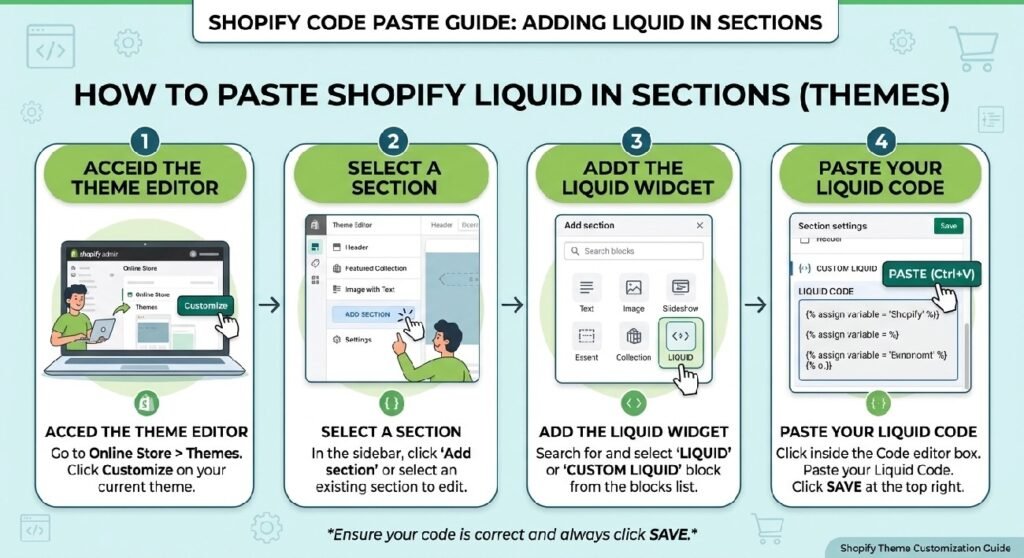
This snippet is designed for a Shopify product page, because it depends on the current product object and tries to update the product quantity field.
A practical installation path is:
- Open Shopify Admin → Online Store → Themes.
- Duplicate your live theme.
- Open Edit code.
- Locate the product section used by your theme.
- Add the bundle snippet near the product form, usually close to the quantity selector and Add to Cart button.
You can save the code as:
bundles.liquid
inside the Snippets folder and render it from the product section, or adapt it into a Custom Liquid block if your theme provides the required product context.
Do not place it on a normal page that has no product object. The markup uses {{ product.id }} and {{ product.price }}, so it expects to run in product context.
How the Shopify Bundle Selector Liquid Works
The snippet begins with Liquid assignments for discount values, badge text, colors, radius, animation speed, and shadow styling. The intended discounts are set to 0.15 for two items and 0.30 for three.
The visible interface then creates three bundle cards.
Each card has:
- a radio button
- quantity data
- bundle name
- displayed price
- optional original price
- saving badge
The two-item option receives a Popular badge and the three-item option receives a Best Value badge.
The JavaScript does most of the dynamic work.
It:
- looks for the current product price
- finds the theme’s quantity input
- recalculates bundle prices
- applies the selected quantity to the product form
- listens for radio/card clicks
- watches for variant changes
- reruns when a Shopify section is loaded in the Theme Editor
That is a solid foundation for a quantity selector.
The discount logic is where you need to be careful.
Shopify Liquid Code
{%- comment -%}
SHOPIFY BUNDLE CUSTOM LIQUID BLOCK
Premium bundle selector with automatic price calculations
Compatible with Shopify Online Store 2.0
{%- endcomment -%}

{%- liquid
  assign buy2_discount = 0.15
  assign buy3_discount = 0.30
  assign popular_text = "Popular"
  assign best_value_text = "Best Value"
  assign save_text = "Save"
  assign primary_color = "#d946a6"
  assign border_radius = "12px"
  assign animation_speed = "0.3s"
  assign card_shadow = "0 2px 12px rgba(0, 0, 0, 0.08)"
  assign selected_shadow = "0 8px 24px rgba(217, 70, 166, 0.2)"
-%}

<div class="shopify-bundle-selector" data-product-id="{{ product.id }}">
  <div class="bundle-header">
    <h3 class="bundle-title">Choose Your Bundle</h3>
    <p class="bundle-subtitle">Save more when you buy multiple</p>
  </div>

  <div class="bundle-cards-container">
    {%- comment -%}Bundle 1: Buy 1{%- endcomment -%}
    <div class="bundle-card" data-bundle="1" data-quantity="1">
      <div class="bundle-card-inner">
        <div class="bundle-radio-wrapper">
          <input
            type="radio"
            name="bundle-option"
            id="bundle-1"
            value="1"
            class="bundle-radio"
            data-quantity="1"
          >
          <label for="bundle-1" class="bundle-radio-label"></label>
        </div>

        <div class="bundle-content">
          <h4 class="bundle-name">Buy 1</h4>
          <div class="bundle-pricing">
            <span class="bundle-price">{{ product.price | money }}</span>
          </div>
        </div>
      </div>
    </div>

    {%- comment -%}Bundle 2: Pack of 2 with 15% discount{%- endcomment -%}
    <div class="bundle-card" data-bundle="2" data-quantity="2">
      <div class="bundle-card-inner">
        <div class="bundle-badge bundle-badge-popular">{{ popular_text }}</div>

        <div class="bundle-radio-wrapper">
          <input
            type="radio"
            name="bundle-option"
            id="bundle-2"
            value="2"
            class="bundle-radio"
            data-quantity="2"
          >
          <label for="bundle-2" class="bundle-radio-label"></label>
        </div>

        <div class="bundle-content">
          <h4 class="bundle-name">Pack of 2</h4>
          <div class="bundle-pricing">
            <span class="bundle-price" data-original-price="{{ product.price | times: 2 }}"></span>
            <span class="bundle-original-price" data-original-price="{{ product.price | times: 2 }}"></span>
            <span class="bundle-save-badge">{{ save_text }} 15%</span>
          </div>
        </div>
      </div>
    </div>

    {%- comment -%}Bundle 3: Pack of 3 with 30% discount{%- endcomment -%}
    <div class="bundle-card" data-bundle="3" data-quantity="3">
      <div class="bundle-card-inner">
        <div class="bundle-badge bundle-badge-best-value">{{ best_value_text }}</div>

        <div class="bundle-radio-wrapper">
          <input
            type="radio"
            name="bundle-option"
            id="bundle-3"
            value="3"
            class="bundle-radio"
            data-quantity="3"
          >
          <label for="bundle-3" class="bundle-radio-label"></label>
        </div>

        <div class="bundle-content">
          <h4 class="bundle-name">Pack of 3</h4>
          <div class="bundle-pricing">
            <span class="bundle-price" data-original-price="{{ product.price | times: 3 }}"></span>
            <span class="bundle-original-price" data-original-price="{{ product.price | times: 3 }}"></span>
            <span class="bundle-save-badge">{{ save_text }} 30%</span>
          </div>
        </div>
      </div>
    </div>
  </div>
</div>

<style>
:root {
  --bundle-primary-color: {{ primary_color }};
  --bundle-border-radius: {{ border_radius }};
  --bundle-animation-speed: {{ animation_speed }};
  --bundle-card-shadow: {{ card_shadow }};
  --bundle-selected-shadow: {{ selected_shadow }};
  --bundle-text-primary: #1a1a1a;
  --bundle-text-secondary: #666666;
  --bundle-border-light: #e5e5e5;
  --bundle-bg-light: #f9f9f9;
  --bundle-bg-white: #ffffff;
}

.shopify-bundle-selector {
  width: 100%;
  margin: 12px 0;
}

.bundle-header {
  text-align: center;
  margin-bottom: 18px;
}

.bundle-title {
  font-size: 22px;
  font-weight: 600;
  margin: 0 0 4px 0;
  color: var(--bundle-text-primary);
  letter-spacing: -0.5px;
}

.bundle-subtitle {
  font-size: 12px;
  color: var(--bundle-text-secondary);
  margin: 0;
  font-weight: 400;
}

.bundle-cards-container {
  display: grid;
  grid-template-columns: repeat(auto-fit, minmax(260px, 1fr));
  gap: 12px;
  width: 100%;
}

@media (max-width: 768px) {
  .bundle-cards-container {
    grid-template-columns: 1fr;
    gap: 10px;
  }
}

.bundle-card {
  position: relative;
  cursor: pointer;
  transition: all var(--bundle-animation-speed) ease;
  border: 2px solid var(--bundle-border-light);
  border-radius: var(--bundle-border-radius);
  overflow: hidden;
}

.bundle-card:hover {
  box-shadow: var(--bundle-card-shadow);
  transform: translateY(-2px);
}

.bundle-card.selected {
  border-color: var(--bundle-primary-color);
  background-color: rgba(217, 70, 166, 0.03);
  box-shadow: var(--bundle-selected-shadow);
}

.bundle-card-inner {
  padding: 16px;
  background-color: var(--bundle-bg-white);
  position: relative;
}

.bundle-badge {
  position: absolute;
  top: -1px;
  right: -1px;
  padding: 5px 10px;
  font-size: 10px;
  font-weight: 700;
  text-transform: uppercase;
  letter-spacing: 0.4px;
  border-radius: 0 var(--bundle-border-radius) 0 12px;
}

.bundle-badge-popular {
  background: linear-gradient(135deg, #8b5cf6 0%, #a78bfa 100%);
  color: white;
}

.bundle-badge-best-value {
  background: linear-gradient(135deg, #f59e0b 0%, #fbbf24 100%);
  color: white;
}

.bundle-radio-wrapper {
  display: flex;
  align-items: center;
  margin-bottom: 10px;
  position: relative;
}

.bundle-radio {
  appearance: none;
  -webkit-appearance: none;
  -moz-appearance: none;
  width: 18px;
  height: 18px;
  border: 2px solid var(--bundle-border-light);
  border-radius: 50%;
  cursor: pointer;
  background-color: var(--bundle-bg-white);
  transition: all var(--bundle-animation-speed) ease;
  margin: 0;
  flex-shrink: 0;
}

.bundle-radio:hover {
  border-color: var(--bundle-primary-color);
}

.bundle-radio:checked {
  border-color: var(--bundle-primary-color);
  background: linear-gradient(135deg, var(--bundle-primary-color) 0%, var(--bundle-primary-color) 100%);
  box-shadow: inset 0 0 0 2px var(--bundle-bg-white);
}

.bundle-radio-label {
  cursor: pointer;
  flex: 1;
  margin-left: 10px;
}

.bundle-content {
  padding-left: 0;
}

.bundle-name {
  font-size: 14px;
  font-weight: 600;
  margin: 0 0 8px 0;
  color: var(--bundle-text-primary);
  letter-spacing: -0.3px;
}

.bundle-pricing {
  display: flex;
  align-items: center;
  gap: 6px;
  flex-wrap: wrap;
}

.bundle-price {
  font-size: 16px;
  font-weight: 700;
  color: var(--bundle-primary-color);
  letter-spacing: -0.5px;
}

.bundle-original-price {
  font-size: 11px;
  color: var(--bundle-text-secondary);
  text-decoration: line-through;
  text-decoration-thickness: 1px;
  text-underline-offset: 2px;
  font-weight: 400;
}

.bundle-save-badge {
  font-size: 9px;
  font-weight: 700;
  color: #059669;
  background-color: rgba(5, 150, 105, 0.1);
  padding: 3px 6px;
  border-radius: 3px;
  text-transform: uppercase;
  letter-spacing: 0.2px;
}

.bundle-card.selected .bundle-radio {
  border-color: var(--bundle-primary-color);
  background: linear-gradient(135deg, var(--bundle-primary-color) 0%, var(--bundle-primary-color) 100%);
  box-shadow: inset 0 0 0 2px var(--bundle-bg-white);
}

@media (max-width: 480px) {
  .bundle-header {
    margin-bottom: 14px;
  }

  .bundle-title {
    font-size: 18px;
  }

  .bundle-card-inner {
    padding: 12px;
  }

  .bundle-price {
    font-size: 15px;
  }

  .bundle-name {
    font-size: 13px;
  }
}
</style>

<script>
(function() {
  const bundleSelector = document.querySelector('.shopify-bundle-selector');
  if (!bundleSelector) return;

  const productId = bundleSelector.dataset.productId;
  const bundleCards = bundleSelector.querySelectorAll('.bundle-card');
  const radioInputs = bundleSelector.querySelectorAll('input[name="bundle-option"]');
  let quantityInput = null;
  let selectedBundle = 1;

  function formatMoney(cents) {
    if (typeof Shopify !== 'undefined' && Shopify.money_format) {
      return Shopify.formatMoney(cents, Shopify.money_format);
    }
    return '$' + (cents / 100).toFixed(2);
  }

  function getProductPrice() {
    let price = 0;
    const priceElement = document.querySelector('[data-product-price]');
    const variantPrice = document.querySelector('[data-variant-price]');

    if (variantPrice) {
      price = parseInt(variantPrice.dataset.variantPrice);
    } else if (priceElement) {
      price = parseInt(priceElement.dataset.productPrice);
    } else {
      const scriptTag = document.querySelector('script[type="application/json"][data-product-json]');
      if (scriptTag) {
        try {
          const productData = JSON.parse(scriptTag.textContent);
          price = productData.price;
        } catch (e) {
          console.error('Could not parse product data', e);
        }
      }
    }

    return price;
  }

  function findQuantityInput() {
    if (quantityInput && quantityInput.isConnected) return quantityInput;

    const selectors = [
      'input[name="quantity"]',
      'input[data-quantity-input]',
      'input[type="number"][name*="quantity"]',
      '.quantity__input input',
      'input.quantity'
    ];

    for (const selector of selectors) {
      const input = document.querySelector(selector);
      if (input) {
        quantityInput = input;
        return quantityInput;
      }
    }

    return null;
  }

  function updatePrices() {
    const basePrice = getProductPrice();
    if (basePrice === 0) {
      setTimeout(updatePrices, 500);
      return;
    }

    bundleCards.forEach(card => {
      const quantity = parseInt(card.dataset.quantity);
      const totalPrice = basePrice * quantity;
      const priceElement = card.querySelector('.bundle-price');

      if (quantity === 1) {
        priceElement.textContent = formatMoney(totalPrice);
        priceElement.dataset.originalPrice = totalPrice;
      } else if (quantity === 2) {
        const discounted = Math.round(totalPrice * (1 - 0.15));
        priceElement.textContent = formatMoney(discounted);
        priceElement.dataset.originalPrice = totalPrice;

        const originalPriceElement = card.querySelector('.bundle-original-price');
        if (originalPriceElement) {
          originalPriceElement.textContent = formatMoney(totalPrice);
        }
      } else if (quantity === 3) {
        const discounted = Math.round(totalPrice * (1 - 0.30));
        priceElement.textContent = formatMoney(discounted);
        priceElement.dataset.originalPrice = totalPrice;

        const originalPriceElement = card.querySelector('.bundle-original-price');
        if (originalPriceElement) {
          originalPriceElement.textContent = formatMoney(totalPrice);
        }
      }
    });
  }

  function selectBundle(bundleValue) {
    selectedBundle = bundleValue;

    bundleCards.forEach(card => {
      if (parseInt(card.dataset.bundle) === bundleValue) {
        card.classList.add('selected');
      } else {
        card.classList.remove('selected');
      }
    });

    const quantityField = findQuantityInput();
    if (quantityField) {
      quantityField.value = bundleValue;
      quantityField.dispatchEvent(new Event('change', { bubbles: true }));
    }
  }

  function initializeEventListeners() {
    radioInputs.forEach(radio => {
      radio.addEventListener('change', function() {
        selectBundle(parseInt(this.value));
      });
    });

    bundleCards.forEach(card => {
      card.addEventListener('click', function() {
        const radio = this.querySelector('input[name="bundle-option"]');
        if (radio) {
          radio.checked = true;
          selectBundle(parseInt(radio.value));
        }
      });
    });
  }

  function watchForVariantChanges() {
    const observer = new MutationObserver(() => {
      updatePrices();
    });

    const variantSelector = document.querySelector('[data-variant-select]') || document.querySelector('select[name="id"]');
    if (variantSelector) {
      variantSelector.addEventListener('change', () => {
        setTimeout(updatePrices, 100);
      });
    }

    const priceElements = document.querySelectorAll('[data-product-price], [data-variant-price]');
    priceElements.forEach(element => {
      observer.observe(element, {
        attributes: true,
        attributeFilter: ['data-product-price', 'data-variant-price']
      });
    });
  }

  function initialize() {
    initializeEventListeners();
    findQuantityInput();
    updatePrices();
    watchForVariantChanges();
    selectBundle(1);

    window.addEventListener('load', () => {
      findQuantityInput();
      updatePrices();
    });
  }

  if (document.readyState === 'loading') {
    document.addEventListener('DOMContentLoaded', initialize);
  } else {
    initialize();
  }

  document.addEventListener('shopify:section:load', () => {
    setTimeout(() => {
      findQuantityInput();
      updatePrices();
    }, 100);
  });
})();
</script>
The Most Important Limitation: The Discount Is Only Visual
The JavaScript calculates a lower displayed total for Pack of 2 and Pack of 3.
For two items, it uses:
totalPrice * (1 - 0.15)
For three items:
totalPrice * (1 - 0.30)
That changes the number shown inside the bundle selector.
It does not change Shopify’s actual product price.
When a customer selects Pack of 2, the script updates the product quantity field to 2. When Pack of 3 is selected, it updates that field to 3.
Unless your store has a real Shopify discount configured separately, checkout can still charge the normal unit price multiplied by the selected quantity.
For example, imagine a product costs 1,000 PKR.
The bundle box can display:
Pack of 2 → 1,700 PKR
because it shows a 15% saving.
But if Shopify has no actual discount rule, adding quantity 2 can still result in:
2,000 PKR
in the cart.
That is not a small detail. It can create a serious mismatch between the product page and checkout.
7 Critical Setup Tips for This Bundle Selector
1. Create the real Shopify discount first
Before advertising Save 15% or Save 30%, make sure those savings actually exist in Shopify.
The display logic alone cannot enforce a discounted checkout price.
Depending on your store setup, the real pricing logic could come from:
- Shopify automatic discounts
- Shopify Functions
- an approved bundle/discount solution
- a purpose-built app
- a product structure designed specifically for bundle pricing
The important point is simple: the discount needs to exist at the commerce layer, not only in CSS or JavaScript.
If checkout does not match the bundle selector, do not publish the discount badges.
2. Keep the JavaScript and Liquid discount values synchronized
At the top of the snippet, Liquid assigns:
buy2_discount = 0.15
and:
buy3_discount = 0.30
But the JavaScript later hard-codes:
0.15
and:
0.30
again.
That creates a maintenance problem.
If you change the Liquid value to 20% but forget to change the JavaScript, the code can become internally inconsistent.
A stronger version would pass the Liquid discount values into JavaScript rather than duplicating them.
That way there is one source of truth.
3. Test how your theme exposes variant prices
The script tries several ways to find the current product price.
It first checks:
[data-product-price]
then:
[data-variant-price]
and finally looks for a JSON script with:
data-product-json.
That is practical, but Shopify themes are not identical.
Your theme may expose variant pricing through different markup or JavaScript state.
If the script cannot find a price, updatePrices() waits 500ms and tries again.
On an incompatible theme, that can keep retrying without ever producing the correct bundle values.
Test every product template where the selector appears, especially products with variants.
4. Test the quantity selector carefully
The script searches for several possible quantity inputs:
input[name="quantity"]input[data-quantity-input]- number inputs containing “quantity”
.quantity__input inputinput.quantity
When a bundle is selected, the matching quantity value is written into that input and a change event is dispatched.
That approach will work in many themes.
It is not guaranteed to work in every theme.
Some product forms use custom quantity components, theme-specific JavaScript, or a quantity control that expects additional events.
After installing this snippet, test the full flow:
select bundle → add to cart → open cart → verify quantity
Do not stop testing after the product-page number changes.
5. Make the bundle labels accessible
The snippet uses real radio inputs, which is good.
However, the <label> beside each radio is empty. The visible text Buy 1, Pack of 2, and Pack of 3 sits elsewhere in the card.
Visually, customers understand the options.
Assistive technology may not get the same clean association.
A stronger implementation would connect each radio with meaningful label text or use appropriate ARIA labeling so someone using a screen reader hears the actual bundle option.
The entire card is clickable through JavaScript, which is convenient for mouse users, but semantic labeling still matters.
6. Be careful with “Popular” and “Best Value”
The Pack of 2 card says:
Popular
and Pack of 3 says:
Best Value.
“Best Value” can be supported mathematically if Pack of 3 genuinely has the strongest discount.
“Popular” is different.
The code does not check sales data.
It simply inserts the word from the hard-coded popular_text value.
If Pack of 2 is not genuinely a popular customer choice, use something neutral such as:
Save 15%
or:
2-Pack
Static badges should not pretend they are based on live sales behavior.
7. Test every variant, not just the default product price
The script includes logic intended to update prices when the product variant changes.
It listens for a [data-variant-select] element or select[name="id"], and it observes price-related elements for changes.
That is a useful feature.
Still, do not assume it works with every theme simply because the code contains a MutationObserver.
Test products where variants have different prices.
For example:
Small → 1,000 PKR
Large → 1,400 PKR
Select Pack of 2 and Pack of 3 for both variants and verify that every displayed total changes correctly.
Then add the bundle to cart and check the final cart data.
The Price Formatting Fallback Needs Attention
The formatMoney() function checks for Shopify money formatting first.
If it cannot use that, it falls back to:
'$' + (cents / 100).toFixed(2)
That fallback assumes dollars.
For a store using PKR, GBP, AED, EUR, or another currency, that is not ideal.
A customer should never see $ simply because theme-specific Shopify money formatting was unavailable.
A more robust version should use the store’s actual currency formatting rather than a hard-coded dollar fallback.
This is especially important for international storefronts.
The Selector Uses Real Shopify Product Data
Unlike several static snippets in this library, this code does use genuine Liquid product data.
For Buy 1, it renders:
{{ product.price | money }}
For the larger packs, it stores multiplied product prices in data attributes.
That is an important distinction.
The section is not just a visual mockup.
It is trying to behave as part of the product purchase flow.
That is why testing matters much more here than it does with something purely decorative like a brand-story block.
Selected-State Styling Is Clear
When the customer chooses a bundle, the selected card gets:
- primary-color border
- faint tinted background
- stronger shadow
The radio button is also restyled with the same primary color.
That visual feedback is good.
A shopper can see which quantity option is active before pressing Add to Cart.
The main accessibility improvement would be making the radio labeling more explicit, not changing the selected design.
The Mobile Layout Is Sensible
The bundle cards use:
grid-template-columns: repeat(auto-fit, minmax(260px, 1fr));
on larger screens.
Below 768px, they switch to a single column.
At 480px, typography and card padding become smaller as well.
That makes sense for product pages.
Bundle options are decision controls. On phones, giving each option a full row is usually clearer than squeezing three cards side by side.
Bundle Selector vs. Upsell Recommendation Box
The [INTERNAL LINK NEEDED: Upsell Recommendation Box Liquid] and this bundle selector both try to increase the amount a customer buys, but they do it differently.
The bundle selector encourages:
more of the same product
The upsell section encourages:
another related product or collection
For example:
A coffee store could use the bundle selector for:
1 bag / 2 bags / 3 bags
Then use the upsell recommendation box for:
filters / mug / grinder
That is a useful distinction when deciding which section belongs near the Add to Cart button.
Pairing Bundles With Shipping Information
The [INTERNAL LINK NEEDED: Shopify Delivery Info Box] can work especially well near a quantity bundle.
Suppose free shipping starts at 2,999 PKR.
A customer choosing a larger bundle may cross that threshold.
The bundle selector explains the quantity choice, while the delivery box explains the shipping benefit.
Keep the messages accurate and avoid promising a shipping benefit unless the selected cart actually qualifies.
Product Tabs Can Handle the Fine Print
If your bundle offer has conditions, do not try to squeeze all of them into the bundle cards.
Use the [INTERNAL LINK NEEDED: Product Tabs Section Liquid] or another product-information area for details such as:
- bundle discount terms
- returns
- subscription restrictions
- shipping rules
- variant limitations
The bundle cards should stay easy to scan.
Do Not Depend on Front-End JavaScript for Real Pricing Rules
This is the broader lesson from this snippet.
JavaScript is excellent for:
- showing calculated totals
- changing selection states
- updating quantity
- responding to variant changes
It should not be the only place where your business’s actual discount exists.
Customers can disable JavaScript. Theme code can break. Apps can conflict. Cart endpoints can still use Shopify’s real product prices.
Pricing rules should be enforced by Shopify’s commerce logic.
The front end should reflect those rules, not invent a separate version of them.
FAQ
Does this bundles.liquid code really apply a 15% or 30% Shopify discount?
No. It calculates and displays discounted totals in JavaScript, but it does not create the actual Shopify checkout discount.
What does the bundle selection change?
It changes the product quantity field to 1, 2, or 3 and updates the selected-card styling.
Does it use real product pricing?
Yes. The snippet uses product.price in Liquid and also tries to detect current variant pricing in JavaScript.
Does it support product variants?
The code contains variant-change logic, but compatibility depends on how the Shopify theme exposes variant selectors and prices. Test it with your theme.
Can I change the discounts?
Yes, but the current code contains the percentages in more than one place. Update both the Liquid configuration and JavaScript or refactor them to share one source of truth.
Is it responsive?
Yes. The bundle options collapse into one column on smaller screens.
Can I use it without a bundle app?
You can use the selector interface without an app, but a real discounted checkout still needs valid Shopify discount or bundle logic.
Explore More Shopify Code
If you are building a stronger product page, these related posts fit naturally around the bundle selector:
- Mega Menu Showcase Liquid
A Mega Menu Showcase Liquid section can give Shopify shoppers a fast way to jump into important product groups without digging through a long navigation menu.https://css-liquids-for-shopify.site/mega-menu-showcase-liquid/
- Premium Contact Form Liquid
A Premium Contact Form Liquid section can give a Shopify store a cleaner, more polished way to collect customer questions without sending visitors to a plain default form.https://css-liquids-for-shopify.site/premium-contact-form-liquid/
For more help, you can read Shopify’s official theme customization guide :Shopify Theme Customization Guide
One Response