
A Premium Contact Form Liquid section can give a Shopify store a cleaner, more polished way to collect customer questions without sending visitors to a plain default form.
The supplied design already looks strong. It uses a soft white gradient, rounded fields, a full-width dark submit button, subtle blue focus states, and responsive spacing for mobile. Visually, it feels finished.
Functionally, it is not finished yet.
The current snippet contains inputs, a textarea, and a button, but it does not contain an actual <form> element or Shopify’s contact form Liquid tag. The fields also have no name attributes, so Shopify has nothing to process when the visitor clicks Submit.
That is the main thing to understand before using this on a live store: right now, it is a contact-form design, not a working Shopify contact form.
Where to Paste This Shopify Code
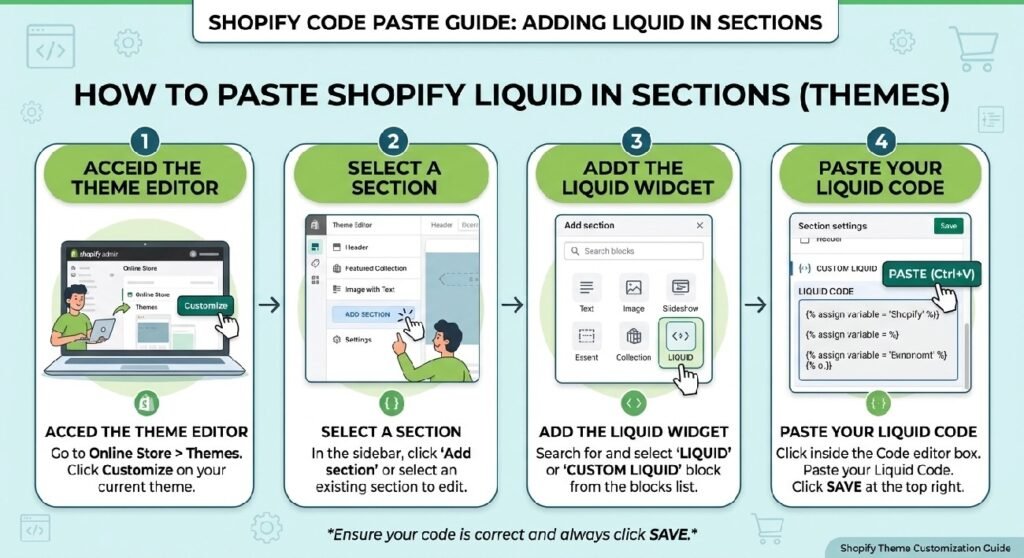
For a reusable Shopify section, save the file as:
premium-contact-form.liquid
Open Shopify Admin → Online Store → Themes, duplicate the theme you plan to edit, then choose Edit code.
Inside the Sections folder:
- Create a new section named
premium-contact-form.liquid. - Paste the cleaned contact-form code into that file.
- Save the section.
- Open Customize and add it to the page template where you want customers to contact you.
A dedicated Contact page is the most obvious placement, but the same section can also work on:
- service pages
- support pages
- landing pages
- product-help pages
- wholesale inquiry pages
Before publishing, convert the visual fields into a real Shopify contact form. That means wrapping the inputs with Shopify’s contact form tag and giving each field the correct name value.
How Premium Contact Form Liquid Works
The outer .zx-form wrapper creates the card.
It uses a white-to-light-gray gradient, a soft border, a 30px radius, and layered shadows. A radial blue glow sits partly outside the top-right corner through .zx-form::before.
The heading is centered and set at 34px on larger screens.
The fields all share the same visual treatment:
- white background
- rounded corners
- light border
- generous padding
- subtle focus movement
- blue focus ring
When a field receives focus, it moves upward by two pixels and gets a soft blue shadow. The placeholder also fades slightly.
The button spans the full width of the form. Its arrow is added entirely through CSS with:
button::after
On hover, the button lifts slightly while the arrow slides to the right.
The mobile rules reduce padding, heading size, field spacing, and button height so the section stays compact on smaller screens.
Shopify Liquid Code
<style>
/* ==========================================
   PREMIUM CONTACT FORM
========================================== */

.zx-form{
    position:relative;
    overflow:hidden;
    background:linear-gradient(180deg,#ffffff,#fafbfd);
    border:1px solid rgba(15,23,42,.08);
    border-radius:30px;
    padding:40px;
    margin:30px 0;
    box-shadow:
        0 20px 60px rgba(15,23,42,.08),
        0 4px 12px rgba(15,23,42,.04);
}

.zx-form::before{
    content:"";
    position:absolute;
    width:260px;
    height:260px;
    border-radius:50%;
    background:radial-gradient(circle,rgba(37,99,235,.08),transparent 70%);
    top:-120px;
    right:-100px;
    pointer-events:none;
}

.zx-form h2{
    margin:0 0 28px;
    text-align:center;
    font-size:34px;
    font-weight:800;
    letter-spacing:-.03em;
    color:#0f172a;
}

/* Inputs */

.zx-form input,
.zx-form textarea{

    width:100%;

    margin:0 0 18px;

    padding:18px 20px;

    background:#fff;

    border:1px solid rgba(15,23,42,.08);

    border-radius:18px;

    font-size:15px;

    color:#111827;

    transition:.35s ease;

    outline:none;

    box-sizing:border-box;
}

.zx-form textarea{
    min-height:140px;
    resize:vertical;
}

.zx-form input::placeholder,
.zx-form textarea::placeholder{
    color:#94a3b8;
    transition:.3s;
}

.zx-form input:focus,
.zx-form textarea:focus{

    border-color:#2563eb;

    background:#fff;

    box-shadow:
        0 0 0 4px rgba(37,99,235,.10),
        0 10px 30px rgba(37,99,235,.08);

    transform:translateY(-2px);
}

.zx-form input:focus::placeholder,
.zx-form textarea:focus::placeholder{
    opacity:.55;
}

/* Button */

.zx-form button{

    width:100%;

    display:flex;

    align-items:center;

    justify-content:center;

    gap:10px;

    border:none;

    border-radius:999px;

    padding:18px;

    background:linear-gradient(135deg,#111827,#1f2937);

    color:#fff;

    font-size:16px;

    font-weight:700;

    cursor:pointer;

    transition:.35s ease;

    box-shadow:
        0 15px 35px rgba(17,24,39,.22);
}

.zx-form button::after{
    content:"→";
    transition:.35s ease;
}

.zx-form button:hover{

    transform:translateY(-3px);

    box-shadow:
        0 24px 45px rgba(17,24,39,.28);
}

.zx-form button:hover::after{
    transform:translateX(5px);
}

.zx-form button:active{
    transform:scale(.98);
}

/* Mobile */

@media (max-width:767px){

.zx-form{
    padding:26px 20px;
    border-radius:24px;
}

.zx-form h2{
    font-size:28px;
}

.zx-form input,
.zx-form textarea{
    padding:16px;
}

.zx-form button{
    padding:16px;
}

}
</style>

<section class="zx-form">
    <h2>Get In Touch</h2>

    <input placeholder="Your Name">

    <input placeholder="Phone">

    <textarea placeholder="Message"></textarea>

    <button>Submit</button>
</section>
The Biggest Problem: The Form Does Not Submit Anything
The visible markup currently looks like a form, but structurally it is only a <section> containing inputs.
There is no:
<form>
and no Shopify Liquid contact form wrapper such as:
{% form 'contact' %}
That means clicking the Submit button does not send the customer’s message to Shopify.
The inputs also have no name attributes.
For Shopify to process contact data, the fields need names that Shopify can understand, such as:
contact[name]
contact[email]
contact[phone]
contact[body]
The textarea should normally be used for the main customer message.
This is the first thing I would fix before worrying about any visual changes.
7 Practical Fixes for This Shopify Contact Form
1. Wrap the fields in a real Shopify contact form
The current section needs Shopify’s contact form logic.
A proper implementation would use Shopify’s contact form tag around the fields.
That gives Shopify a real submission endpoint and lets the theme detect successful submissions or validation errors.
Without that wrapper, the section is only decorative.
For a code library, this distinction is worth explaining clearly because beginners often assume that any <input> plus a button automatically sends data somewhere.
It does not.
2. Add an email field
The supplied design includes:
Your Name
Phone
Message
but no email address.
That can be a problem if the store needs to reply to the customer.
A phone number may be useful for certain businesses, but email is usually one of the most important contact fields in a Shopify contact form.
A practical field set would be:
- Name
- Phone
- Message
Phone can remain optional unless the business genuinely needs it.
Do not collect extra information simply because there is room in the layout.
3. Use labels instead of relying only on placeholders
The current fields use placeholder text as the only description.
For example:
placeholder="Your Name"
That looks clean, but placeholders are not a complete replacement for labels.
Once the user starts typing, the placeholder disappears. Someone returning to the field later may no longer see what information was expected there.
For accessibility and clarity, add real <label> elements.
You can still keep the placeholders if you like the visual style.
A good implementation could show:
Name
[input]
Email
[input]
Phone
[input]
Message
[textarea]
That makes the form easier to understand for keyboard users, screen-reader users, and anyone reviewing their entries before submitting.
4. Give every field the correct input type
The current fields do not declare input types.
The name and phone fields are simply:
<input>
The browser treats them as text fields.
A better version would use:
type="text" for the name
type="email" for the email address
type="tel" for the phone number
Those types help mobile browsers show more appropriate keyboards and can improve built-in validation.
It is a small change, but it makes the form feel more intentional.
5. Add real success and error messages
A working contact form should tell the customer what happened.
If the form submits successfully, show a clear confirmation message.
Something simple is enough:
Thanks — your message has been sent.
If Shopify returns an error, display it near the form instead of leaving the visitor wondering why nothing happened.
This is where Shopify’s form object becomes useful.
A polished UI is not finished until the customer gets feedback after pressing Submit.
6. Keep the focus styling, but add keyboard-friendly behavior
The focus design is one of the stronger parts of the supplied CSS.
When a field receives focus, the border turns blue and a visible ring appears.
That helps people understand exactly where they are typing.
I would keep that.
For the button, also make sure the focus state is visible for keyboard navigation. Hover styles help mouse users, but keyboard users need their own clear focus indicator.
A :focus-visible style on the submit button would make the form more complete without changing the overall design.
7. Make the section editable from the Theme Editor
At the moment, the heading:
Get In Touch
is hard-coded.
So are the field placeholders and button text.
For a reusable Shopify section, I would move those into section settings.
Useful settings could include:
- heading
- introductory text
- submit button label
- success message
- show/hide phone field
- background color
- button style
- maximum width
That lets the merchant adapt the form without opening the code editor.
For example, one store could use:
Need Help Choosing a Product?
while another uses:
Wholesale Enquiries
with the same underlying form design.
Why the Current Visual Design Works
The section has a strong visual hierarchy.
The centered heading introduces the form clearly.
The fields are large enough to tap comfortably on mobile.
The rounded controls match the rounded outer card.
The dark submit button contrasts strongly against the white background.
The subtle blue focus treatment also gives the form a modern feel without making it look overly flashy.
I would resist the temptation to add too many extra effects.
Contact forms benefit from calm design. The customer should be thinking about their message, not trying to decode an interface.
This Form Should Not Ask for More Than It Needs
It is easy to keep adding fields:
- company
- order number
- address
- subject
- preferred contact method
- budget
- country
Some forms genuinely need that information.
Most do not need all of it.
Every extra field creates another decision for the customer.
If the goal is general support, Name, Email, Phone (optional), and Message is usually enough.
If this becomes a wholesale form or service inquiry form later, then more structured fields may make sense.
Build the form around the real purpose instead of adding fields because they look good in the layout.
Premium Contact Form vs. Contact CTA
The [INTERNAL LINK NEEDED: Contact CTA Section Liquid] and this form solve related problems in different ways.
The Contact CTA is fast.
It sends the shopper directly toward a support conversation, such as WhatsApp.
This contact form is better when the customer needs to send a structured message and does not need an immediate real-time reply.
A store can use both.
For example:
Product page → WhatsApp support CTA
and:
Contact page → Premium Contact Form
That gives customers two different support paths without forcing one method on everyone.
Where the Form Fits on a Shopify Store
A dedicated Contact page is the cleanest choice.
But there are other useful placements.
A service-focused Shopify site could place the form after a [INTERNAL LINK NEEDED: Pricing Table Section Liquid] so visitors can ask questions about packages.
A brand-heavy homepage might link from [INTERNAL LINK NEEDED: Brand Story Section Liquid] to a Contact page using this form.
A complicated product page could use the smaller [INTERNAL LINK NEEDED: Contact CTA Section Liquid] rather than embedding a full form beside the purchase controls.
The form should appear where it supports the customer journey, not simply because there is empty space.
Watch the Form Width
The current .zx-form does not set a maximum width.
That means it can stretch across the full width of its parent container.
On many Shopify themes, that will still look fine because the page template already constrains content width.
On very wide templates, the form may become too broad.
Long single-line inputs are harder to scan than moderately sized ones.
A future version could use something like a max-width with centered margins so the form remains comfortable on large desktop screens.
Do You Need JavaScript?
Not for the basic contact form.
Shopify can process a standard contact form without custom JavaScript.
The current visual interactions are already handled by CSS.
JavaScript would only be needed if you add features such as:
- custom modal behavior
- advanced field dependencies
- real-time validation
- AJAX submission
- conditional questions
For a normal support form, simpler is usually better.
Spam and Privacy Considerations
A contact form collects user information.
That makes privacy and data handling relevant.
Only request information you actually need, and make sure your store’s privacy policy explains how customer-submitted information is handled.
Avoid asking for sensitive information in a general contact form.
Customers should never be encouraged to submit passwords, payment-card details, or other confidential account information through a plain support message.
This is less about styling and more about responsible form design.
FAQ
Does this Premium Contact Form Liquid work as-is?
No. The supplied version is a visual form design only. It is not wrapped in a Shopify contact form and the fields do not have submission names.
Does it need JavaScript?
No. A basic Shopify contact form can work without JavaScript.
Should I add an email field?
Yes, especially if you expect to reply to customers by email.
Why should I add labels if placeholders already exist?
Labels remain visible while the user types and improve clarity and accessibility.
Can I make the phone field optional?
Yes. For many stores, that is the better choice unless phone contact is necessary.
Can I use this form on a product page?
Technically yes, but a dedicated Contact page or support page is often cleaner. For quick product questions, a smaller support CTA may work better.
Can the form be edited from Shopify Customize?
Not in the supplied version. You would need to add section schema settings first.
Explore More Shopify Code
These tutorials work naturally with a contact form:
- AI Video Showcase Liquid
An AI Video Showcase Liquid section can be useful when you want to give a Shopify homepage a strong visual break and direct attention toward a product demo, founder message, brand film, tutorial, or promotional video.https://css-liquids-for-shopify.site/ai-video-showcase-liquid/
- Mega Menu Showcase Liquid
A Mega Menu Showcase Liquid section can give Shopify shoppers a fast way to jump into important product groups without digging through a long navigation menu.https://css-liquids-for-shopify.site/mega-menu-showcase-liquid/
For more help, you can read Shopify’s official theme customization guide :Shopify Theme Customization Guide
One Response