
A Shopify Estimated Delivery Section can answer one of the questions shoppers ask most often before ordering: When will this arrive?
The supplied snippet does this with a compact three-step timeline for Order, Dispatch, and Delivery. JavaScript fills in the dates automatically from the shopper’s current date, while the CSS turns the information into a clean black, white, and lemon-colored delivery card.
The idea is useful, especially on product pages where delivery timing can affect the buying decision. The code also has a few details that need fixing before I would publish it on a live Shopify store. Most importantly, the note says the estimates are based on working days, but the JavaScript currently adds ordinary calendar days. It does not skip weekends.
There are also two color values that deserve attention, and the “Live dates” label should be used carefully because the dates are calculated in the browser rather than pulled from a carrier or Shopify delivery service.
Where to Paste This Shopify Code
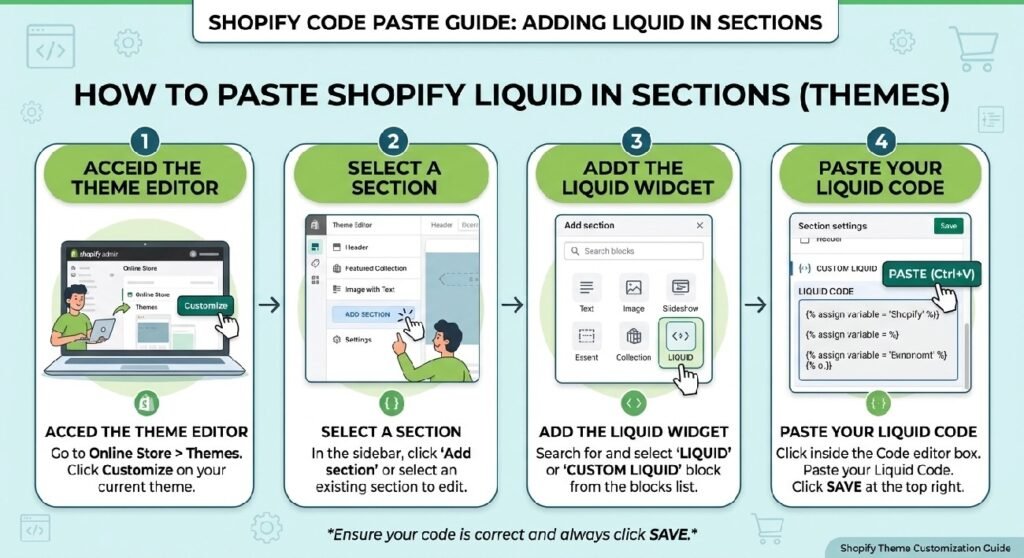
This section is best suited to a Shopify product page because customers usually want delivery information while deciding whether to buy.
If you want to turn the .txt snippet into a reusable theme file, save it as:
estimated-delivery-section.liquid
A simple setup is:
- Open Shopify Admin → Online Store → Themes.
- Duplicate the live theme before editing.
- Open Edit code.
- Create a new section or snippet named
estimated-delivery-section.liquid. - Paste the cleaned code into the file.
- Render or add it close to the product price, Add to Cart area, or shipping information.
The current code does not use any Shopify Liquid objects, so it can also work inside a Custom Liquid block if your theme allows inline <script> and <style> content there.
For most stores, I would place it close to the purchase controls rather than near the bottom of the page. Delivery timing matters most while the shopper is still deciding.
How the Shopify Estimated Delivery Section Works
The HTML creates three timeline steps:
Order
Dispatch
Delivery
Each step contains a circular status icon, a date field, and a short weekday label.
The date elements start empty:
id="date-order"
id="date-dispatch"
id="date-delivery"
JavaScript fills those values after the markup loads.
The script creates four dates:
todaydispatch= today + 1 dayd5= today + 5 daysd7= today + 7 days
It then writes those dates into the timeline and generates a sentence such as:
Dispatched Mon, 14 Sep · Arrives between Fri, 18 Sep and Sun, 20 Sep.
The timeline styling uses a completed first step, an active dispatch step, and a future delivery step.
Visually, that creates a simple order journey without requiring an app.
Shopify Liquid Code
<!-- PDP — Estimated Shipping Timeline (Black, White & Lemon #D6FF00) -->
<style>
  .ship-wrap {
    padding: 16px;
    font-family: Arial, sans-serif;
    background: #fff;
    border: 1px solid #e0e0e0;
    border-radius: 14px;
  }
  .ship-header { display: flex; align-items: center; gap: 8px; margin-bottom: 1.25rem; }
  .ship-header h3 { margin: 0; font-size: 13px; font-weight: 600; color: #1A1A1A; }
  .ship-badge {
    font-size: 10px;
    background: #00000;
    color: #1A1A1A;
    padding: 2px 8px;
    border-radius: 99px;
    font-weight: 600;
    white-space: nowrap;
    border: 1px solid #b8dd00;
  }
  .timeline { display: flex; align-items: flex-start; position: relative; }
  .tl-step { flex: 1; display: flex; flex-direction: column; align-items: center; position: relative; }
  .tl-step:not(:last-child)::after {
    content: '';
    position: absolute;
    top: 14px;
    left: 50%;
    width: 100%;
    height: 2px;
    background: #e0e0e0;
    z-index: 0;
  }
  .tl-step.done:not(:last-child)::after { background: #1A1A1A; }
  .tl-dot {
    width: 28px; height: 28px; border-radius: 50%;
    display: flex; align-items: center; justify-content: center;
    font-size: 13px; z-index: 1; position: relative;
    border: 2px solid #e0e0e0;
    background: #f5f5f5;
    color: #999;
  }
  .tl-step.done .tl-dot { background: #1A1A1A; border-color: #1A1A1A; color: #00000; }
  .tl-step.active .tl-dot { background: #D6FF00; border-color: #1A1A1A; color: #1A1A1A; }
  .tl-step.delivery .tl-dot { background: #f5f5f5; border-color: #1A1A1A; color: #1A1A1A; }
  .tl-label { margin-top: 8px; text-align: center; padding: 0 2px; }
  .step-name { font-size: 9px; font-weight: 700; color: #999; text-transform: uppercase; letter-spacing: 0.05em; display: block; margin-bottom: 2px; }
  .tl-step.done .step-name, .tl-step.active .step-name, .tl-step.delivery .step-name { color: #1A1A1A; }
  .step-date { font-size: 11px; font-weight: 600; color: #1A1A1A; display: block; }
  .step-day { font-size: 10px; color: #888; display: block; margin-top: 1px; }
  .delivery-window {
    margin-top: 1.25rem;
    background: #0000;
    border-radius: 8px;
    padding: 10px 14px;
    display: flex;
    align-items: flex-start;
    gap: 10px;
    border: 1px solid #b8dd00;
  }
  .delivery-window p { margin: 0; font-size: 12px; color: #1A1A1A; line-height: 1.55; }
  .delivery-window strong { color: #1A1A1A; font-weight: 700; }
  .ship-note { margin-top: 8px; font-size: 11px; color: #888; text-align: center; line-height: 1.5; }
</style>

<div class="ship-wrap">
  <div class="ship-header">
    <h3>📦 Estimated Shipping Timeline</h3>
    <span class="ship-badge">Live dates</span>
  </div>

  <div class="timeline">
    <div class="tl-step done">
      <div class="tl-dot">✓</div>
      <div class="tl-label">
        <span class="step-name">Order</span>
        <span class="step-date" id="date-order"></span>
        <span class="step-day" id="day-order"></span>
      </div>
    </div>
    <div class="tl-step active">
      <div class="tl-dot">🚚</div>
      <div class="tl-label">
        <span class="step-name">Dispatch</span>
        <span class="step-date" id="date-dispatch"></span>
        <span class="step-day" id="day-dispatch"></span>
      </div>
    </div>
    <div class="tl-step delivery">
      <div class="tl-dot">🏠</div>
      <div class="tl-label">
        <span class="step-name">Delivery</span>
        <span class="step-date" id="date-delivery"></span>
        <span class="step-day" id="day-delivery"></span>
      </div>
    </div>
  </div>

  <div class="delivery-window">
    <p id="delivery-msg"></p>
  </div>

  <p class="ship-note">* Estimates based on working days. Weekends may extend the window.</p>
</div>

<script>
  const DAYS = ['Sun','Mon','Tue','Wed','Thu','Fri','Sat'];
  const MONTHS = ['Jan','Feb','Mar','Apr','May','Jun','Jul','Aug','Sep','Oct','Nov','Dec'];
  function fmt(d) { return d.getDate() + ' ' + MONTHS[d.getMonth()]; }
  function dayName(d) { return DAYS[d.getDay()]; }
  function addDays(d, n) { const r = new Date(d); r.setDate(r.getDate() + n); return r; }

  const today = new Date();
  const dispatch = addDays(today, 1);
  const d5 = addDays(today, 5);
  const d7 = addDays(today, 7);

  document.getElementById('date-order').textContent = fmt(today);
  document.getElementById('day-order').textContent = dayName(today);
  document.getElementById('date-dispatch').textContent = fmt(dispatch);
  document.getElementById('day-dispatch').textContent = dayName(dispatch);
  document.getElementById('date-delivery').textContent = fmt(d5) + '–' + fmt(d7);
  document.getElementById('day-delivery').textContent = dayName(d5) + '–' + dayName(d7);
  document.getElementById('delivery-msg').innerHTML =
    'Dispatched <strong>' + dayName(dispatch) + ', ' + fmt(dispatch) + '</strong> · Arrives between <strong>' + dayName(d5) + ', ' + fmt(d5) + '</strong> and <strong>' + dayName(d7) + ', ' + fmt(d7) + '</strong>.';
</script>
1. The “Working Days” Note Does Not Match the JavaScript
This is the biggest technical issue in the snippet.
The note underneath the timeline says:
“Estimates based on working days. Weekends may extend the window.”
But the date function is:
addDays(d, n)
and it simply adds ordinary calendar days.
It does not check whether a date is Saturday or Sunday.
For example, if an order is placed on Friday:
- dispatch becomes Saturday
- five days later may land on Wednesday
- seven days later may land on Friday
That might not match the store’s real fulfillment process.
If your delivery estimate is genuinely based on business days, create a function that skips weekends.
If you do not want to add that logic, change the note so it accurately describes calendar-day estimates.
The wording and the calculation need to agree.
2. “Live Dates” Does Not Mean Carrier-Verified Dates
The small badge says:
Live dates
That sounds stronger than what the code actually does.
The dates are calculated from:
new Date()
inside the customer’s browser.
There is no connection to:
- Shopify shipping profiles
- carrier APIs
- fulfillment status
- warehouse cut-off times
- customer address
- holidays
- inventory location
So the dates are “live” only in the sense that they are calculated using the current browser date.
A more precise label could be:
Estimated dates
or:
Updated today
If you keep “Live dates,” make sure customers do not interpret it as a carrier-confirmed delivery promise.
3. Fix the Invalid Hex Color Values
The CSS contains:
background: #00000;
and:
color: #00000;
A five-digit hexadecimal color is not valid CSS.
Valid shorthand/full hex formats are generally:
#000#0000#000000#00000000
If you intended black, use:
#000000
or:
#000
There is also:
background: #0000;
inside .delivery-window.
That one is valid four-digit hex and represents transparent black.
So these values are not equivalent.
Before publishing, correct the five-digit #00000 values so the browser does not ignore those declarations.
4. Decide Whether Dispatch Really Happens the Next Day
The script sets:
dispatch = addDays(today, 1)
That means every shopper is shown a dispatch date one day after the current date.
That may be accurate for some stores.
It may be wrong for:
- made-to-order products
- preorders
- weekends
- public holidays
- high-volume periods
- products stored at different warehouses
- items with longer handling times
If your normal processing time is 1–2 business days, the interface should communicate that instead of always showing a single fixed dispatch date.
A useful delivery section is not the one with the most precise-looking date. It is the one that matches your real fulfillment process.
5. The Delivery Window Is Hard-Coded to 5–7 Days
The code calculates:
today + 5 days
through:
today + 7 days
for the delivery window.
That gives a simple range, but it does not change based on the customer’s location.
A shopper in the same city and a shopper in a remote region will see the same estimated dates.
That can be fine if your store genuinely operates with a broad nationwide 5–7 day estimate.
If delivery time varies substantially by region, this should be described as a general estimate rather than a personalized promise.
For more detailed shipping information, you can pair this section with [INTERNAL LINK NEEDED: Shopify Delivery Info Box] and keep each component focused on one job.
6. Avoid Duplicate IDs if the Section Appears More Than Once
The code uses IDs such as:
date-order
date-dispatch
date-delivery
delivery-msg
That works when the section appears only once on the page.
If the same snippet is rendered twice, the page will contain duplicate IDs.
document.getElementById() returns the first matching element, so the second timeline may not update correctly.
There is another duplication issue in the script:
const DAYS
const MONTHS
are declared at top level.
If the exact script is inserted twice on one page, browsers can throw a redeclaration error.
For a robust reusable Shopify section, scope the JavaScript inside a function and target elements within the current section wrapper rather than using global IDs.
This becomes especially important if you later add the section to multiple product blocks or reusable templates.
7. Use Real Store Policy as the Source of Truth
The design looks precise because it shows exact weekdays and dates.
That precision can create trust only when it is backed by the store’s actual shipping process.
Before publishing, compare the timeline against:
- your order cut-off time
- processing days
- weekend handling
- courier schedule
- public holidays
- delivery zones
- preorder rules
If your store states “3–5 business days” elsewhere, but this widget shows a different range, customers will see conflicting information.
The shipping policy should be the source of truth.
The timeline should simply present that policy in a more useful visual format.
The Timeline Design Is Easy to Scan
The visual hierarchy is one of the better parts of this snippet.
The first step uses a check mark.
The second uses a truck.
The third uses a home icon.
The connecting line helps the shopper understand the order flow without reading a long paragraph.
The labels are short:
Order → Dispatch → Delivery
That is exactly what a compact delivery component should do.
The details underneath provide the dates without overwhelming the product page.
I would keep this basic structure even if the date logic is rewritten.
The Lemon Accent Works Best on the Active Step
The active dispatch dot uses:
#D6FF00
which gives the timeline a bright lemon highlight.
Because the rest of the card is mostly black, white, and gray, that accent stands out immediately.
The design avoids using the bright color everywhere.
That is a good choice.
If you adapt the section to another brand palette, keep the same principle: one clear accent is usually enough to identify the current step.
Browser Timezone Can Affect the Date
The script creates:
const today = new Date();
That uses the customer’s browser date and timezone.
For most local Shopify stores, that is acceptable.
For international stores, it can produce a subtle difference.
A customer browsing late at night in another timezone may see a different “today” date from the timezone used by your warehouse or fulfillment team.
If exact cut-off dates matter, calculate them using the operational timezone your business actually follows rather than relying entirely on the visitor’s local browser clock.
For a simple estimate, browser time is usually fine as long as the wording remains approximate.
Estimated Delivery Section vs. Delivery Info Box
You already have [INTERNAL LINK NEEDED: Shopify Delivery Info Box], and the two snippets solve different shipping questions.
The Delivery Info Box answers something like:
Do I qualify for free shipping?
This timeline answers:
When should my order arrive?
They can work together on the same product page without being repetitive.
For example:
Price → Free Shipping Box → Estimated Delivery Timeline → Add to Cart
or:
Add to Cart → Estimated Delivery Timeline → Product Details
The best order depends on how important shipping information is for your products.
Pair It With Product Tabs for Full Shipping Details
A timeline should stay compact.
Do not put your full shipping policy inside this card.
If shoppers need details about:
- courier services
- tracking
- remote areas
- international delivery
- returns
- processing times
use [INTERNAL LINK NEEDED: Product Tabs Section Liquid] or a dedicated shipping policy page.
The timeline can show the headline estimate while the detailed content lives somewhere better suited to longer text.
Accessibility Improvements Worth Making
The current layout is visually understandable, but there are a few ways to make it stronger.
The timeline could use semantic list markup rather than plain nested <div> elements.
The emoji icons can also be treated as decorative if the step names already provide the meaning.
For example, screen readers do not necessarily need to announce both:
truck emoji
and:
Dispatch
If you later rebuild this as a formal Shopify section, use semantic HTML and consider hiding purely decorative icons from assistive technology.
Does This Need JavaScript?
For dynamic dates, yes.
Without JavaScript, you could display a static message such as:
Estimated delivery: 5–7 business days
but you would not get live calendar dates.
The current JavaScript is small and easy to understand.
The main improvements are not about removing JavaScript. They are about making the date logic match the store’s actual shipping rules.
FAQ
Does this section use real courier data?
No. It calculates dates in the browser using fixed day offsets.
Does it skip weekends?
No. The current addDays() function counts calendar days, not business days.
Why does the note mention working days?
That wording does not fully match the current JavaScript and should be corrected or supported with business-day logic.
Is the “Live dates” badge connected to Shopify?
No. The dates are generated from the visitor’s current browser date.
Can I change the delivery window?
Yes. Change the values used for d5 and d7, but make sure the new range reflects the store’s real delivery policy.
Does it work on product pages?
Yes. Product pages are the most natural placement for this type of shipping timeline.
Can it show different delivery dates by location?
Not in the current version. Location-aware delivery estimates would require additional logic or shipping/carrier data.
Explore More Shopify Code
These related tutorials can strengthen the shipping and product-page experience:
- Premium Contact Form Liquid
A Premium Contact Form Liquid section can give a Shopify store a cleaner, more polished way to collect customer questions without sending visitors to a plain default form.https://css-liquids-for-shopify.site/premium-contact-form-liquid/
- Shopify Bundle Selector Liquid
A Shopify Bundle Selector Liquid block can make a product page more useful when you want customers to choose between buying one item, a pack of two, or a larger quantity without leaving the product page.https://css-liquids-for-shopify.site/shopify-bundle-selector-liquid/
For more help, you can read Shopify’s official theme customization guide :Shopify Theme Customization Guide
One Response