
A Shopify Product Benefits Liquid block is a simple way to show the reasons someone may like a product without forcing them to read a long description.
The supplied snippet is built for a product detail page and uses a clean “Why you’ll love it” heading followed by four compact feature cards:
Premium cotton
Breathable
Oversized fit
Fade resistant
Each card includes an inline SVG icon, a short benefit label, a light background, and a subtle border. The layout uses a two-column grid, so it stays compact without taking over the product page.
Technically, this is a very lightweight snippet. There is no JavaScript, no app dependency, no external icon library, and no product metafield logic. That simplicity is useful, but it also means every benefit is hard-coded and will show the same text wherever you place the block unless you edit it manually.
Where to Paste This Shopify Code
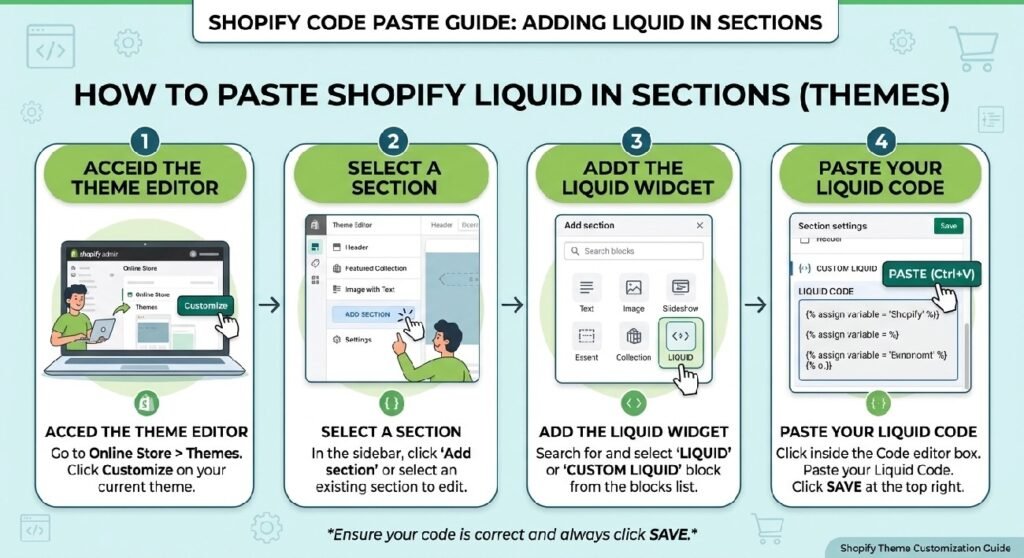
This snippet is designed for a Shopify product page.
A simple installation path is:
- Open Shopify Admin → Online Store → Themes.
- Duplicate your live theme before editing.
- Open Customize on the product template.
- Add a Custom Liquid block near the product description, price, or Add to Cart area.
- Paste the snippet.
- Save and preview it on desktop and mobile.
You can also save it as a reusable theme file such as:
product-benefits.liquid
or:
features-you-may-like.liquid
If you plan to use different benefit text for different products, a reusable static snippet is not enough by itself. In that case, product metafields or section/block settings would be a better long-term setup.
How Shopify Product Benefits Liquid Works
The snippet starts with a small Liquid configuration block.
It defines:
- card background
- border color
- title color
- accent/trust color
- corner radius
Those values are then passed into CSS custom properties inside .pdpx-ben-wrap.
The visible layout is very straightforward.
The wrapper contains:
<h3>Why you'll love it</h3>
followed by a .pdpx-ben grid.
That grid uses:
grid-template-columns: 1fr 1fr;
so the four features appear in a 2×2 arrangement.
Each card contains:
- one inline SVG icon
- one bold text label
There are no descriptions under the labels, which keeps the section compact.
Shopify Liquid Code
{%- comment -%}
============================================================
  PDP — BENEFITS ("Why you'll love it")  (Custom Liquid block)
  2x2 feature cards. Edit headings/colours below.
============================================================
{%- endcomment -%}

{%- liquid
  assign c_card   = '#fafafa'
  assign c_border = '#e6e7eb'
  assign c_title  = '#16181d'
  assign c_trust  = '#1f7a4d'
  assign radius   = '14px'
-%}

{%- style -%}
  .pdpx-ben-wrap{ --card:{{ c_card }}; --bd:{{ c_border }}; --ti:{{ c_title }}; --tr:{{ c_trust }}; margin-top:18px; }
  .pdpx-ben-wrap h3{ font-size:16px; font-weight:600; color:var(--ti); margin:0 0 10px; }
  .pdpx-ben{ display:grid; grid-template-columns:1fr 1fr; gap:10px; }
  .pdpx-ben > div{ padding:13px; background:var(--card); border:1px solid var(--bd); border-radius:{{ radius }}; }
  .pdpx-ben svg{ width:24px; height:24px; color:var(--tr); }
  .pdpx-ben b{ display:block; margin-top:6px; font-size:13px; color:var(--ti); }
{%- endstyle -%}

<div class="pdpx-ben-wrap">
  <h3>Why you'll love it</h3>
  <div class="pdpx-ben">
    <div><svg viewBox="0 0 24 24" fill="none" stroke="currentColor" stroke-width="2" stroke-linecap="round" stroke-linejoin="round"><path d="M6 3l3 3 3-2 3 2 3-3v6l-2 2v8H8v-8L6 9z"/></svg><b>Premium cotton</b></div>
    <div><svg viewBox="0 0 24 24" fill="none" stroke="currentColor" stroke-width="2" stroke-linecap="round" stroke-linejoin="round"><path d="M3 8h11a3 3 0 1 0-3-3"/><path d="M3 12h15a3 3 0 1 1-3 3"/><path d="M3 16h9a3 3 0 1 1-3 3"/></svg><b>Breathable</b></div>
    <div><svg viewBox="0 0 24 24" fill="none" stroke="currentColor" stroke-width="2" stroke-linecap="round" stroke-linejoin="round"><path d="M15 3h6v6"/><path d="M9 21H3v-6"/><path d="M21 3l-7 7"/><path d="M3 21l7-7"/></svg><b>Oversized fit</b></div>
    <div><svg viewBox="0 0 24 24" fill="none" stroke="currentColor" stroke-width="2" stroke-linecap="round" stroke-linejoin="round"><path d="M12 3s6 5 6 10a6 6 0 0 1-12 0c0-5 6-10 6-10z"/></svg><b>Fade resistant</b></div>
  </div>
</div>
The Main Thing to Check: Are the Product Claims Actually True?
This is the most important part of the snippet.
The four labels are written directly into the code:
Premium cotton
Breathable
Oversized fit
Fade resistant
Those are product claims.
The block does not read fabric composition, fit information, testing data, or product metafields.
So before publishing, make sure every label is accurate for the product where the section appears.
For example, if a product is polyester, Premium cotton would obviously be wrong.
If the fit is regular rather than oversized, Oversized fit would also be misleading.
And Fade resistant should not be used unless the product genuinely supports that claim.
This is especially important if the same product template is shared across many products.
7 Smart Ways to Improve This Product Benefits Block
1. Use product-specific benefits
The current layout is good because it is short.
The copy should be just as focused.
Instead of using the same four benefits across an entire store, match the labels to the actual product.
For a hoodie, you might use:
Heavyweight fabric
Soft brushed inside
Relaxed fit
Ribbed cuffs
For skincare:
Fragrance free
Lightweight texture
Daily use
Suitable for dry skin
The section works best when it summarizes real product advantages rather than generic marketing language.
2. Connect the benefits to metafields
If your theme uses one product template for many products, hard-coded text becomes difficult to manage.
A better setup is to create product metafields for:
- benefit 1
- benefit 2
- benefit 3
- benefit 4
You could also add matching icon choices or short descriptions.
Then the template stays the same while each product displays its own benefits.
That is much more scalable than editing the theme every time a product changes.
3. Keep the labels short
The current labels are only one or two words long.
That is a strength.
This block is not the place for full paragraphs.
Use the cards as quick scanning points and put the full explanation somewhere else, such as [INTERNAL LINK NEEDED: Product Tabs Section Liquid] or the main product description.
4. Do not confuse benefits with specifications
A product benefit explains why something matters.
A specification explains what something is.
For example:
240 GSM cotton is a specification.
Soft heavyweight feel is closer to a benefit.
Both can be useful, but this particular section is called Why you’ll love it, so benefit-oriented wording usually fits better.
5. Make the icons match the meaning
The supplied SVG icons are lightweight and avoid external dependencies.
That is good.
Still, check whether each symbol makes immediate sense.
The shirt icon works naturally for Premium cotton.
The airflow-style icon makes sense for Breathable.
The diagonal-arrow icon can suggest Oversized fit, though it may be slightly abstract.
The droplet icon for Fade resistant is less obvious.
If shoppers need to think about what an icon means, the icon is not doing much work.
6. Add a mobile rule if your labels get longer
The current code does not include a responsive media query.
With short labels, the 2×2 grid will usually fit well on mobile.
But if you later use longer wording, two narrow columns can become cramped.
A simple mobile rule could switch the layout to:
grid-template-columns: 1fr;
on very small screens.
Test the real content first before changing it.
7. Turn the block into editable Shopify settings
For a reusable Shopify version, the best upgrade would be section schema with editable blocks.
Useful settings could include:
- section heading
- benefit label
- icon choice
- background color
- accent color
- card radius
- number of cards
That lets a merchant edit the component from Theme Customize instead of opening the code.
Why the 2×2 Layout Works
Product pages are already busy.
They usually contain gallery, title, price, variants, quantity, Add to Cart, shipping information, product description, and reviews.
A benefits section should not compete with all of that.
The 2×2 grid works because it gives the customer four quick signals without demanding much vertical space.
That is one reason I would keep this block concise instead of expanding every card with descriptions.
No JavaScript Is Needed
This snippet is entirely static.
There is no click handling, animation logic, API request, dynamic price calculation, or variant listener.
For this kind of information block, that is perfectly fine.
The current design gets its job done with Liquid, HTML, CSS, and SVG.
The CSS Is Already Nicely Scoped
The classes use a pdpx- prefix, including .pdpx-ben-wrap and .pdpx-ben.
That helps reduce the chance of the CSS accidentally targeting unrelated theme elements.
The colors are also defined through variables on the component wrapper instead of being placed globally on :root.
That is a better pattern for reusable Shopify snippets.
Where This Section Fits Best
A common product-page flow could look like:
Title → Price → Variant Selector → Benefits → Bundle Options → Add to Cart → Delivery Information
If you already use [INTERNAL LINK NEEDED: Shopify Bundle Selector Liquid], this benefits block can sit just above it.
You can also place [INTERNAL LINK NEEDED: Shopify Delivery Info Box] underneath to answer shipping questions without mixing those messages into the benefit cards.
Product Benefits vs. Product Tabs
The [INTERNAL LINK NEEDED: Product Tabs Section Liquid] is better for detailed information.
This benefits grid is better for fast scanning.
A shopper might see four concise benefits and then use the product tabs to read material details, fit guidance, care instructions, or shipping information.
The two components complement each other because they work at different levels of detail.
Product Benefits vs. Trust Badges
The [INTERNAL LINK NEEDED: Premium Footer Trust Liquid] focuses on store-level reassurance.
Examples include:
Secure Checkout
Fast Delivery
Customer Support
This benefits block should focus on the product itself.
That distinction helps avoid repetitive copy.
Avoid Generic Filler Benefits
It is tempting to write:
High quality
Best design
Premium feel
Customer favorite
Those phrases are vague.
Specific wording is stronger.
For example, Double-stitched seams is more useful than High quality, and 240 GSM cotton may be more credible than Premium material when that specification is genuinely important to the buyer.
FAQ
Is this product benefits block dynamic?
No. The supplied version uses hard-coded text and icons.
Does it require JavaScript?
No. It uses Liquid, HTML, CSS, and inline SVG only.
Can I use different benefits for different products?
Yes. The best reusable approach is to connect the labels to product metafields or Shopify section settings.
Is the layout mobile responsive?
There is no dedicated mobile media query, but the simple 2×2 grid may still work well with short labels. Test longer content carefully.
Can I add more than four benefits?
Yes, but too many cards can make the product page feel crowded. Four is a good starting point.
Can I change the colors?
Yes. The main colors are defined in the Liquid configuration at the top of the snippet.
Should I keep “Premium cotton” on every product?
Only if every product using the block is actually made from the material you are claiming.
Explore More Shopify Code
- Shopify Estimated Delivery Section
A Shopify Estimated Delivery Section can answer one of the questions shoppers ask most often before ordering: When will this arrive?https://css-liquids-for-shopify.site/shopify-estimated-delivery-section/
- Shopify Social Proof Popup Liquid
A Shopify Social Proof Popup Liquid can create a small floating notification that appears near the bottom of the screen and rotates through recent activity messages.https://css-liquids-for-shopify.site/shopify-social-proof-popup-liquid/
For more help, you can read Shopify’s official theme customization guide :Shopify Theme Customization Guide
2 Responses