
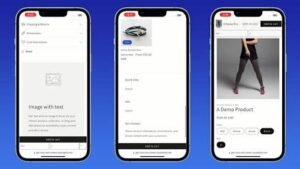
Looking for a Shopify sticky add to cart bar to keep your buy button visible as shoppers scroll down your product pages? A sticky purchase bar stays pinned to the top or bottom of the screen when customers explore long product descriptions, media galleries, or customer reviews. Instead of forcing visitors to scroll all the way back up to complete a purchase, this lightweight code keeps your call-to-action just one click away at all times.
Adding a Shopify sticky add to cart bar directly to your theme keeps your store fast and lightweight. Third-party apps often bloat your site with extra JavaScript and recurring monthly fees. Using clean Liquid, CSS, and vanilla JavaScript gives you full control over the design while maintaining peak performance across mobile and desktop devices.
Where to Paste This Shopify Code
To install this snippet on your Shopify Online Store 2.0 theme (such as Dawn, Sense, or Spotlight), follow these simple steps:
-
Go to Online Store → Themes in your Shopify admin.
-
Click the three dots next to your active theme and select Edit code.
-
In the Sections folder, click Add a new section and name it
sticky-add-to-cart. -
Clear out any default code in the new file and paste the Liquid code provided below.
-
Click Save.
-
Open your Theme Editor (Customize), navigate to your Default product template, click Add section in the sidebar, and select Sticky Add to Cart.
How This Shopify Code Works
This section uses standard Shopify Liquid variables to dynamically fetch your product’s critical details without manual setup:
-
Liquid Logic:
product.selected_or_first_available_variantpulls the active variant’s title, price, image, and availability state automatically. -
HTML Form: Uses Shopify’s native
form 'product'tag. This ensures full compatibility with your theme’s AJAX cart drawers and standard checkout flows. -
CSS Fixed Positioning: Applies
position: fixedto lock the container to the viewport once activated. -
JavaScript Intersection Observer: Detects when the primary product button scrolls out of view and toggles the visible state of the sticky bar automatically to avoid screen clutter.
Shopify Liquid Code
<style>
.dg-sticky-cart{
    position:fixed;
    left:18px;
    right:18px;
    bottom:18px;
    z-index:99999;

    display:flex;
    align-items:center;
    justify-content:space-between;
    gap:18px;

    padding:14px 18px;

    background:rgba(255,255,255,.95);
    backdrop-filter:blur(18px);
    -webkit-backdrop-filter:blur(18px);

    border:1px solid rgba(0,0,0,.08);
    border-radius:20px;

    box-shadow:
    0 15px 40px rgba(0,0,0,.15),
    inset 0 1px 0 rgba(255,255,255,.6);

    animation:dgStickyUp .45s ease;
}

@keyframes dgStickyUp{
from{
opacity:0;
transform:translateY(80px);
}
to{
opacity:1;
transform:translateY(0);
}
}

.dg-product{
display:flex;
align-items:center;
gap:14px;
min-width:0;
}

.dg-product-image{
width:60px;
height:60px;
border-radius:14px;
overflow:hidden;
background:#f5f5f5;
flex-shrink:0;
}

.dg-product-image img{
width:100%;
height:100%;
object-fit:cover;
display:block;
}

.dg-product-content{
min-width:0;
}

.dg-product-title{
font-size:15px;
font-weight:700;
color:#111;
line-height:1.3;
white-space:nowrap;
overflow:hidden;
text-overflow:ellipsis;
}

.dg-product-price{
margin-top:4px;
font-size:18px;
font-weight:800;
color:#111;
}

.dg-cart-btn{
border:none;
outline:none;
cursor:pointer;

padding:15px 28px;

border-radius:14px;

background:#111;
color:#fff;

font-size:15px;
font-weight:700;

display:flex;
align-items:center;
gap:10px;

transition:.3s;
flex-shrink:0;
}

.dg-cart-btn:hover{
background:#000;
transform:translateY(-2px);
}

.dg-cart-btn:active{
transform:scale(.97);
}

.dg-cart-btn svg{
width:20px;
height:20px;
fill:currentColor;
}

@media(max-width:768px){

.dg-sticky-cart{
left:10px;
right:10px;
bottom:10px;
padding:12px;
gap:12px;
}

.dg-product-image{
width:52px;
height:52px;
}

.dg-product-title{
font-size:14px;
}

.dg-product-price{
font-size:16px;
}

.dg-cart-btn{
padding:13px 18px;
font-size:14px;
}

}

@media(max-width:500px){

.dg-product-title{
max-width:120px;
}

.dg-cart-btn span{
display:none;
}

.dg-cart-btn{
padding:14px;
}

}
</style>

<div class="dg-sticky-cart">

    <div class="dg-product">

        <div class="dg-product-image">
            {% if product.featured_image %}
                <img
                    src="{{ product.featured_image | image_url: width: 200 }}"
                    alt="{{ product.title }}">
            {% endif %}
        </div>

        <div class="dg-product-content">

            <div class="dg-product-title">
                {{ product.title }}
            </div>

            <div class="dg-product-price">
                {{ product.price | money }}
            </div>

        </div>

    </div>

    <button class="dg-cart-btn" id="dgStickyCartBtn">

        <svg viewBox="0 0 24 24">
            <path d="M7 18c-1.1 0-2 .9-2 2s.9 2 2 2 2-.9 2-2-.9-2-2-2zm10 0c-1.1 0-2 .9-2 2s.9 2 2 2 2-.9 2-2-.9-2-2-2zM7.2 14h9.9c.8 0 1.5-.5 1.8-1.2l3.2-7.3H6.2L5.3 2H2v2h2l3.6 8.6-1.3 2.4c-.2.3-.3.7-.3 1 0 1.1.9 2 2 2h12v-2H8.4l.8-2z"/>
        </svg>

        <span>Add To Cart</span>

    </button>

</div>

<script>
document.addEventListener('DOMContentLoaded',function(){

const btn=document.getElementById('dgStickyCartBtn');

btn.addEventListener('click',function(){

const submitButton=document.querySelector('form[action*="/cart/add"] [type="submit"]');

if(submitButton){
submitButton.click();
}

});

});
</script>
Why Add This to Your Shopify Store?
Mobile shoppers account for the majority of e-commerce traffic today. On mobile devices, product pages can become exceptionally long due to image galleries, app widgets, and detailed descriptions. When a customer reaches the bottom of your page, forcing them to scroll all the way back up introduces unnecessary friction.
-
Higher Conversion Rates: Keeping your main action visible makes buying convenient at the exact moment a shopper decides to order.
-
Better Mobile Experience: Eliminates tedious manual scrolling on smaller touch screens.
-
App-Free Speed: Eliminates heavy external scripts, helping your store load faster and score higher on Google PageSpeed Insights.
Tips for Customizing the Code
You can tweak the CSS rules inside the section file to match your brand’s unique design:
-
Adjusting Position: To move the bar from the bottom to the top of the screen, change
bottom: 0;totop: 0;in the style tag. -
Hiding Mobile Images: If your mobile layout feels too crowded, add a CSS media query like
@media (max-width: 480px) { .sticky-cart-image { display: none; } }to hide the thumbnail on small screens. -
Z-Index Adjustments: If live chat widgets or sticky header menus overlap the bar, adjust the
z-indexvalue in the CSS section for proper layer ordering.
Common Problems and Fixes
-
Bar stays visible at the top of the page: Ensure the element ID targeting your main product form matches the wrapper used in your theme’s
main-product.liquidsection. -
Clicking the button reloads the page: If your theme uses an AJAX cart drawer, make sure your layout scripts listen to submission events from secondary product forms.
-
Overlapping live chat widgets: Add extra bottom padding inside your chat app settings or apply a margin offset to the sticky container.
Frequently Asked Questions
Will this sticky Add to Cart bar work on Shopify 2.0 themes?
Yes, this snippet is built specifically as a modular section compatible with Dawn and all standard Shopify OS 2.0 architecture.
Does this snippet slow down my store speed?
No. Unlike third-party apps that inject external scripts and track data, this pure Liquid, CSS, and native JavaScript snippet runs locally with zero measurable impact on load times.
Can I hide this bar on desktop screens and show it only on mobile?
Yes, you can add a responsive CSS media query such as @media (min-width: 768px) { .sticky-add-to-cart { display: none; } } inside the section style tag.
Explore More Shopify Code
Shopify Product Page Customizations
Discover modular Liquid and CSS snippets to transform your default product templates. [INTERNAL LINK NEEDED: Shopify product page customizations]
Shopify Cart Drawer Enhancements
Add progress bars, free shipping calculators, and custom notes to your cart. [INTERNAL LINK NEEDED: Shopify cart customizations]
Essential Shopify CSS Snippets
Explore: https://css-liquids-for-shopify.site/premium-customer-reviews-section-for-shopify/
Premium Customer Reviews Section for Shopify
Premium Customer Reviews Section for Shopify A Shopify customer reviews section can make your store feel more trustworthy without requiring a separate review app. This customization gives you a clean way to display customer feedback, star ratings, names, and short testimonials directly on your storefront.
Explore: https://css-liquids-for-shopify.site/premium-customer-reviews-section-for-shopify/
https://youtu.be/qrjAkardc4U?si=u2D0en80MQMWaOHv
Complete Guide to Shopify Liquid
Master the basics of Liquid to unlock advanced, custom theme development without technical limitations. [INTERNAL LINK NEEDED: Shopify Liquid tutorials]
Primary Keyword: Shopify sticky add to cart bar
Secondary Keywords: shopify sticky add to cart code, sticky add to cart liquid, shopify sticky add to cart without app, shopify product page buy button, free shopify optimization
SEO Title: Shopify Sticky Add to Cart Bar: How to Add Without an App (Free Code)
Meta Description: Learn how to add a free Shopify sticky add to cart bar to your product pages. Improve mobile conversion rates with this lightweight, pure Liquid and CSS tutorial—no apps required.
URL Slug: shopify-sticky-add-to-cart-bar
Suggested Internal Links:
-
Anchor: Shopify product page badges Suggested destination: [INTERNAL LINK NEEDED: Shopify product page badges]
-
Anchor: Shopify free shipping bar Suggested destination: [INTERNAL LINK NEEDED: Shopify free shipping bar]
-
Anchor: Shopify Liquid tutorials Suggested destination: [INTERNAL LINK NEEDED: Shopify Liquid tutorials]
Suggested Image Alt Text: Preview of Shopify Sticky Add to Cart Bar on mobile devices with red buy button
2 Responses