
An Upsell Recommendation Box Liquid section gives Shopify stores a simple way to guide shoppers toward related products or collections without adding another full product grid to the page.
The supplied design uses a clean white card with a dark icon, supporting copy, three compact tags, and an Explore Collection button. Its purpose is straightforward: give someone who is already interested in one product an easy route to discover complementary items.
There is one technical point worth understanding before using it. Despite the .liquid filename and the word “recommendation” in its name, this version does not automatically recommend products based on the item being viewed. It contains static HTML and CSS, and the button currently sends every shopper to /collections/all.
That makes it a styled upsell banner rather than a dynamic Shopify recommendation engine.
Where to Paste This Shopify Code
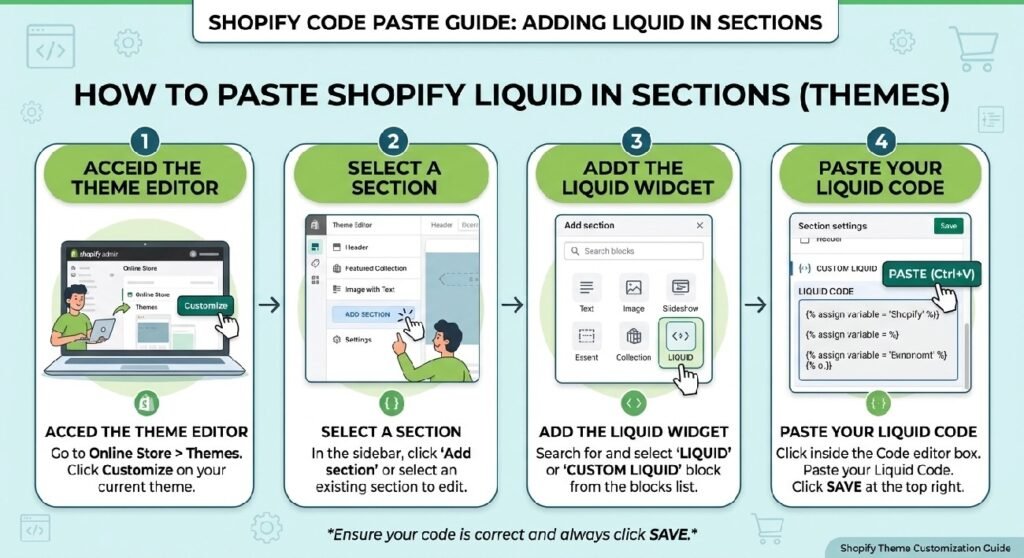
A practical way to use the snippet is as a custom Shopify section.
From Shopify Admin, go to Online Store → Themes, duplicate the theme you plan to edit, then open Edit code.
Inside the Sections directory, create:
upsell-recommendation-box.liquid
Paste the supplied code into the new file and save it.
If your theme exposes custom sections through the Theme Editor, open Customize, load the product template or landing page where you want the upsell box, and place it near the product information.
For a quick implementation, you can also adapt the markup for a Custom Liquid block.
Placement matters. An upsell usually makes more sense after the shopper understands the main product, not before they have even seen its price or details.
How the Upsell Recommendation Box Liquid Works
The outer .zx-upsell container uses Flexbox to create two main areas.
On the left, you have:
- the sparkle icon
- the heading
- supporting copy
- three recommendation tags
On the right, there is one call-to-action button.
The section uses a very light gradient rather than a flat white background. A large decorative radial shape is positioned partly outside the top-right corner through .zx-upsell::before, giving the card some depth without using an image.
The card also moves upward by six pixels when hovered:
transform: translateY(-6px);
At the same time, its shadow becomes stronger.
The black icon block provides the strongest visual contrast in the left side of the section, while the CTA button repeats the same dark styling.
The arrow inside the button has its own hover movement. When the visitor hovers over the link, the arrow slides six pixels to the right.
Below 768px, the layout stacks vertically. The content becomes centered, the tags move into a centered row, and the CTA expands to the full available width.
Shopify Liquid Code
<style>

/*=====================================
LUXURY UPSELL SECTION
=====================================*/

.zx-upsell{

    position:relative;
    overflow:hidden;

    display:flex;
    align-items:center;
    justify-content:space-between;
    gap:40px;

    margin:32px 0;
    padding:34px;

    border-radius:30px;

    background:
        linear-gradient(135deg,#ffffff 0%,#fafafa 45%,#f5f5f5 100%);

    border:1px solid rgba(0,0,0,.06);

    box-shadow:
        0 18px 50px rgba(0,0,0,.08);

    transition:.4s ease;

}

.zx-upsell:hover{

    transform:translateY(-6px);

    box-shadow:
        0 30px 70px rgba(0,0,0,.12);

}

.zx-upsell::before{

    content:"";

    position:absolute;

    width:320px;
    height:320px;

    right:-150px;
    top:-150px;

    border-radius:50%;

    background:
    radial-gradient(circle,
    rgba(0,0,0,.05),
    transparent 70%);

}

.zx-upsell-left{

    position:relative;
    z-index:2;

    display:flex;
    gap:20px;
    align-items:flex-start;

}

.zx-upsell-icon{

    width:72px;
    height:72px;

    border-radius:22px;

    background:#111;

    color:#fff;

    display:flex;
    align-items:center;
    justify-content:center;

    font-size:34px;

    flex-shrink:0;

    box-shadow:
        0 15px 35px rgba(0,0,0,.18);

}

.zx-upsell-content h3{

    margin:0;

    font-size:30px;

    font-weight:800;

    letter-spacing:-.5px;

    color:#111;

}

.zx-upsell-content p{

    margin:12px 0 18px;

    color:#666;

    font-size:16px;

    line-height:1.8;

    max-width:560px;

}

.zx-upsell-tags{

    display:flex;
    gap:10px;
    flex-wrap:wrap;

}

.zx-upsell-tags span{

    padding:9px 15px;

    border-radius:999px;

    background:#fff;

    border:1px solid #ececec;

    font-size:13px;

    font-weight:700;

    color:#444;

}

.zx-upsell-btn{

    position:relative;
    z-index:2;

    display:inline-flex;
    align-items:center;
    gap:12px;

    padding:17px 30px;

    border-radius:999px;

    background:#111;

    color:#fff;

    text-decoration:none;

    font-weight:800;

    font-size:15px;

    transition:.35s ease;

    box-shadow:
        0 15px 35px rgba(0,0,0,.20);

    white-space:nowrap;

}

.zx-upsell-btn:hover{

    background:#000;

    transform:translateY(-3px);

}

.zx-upsell-btn span{

    transition:.3s;

}

.zx-upsell-btn:hover span{

    transform:translateX(6px);

}

@media(max-width:768px){

.zx-upsell{

    flex-direction:column;

    text-align:center;

    padding:28px 22px;

}

.zx-upsell-left{

    flex-direction:column;

    align-items:center;

}

.zx-upsell-tags{

    justify-content:center;

}

.zx-upsell-btn{

    width:100%;
    justify-content:center;

}

.zx-upsell-content h3{

    font-size:24px;

}

}

</style>

<div class="zx-upsell">

<div class="zx-upsell-left">

<div class="zx-upsell-icon">
✨
</div>

<div class="zx-upsell-content">

<h3>Complete Your Collection</h3>

<p>
Enhance your purchase with our most-loved essentials. Carefully selected to complement your order and deliver even greater value.
</p>

<div class="zx-upsell-tags">

<span>Best Sellers</span>

<span>Exclusive Picks</span>

<span>Limited Stock</span>

</div>

</div>

</div>

<a href="/collections/all" class="zx-upsell-btn">

Explore Collection

<span>→</span>

</a>

</div>
What This Snippet Actually Recommends
The current code does not inspect the product being viewed.
It does not use:
- Shopify product recommendations
- collection objects
- product tags
- metafields
- complementary products
- related-product APIs
- customer behavior
The recommendation is written manually:
Complete Your Collection
and the button sends visitors to:
/collections/all
That means every product page using the same snippet will display the same message and destination unless you edit it.
For some stores, that is perfectly acceptable. If you simply want a stylish “browse more products” block, the snippet already does that job.
If you want true product-specific upselling, the implementation would need to become dynamic.
7 Practical Ways to Improve This Shopify Upsell Box
1. Send shoppers somewhere more specific than /collections/all
This is the first thing I would change.
A generic all-products page asks the shopper to start browsing again from scratch. An upsell works better when the destination has a clear relationship to what they are already buying.
For example, a watch product could point toward straps or accessories. A skincare product could lead to a routine collection. A laptop accessory could send visitors to compatible products.
The CTA should reduce the next decision, not create another large one.
If the destination is a collection, use that collection’s real Shopify URL instead of leaving /collections/all.
2. Match the message to the product category
The heading Complete Your Collection works for fashion, accessories, beauty, home decor, and similar categories.
It may sound less natural for other stores.
A better approach is to make the copy fit the buying context.
Examples:
Complete Your Setup
Useful for electronics or office products.
Pairs Well With
Good for accessories and complementary items.
You May Also Need
Practical for tools, replacement parts, or essentials.
Build Your Routine
Useful for beauty or wellness products.
The section feels far more intentional when the wording sounds like it belongs to the product.
3. Verify the three promotional tags
The supplied tags are:
Best Sellers
Exclusive Picks
Limited Stock
Those phrases carry meaning.
“Best Sellers” suggests the promoted products genuinely perform strongly. “Limited Stock” suggests availability is constrained. “Exclusive Picks” implies some level of curation or exclusivity.
If none of that is actually true, the tags become decorative marketing claims.
Replace them with information you can stand behind.
For example:
- Easy to Pair
- Customer Favorites
- Matching Accessories
- Related Essentials
- Same Collection
The section does not become weaker because the language is less aggressive. Clear, accurate wording usually feels more trustworthy.
4. Use it after product information, not before it
Upselling works better after the main product has had a chance to make its case.
A sensible product-page flow could be:
Product information → Delivery note → Product details → Upsell → Reviews
If you use the [INTERNAL LINK NEEDED: Shopify Delivery Info Box], that small shipping message can stay close to the purchase controls while the upsell appears slightly farther down.
Similarly, the [INTERNAL LINK NEEDED: Product Tabs Section Liquid] can handle specifications, shipping details, and returns before the shopper reaches a secondary recommendation.
That keeps the page focused.
5. Do not make the upsell compete with the main CTA
The visual design is fairly restrained, which helps.
The dark Explore Collection button is noticeable, but the section does not contain several competing buttons, prices, badges, or product thumbnails.
That is a good thing.
The Add to Cart or Buy button for the main product should remain the primary action. An upsell should support the purchase journey rather than pull attention away from the item the shopper originally came to buy.
If you eventually add product images or prices to this section, keep that hierarchy in mind.
6. Make it merchant-editable if you plan to reuse it
Right now, changing the heading, text, tags, icon, or link means editing the code.
For a one-off store, that is manageable.
For a reusable theme or client project, I would move those values into Shopify section settings.
A merchant-editable version could include settings for:
- heading
- description
- button label
- button URL
- icon
- tag text
- background style
- related collection
That turns the component from a static code snippet into something a store owner can manage from the Theme Editor.
7. Test the card without hover
The desktop hover effect looks polished, but mobile users will not interact with the section in the same way.
Fortunately, the content does not depend on hover.
The title, description, tags, button, and arrow remain visible at all times. The hover motion simply adds polish on devices that support it.
That is exactly how hover effects should be used.
Never hide essential information behind a desktop-only interaction.
Static Upsell vs. Real Product Recommendations
This distinction is important enough to spell out clearly.
A static upsell shows the same recommendation wherever the component appears.
A dynamic recommendation system decides what to show based on product context or store data.
This snippet is static.
A more advanced Shopify version could use product recommendation data, selected collections, metafields, or manually assigned complementary products.
For example, imagine a shopper viewing a leather bag.
A dynamic implementation could show:
- matching wallet
- protective care product
- shoulder strap
- luggage tag
A static implementation might simply send everyone to the accessories collection.
Neither approach is automatically wrong. The right one depends on how much control and automation the store needs.
The Tags Are Visual Labels, Not Shopify Product Tags
There is another terminology detail worth noting.
The elements inside .zx-upsell-tags are styled <span> elements.
They are not Shopify product tags.
Changing:
<span>Best Sellers</span>
does not alter any product data inside Shopify.
These labels exist only in the frontend design.
That may sound obvious to developers, but it is useful to clarify for store owners who see the word “tags” in the CSS class and assume they are connected to Shopify’s product-tag system.
Why the Layout Feels Balanced
The section uses a clear visual hierarchy.
The black sparkle icon attracts attention first. The 30px heading establishes the message. The paragraph explains what the recommendation is for. Small pill labels add supporting context, and the CTA sits separately on the right.
The spacing is generous without making the section enormous.
There is also a sensible contrast between the light card background and darker interactive elements.
One thing I would avoid is stuffing product cards inside this exact layout without redesigning it. The current proportions work because the content is simple. Add three product images, multiple prices, ratings, and badges, and the balance disappears quickly.
If you want a full recommendation grid, build a dedicated section for that.
Using the Upsell With a Collection Showcase
The [INTERNAL LINK NEEDED: Collection Showcase Liquid] and this upsell box both link customers toward more products, but they belong in different parts of the journey.
A collection showcase is broad navigation. It helps someone decide which category to browse.
An upsell is contextual. It appears after interest already exists and suggests the next logical place to look.
On a homepage, the collection showcase makes more sense.
On a product page, the upsell box is usually the stronger choice.
Keeping those roles separate makes each component more useful.
Pair It With Customer Support When Products Need Guidance
Some stores sell items that are not easy to pair correctly.
Think replacement parts, technical accessories, custom products, or items where compatibility matters.
In those cases, an upsell alone may not be enough.
The [INTERNAL LINK NEEDED: Contact CTA Section Liquid] can sit nearby and give shoppers a way to ask whether a suggested accessory works with their purchase.
That is better than pushing a recommendation when the store cannot be sure the item is appropriate.
Mobile Behavior
The supplied mobile CSS is straightforward.
Below 768px:
- the main layout changes from horizontal to vertical
- text becomes centered
- the icon moves above the content
- tags are centered
- the CTA becomes full width
- the heading shrinks from
30pxto24px
That should work well with the current copy.
Still, test the real content.
Longer tag names or translated button text can make the section noticeably taller. A phrase that fits nicely in English may wrap differently in another language.
Responsive CSS solves the layout problem, but content length still matters.
Avoid Fake Scarcity in Upsell Copy
The phrase Limited Stock deserves extra attention.
Scarcity is useful information when stock really is limited. It becomes misleading when it is simply added to make the recommendation feel urgent.
If inventory is not actually being checked, a static “Limited Stock” label can become inaccurate at any time.
For this particular code, there is no inventory logic.
So either remove that label, replace it with a neutral one, or build a dynamic version that uses real inventory data.
A recommendation should make the shopping experience easier, not pressure the customer with information the code cannot verify.
FAQ
Is this a real Shopify recommendation engine?
No. The supplied version is a static HTML/CSS upsell block. It does not automatically calculate related or complementary products.
Does it require JavaScript?
No. The card, hover effects, tags, and CTA are handled with HTML and CSS.
Can I change the collection link?
Yes. Replace /collections/all with the URL of the collection or page you actually want to promote.
Can I use it on product pages?
Yes. Product pages are one of the most natural places for this kind of upsell, especially after the main product information.
Does “Limited Stock” check Shopify inventory?
No. It is static text. The snippet contains no inventory logic.
Can this become dynamic later?
Yes. A future version could use Shopify section settings, collection selectors, metafields, product recommendation data, or other Liquid logic.
Explore More Shopify Code
If you are improving a product page, these sections work naturally around the upsell:
- Collection Showcase Liquid
A Collection Showcase Liquid section can make a Shopify homepage easier to browse when you want to send shoppers toward a few important product groups without building a large menu or image-heavy grid.https://css-liquids-for-shopify.site/collection-showcase-liquid/
- Shopify Delivery Info Box
A Shopify Delivery Info Box is a small piece of product-page UI, but it can answer an important question before a customer reaches checkout: How much do I need to spend to qualify for free delivery?https://css-liquids-for-shopify.site/shopify-delivery-info-box/
For more help, you can read Shopify’s official theme customization guide :Shopify Theme Customization Guide
One Response