
A Collection Showcase Liquid section can make a Shopify homepage easier to browse when you want to send shoppers toward a few important product groups without building a large menu or image-heavy grid.
The supplied snippet takes a very simple approach: three large cards for New Arrivals, Best Sellers, and Sale Offers. Each card has a short description, a circular arrow button created with CSS, a soft hover lift, and a responsive layout that stacks on mobile.
One thing is worth clearing up immediately. The file is named collection-showcase.liquid, but the current version does not actually pull collection data from Shopify. There are no Liquid objects, collection pickers, product counts, images, or dynamic titles. It is a styled HTML/CSS navigation block. That is not a problem, but it changes how you should use and customize it.
Where to Paste This Shopify Code
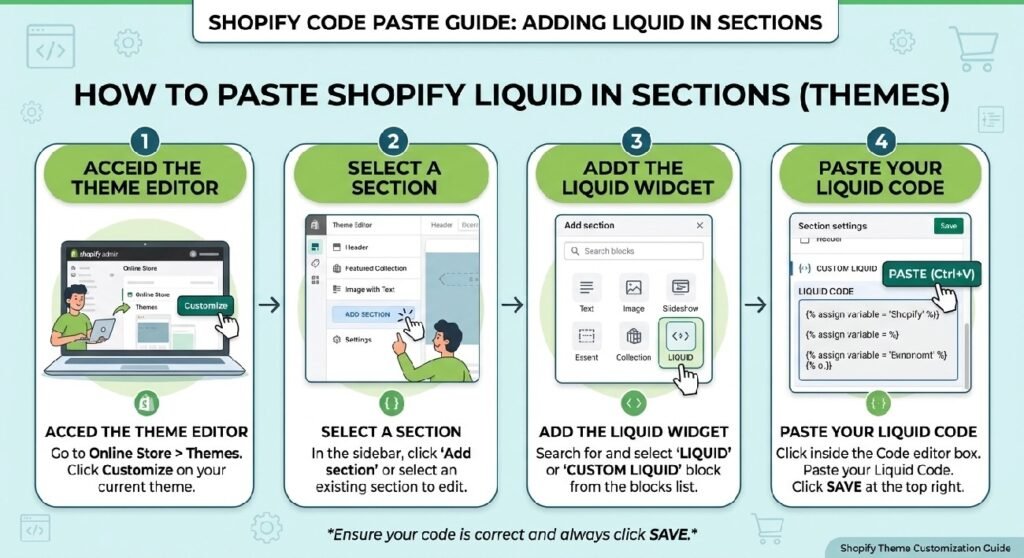
For a reusable section, add it to your theme as a new Shopify section.
Open Shopify Admin → Online Store → Themes, duplicate your live theme first, then open Edit code on the copy you want to work with.
Inside the Sections folder, create:
collection-showcase.liquid
Paste the supplied code into the file and save it.
If your theme supports adding custom sections through the Theme Editor, open Customize, go to the template where you want the cards to appear, and add the new section there.
A homepage is the most obvious place for this design, but it can also work on a landing page or promotional template.
Before publishing, check the links carefully. In the supplied code, all three cards point to:
/collections/all
That means New Arrivals, Best Sellers, and Sale Offers currently send shoppers to the exact same destination.
How Collection Showcase Liquid Works
The layout starts with .zx-cats, which uses CSS Grid:
grid-template-columns: repeat(3,1fr);
That creates three equal-width cards on larger screens.
Each card is an anchor element, so the entire block is clickable. This is a good interaction choice because the shopper does not have to aim for a small text link or icon.
The card itself uses:
- a light gradient background
- 26px rounded corners
- a subtle border
- soft box shadow
- hover lift
- a decorative radial highlight
- a circular arrow in the lower-right corner
The arrow is not an image or SVG. It comes from the ::after pseudo-element:
content:"→";
When someone hovers over a card, the entire card moves upward by eight pixels and the arrow shifts slightly to the right.
On screens below 768px, the grid changes to one column. The cards stack vertically, which is much easier to scan on a phone.
Shopify Liquid Code
<style>

/*======================================
PREMIUM COLLECTION CARDS
======================================*/

.zx-cats{
    display:grid;
    grid-template-columns:repeat(3,1fr);
    gap:18px;
    margin:30px 0;
}

.zx-cats a{

    position:relative;
    overflow:hidden;

    display:flex;
    flex-direction:column;
    justify-content:space-between;

    min-height:170px;

    padding:26px;

    border-radius:26px;

    text-decoration:none;

    color:#111;

    background:
        linear-gradient(135deg,#ffffff,#f7f7f7);

    border:1px solid rgba(0,0,0,.06);

    box-shadow:
        0 18px 45px rgba(0,0,0,.06);

    transition:.45s cubic-bezier(.2,.8,.2,1);

}

.zx-cats a::before{

    content:"";

    position:absolute;

    top:-70px;
    right:-70px;

    width:170px;
    height:170px;

    border-radius:50%;

    background:
    radial-gradient(circle,
    rgba(0,0,0,.06),
    transparent 70%);

}

.zx-cats a::after{

    content:"→";

    position:absolute;

    right:26px;
    bottom:22px;

    width:48px;
    height:48px;

    display:flex;
    align-items:center;
    justify-content:center;

    border-radius:50%;

    background:#111;

    color:#fff;

    font-size:20px;

    transition:.35s;

}

.zx-cats a:hover{

    transform:translateY(-8px);

    box-shadow:
        0 30px 60px rgba(0,0,0,.12);

}

.zx-cats a:hover::after{

    transform:translateX(6px);

}

.zx-cat-title{

    font-size:26px;

    font-weight:800;

    letter-spacing:-.5px;

    line-height:1.2;

    margin-bottom:12px;

}

.zx-cat-sub{

    color:#666;

    font-size:15px;

    line-height:1.7;

    max-width:240px;

}

@media(max-width:768px){

.zx-cats{

grid-template-columns:1fr;

}

.zx-cats a{

min-height:150px;

}

.zx-cat-title{

font-size:22px;

}

}

</style>

<div class="zx-cats">

<a href="/collections/all">

<div>

<div class="zx-cat-title">
New Arrivals
</div>

<div class="zx-cat-sub">
Discover our latest releases crafted with premium quality and timeless style.
</div>

</div>

</a>

<a href="/collections/all">

<div>

<div class="zx-cat-title">
Best Sellers
</div>

<div class="zx-cat-sub">
Explore the most-loved products trusted by thousands of happy customers.
</div>

</div>

</a>

<a href="/collections/all">

<div>

<div class="zx-cat-title">
Sale Offers
</div>

<div class="zx-cat-sub">
Limited-time deals with exclusive savings before they're gone.
</div>

</div>

</a>

</div>
What I Would Fix Before Publishing It
The styling is already polished enough for a storefront. The weak point is the content structure.
Right now, all three links go to /collections/all. If you publish the snippet exactly as written, the cards look like three different shopping paths but behave like one.
That is the first thing I would change.
For example:
- New Arrivals should link to a new-arrivals collection
- Best Sellers should link to a best-sellers collection
- Sale Offers should link to a sale or discounted-products collection
The exact URLs depend on the collection handles in your store.
This is more than a small usability detail. A collection card should deliver the destination its label promises.
7 Practical Ways to Use This Collection Showcase
1. Use it for your three strongest shopping paths
Three cards force you to prioritize.
That is useful.
Instead of listing every category you have, choose the collections shoppers are most likely to need first. A clothing store might use New In, Men, and Women. A beauty store could use Skincare, Haircare, and Best Sellers. A homeware store might prefer Living Room, Bedroom, and Kitchen.
The supplied labels are only examples. The layout becomes more useful when the categories match how customers actually shop.
2. Keep the card copy short
The descriptions in this snippet are brief, and that is the right instinct.
A collection card is navigation, not a mini blog post.
For instance:
New Arrivals
“Discover our latest releases crafted with premium quality and timeless style.”
That gives just enough context without competing with the collection name.
If the description needs more than a sentence or two, the card is probably trying to do too much.
3. Do not use “Best Sellers” unless you mean it
This is a small wording issue that many stores overlook.
The supplied second card says:
Best Sellers
and follows with:
“Explore the most-loved products trusted by thousands of happy customers.”
That sentence contains a strong social-proof claim. If the store does not actually have thousands of customers, rewrite it.
A cleaner version could be:
“Browse the products customers choose most often.”
Even then, the collection should genuinely reflect popular products.
Trust copy works best when it is accurate rather than impressive-sounding.
4. Be careful with “Sale Offers”
The third card uses urgency language:
“Limited-time deals with exclusive savings before they’re gone.”
That is fine only when the collection really contains time-limited offers.
If the sale is permanent, recurring, or open-ended, use neutral wording such as:
“Browse current discounts and reduced-price products.”
Fake urgency is not worth it. The card should tell the truth about what the shopper will find after clicking.
5. Put it after a strong opening section
This type of collection navigation works well near the top of a homepage.
A simple structure could be:
Hero → Collection Showcase → Featured Products → Trust Content
If you already use Premium Hero Banner Liquid he collection cards can sit directly underneath it. The hero introduces the store; the showcase gives visitors an immediate route into the catalog.
That flow feels natural because the shopper sees the brand message first and then gets a clear choice about where to browse.
6. Keep the hover effect, but do not rely on it
The hover animation looks good on desktop, but touchscreens do not provide the same interaction.
The section still works because the card design does not depend on hover to communicate meaning. Titles, descriptions, and arrows are visible all the time.
That is the right pattern.
Hover should be a bonus, not the only way a customer understands that something is clickable.
7. Turn it into a real Shopify section later
The current code is hard-coded. That is fine for a quick implementation, but it is not ideal for long-term maintenance.
A more reusable version would add Shopify section schema so the merchant can choose:
- collection
- card title
- description
- link
- card order
A stronger version could even pull the selected collection title and URL automatically.
That removes the need to edit HTML every time a collection changes.
For a code library, this is also a useful distinction to teach: the current version is a styled static section, while a schema-based version becomes merchant-editable.
Why Full-Card Links Are a Good Choice
There is one structural decision in this snippet that I would keep.
Each collection card is an <a> element rather than a <div> containing a smaller link.
That makes the whole card interactive.
On desktop, it feels more natural. On mobile, it gives the shopper a much larger tap target.
The arrow in the corner is therefore decorative guidance, not the only clickable control.
That is a better user experience than forcing people to tap a tiny “Shop now” link inside a large card.
The Section Does Not Show Collection Images
The name “collection showcase” can sound like an image grid, but this version is text-based.
There are no collection images in the markup.
That can actually be an advantage if you want a cleaner, faster-looking design with less visual noise. It also avoids the problem of inconsistent collection photography.
If your store depends heavily on visual categories, though, a future version could add collection images or background images.
Do that carefully. Once photography is added, you also need to think about image cropping, contrast, alt text, mobile behavior, and loading performance.
The current text-first version avoids all of those complications.
Mobile Behavior Is Straightforward
The responsive rule is simple:
grid-template-columns:1fr;
At smaller widths, the three-card row becomes a vertical stack.
The title size also drops from 26px to 22px, while the minimum card height changes from 170px to 150px.
That is enough for the supplied content.
If you add longer category names or descriptions, test them on a narrow screen. A title like “Accessories & Personalization” can wrap differently from “Best Sellers,” and that can change the height of the card.
Real content is always the final test.
Collection Showcase vs. Announcement Bar
These two sections can sit on the same homepage because they solve different problems.
The [INTERNAL LINK NEEDED: Announcement Bar Pro Liquid] is for a temporary or store-wide message.
The collection showcase is navigation.
One tells the shopper something. The other gives them somewhere to go.
If both sections are used, keep the announcement brief and let the collection cards handle browsing choices.
Collection Showcase vs. Statistics Section
The Statistics Counter Liquid is useful when the store has genuine numbers worth showing, such as ratings, customers served, or service availability.
This collection section should not try to do that job.
Its purpose is simpler: help the visitor choose a category.
Separating those jobs keeps the homepage easier to understand.
A Better Homepage Flow
For a store using several of the snippets in this library, a practical layout could look like:
Announcement Bar → Hero Banner → Collection Showcase → Featured Products → Statistics or Social Proof → Contact CTA
That structure gives each section a clear role.
The Contact CTA Section Liquid can then appear lower on the page for shoppers who still need help after browsing products.
You do not need every section on every store. Use only the pieces that support the actual buying journey.
Common Mistakes to Avoid
The most obvious mistake is leaving all three links on /collections/all.
Another is naming a collection one thing while sending shoppers somewhere else.
Also watch out for unsupported claims in the descriptions. “Trusted by thousands” and “limited-time” sound good, but they should only appear when they are true.
Finally, do not keep adding cards just because there is space. A collection showcase works because it narrows choices. Turning three focused cards into twelve generic ones can make the homepage harder to scan.
FAQ
Is this a dynamic Shopify collection section?
Not yet. The supplied version uses static HTML and CSS. It does not pull collection titles, images, or links from Shopify automatically.
Can I link each card to a different collection?
Yes. Replace each href="/collections/all" value with the correct collection URL for that card.
Does this code use JavaScript?
No. The layout and hover effects are handled entirely with CSS.
Can I add more than three cards?
Yes. You can duplicate the anchor structure, but the current desktop grid is designed for three equal columns. If you add more cards, review the grid layout so the section still looks balanced.
Does it work on mobile?
Yes. The CSS switches the grid to a single column below 768px.
Can I add collection images later?
Yes, but images are not included in the supplied version. A future implementation could add <img> elements or use Shopify collection image data.
Explore More Shopify Code
- Product Tabs Section Liquid
Product Tabs Section Liquid gives Shopify product pages a cleaner way to organize information such as descriptions, shipping details, returns, warranties, materials, care instructions, and other buying information.https://css-liquids-for-shopify.site/product-tabs-section-liquid/ - Contact CTA Section Liquid
A Contact CTA Section Liquid block is useful when a shopper has reached the point where one unanswered question could stop the sale.https://css-liquids-for-shopify.site/contact-cta-section-liquid/For more help, you can read Shopify’s official theme customization guide :Shopify Theme Customization Guide
2 Responses