
Estimated reading time: 7 minutes
Product Tabs Section Liquid gives Shopify product pages a cleaner way to organize information such as descriptions, shipping details, returns, warranties, materials, care instructions, and other buying information. The supplied snippet uses native HTML <details> and <summary> elements to create a premium accordion-style layout without relying on JavaScript or a separate Shopify app.
What makes this version useful is its simplicity. Each panel opens when a shopper clicks the heading, the first section starts expanded, and the gold accent creates a more premium visual style. The responsive CSS also adjusts spacing and typography for smaller screens. For stores with detailed products, this approach can reduce visual clutter while keeping important purchasing information easy to reach.
Where to Paste This Shopify Code
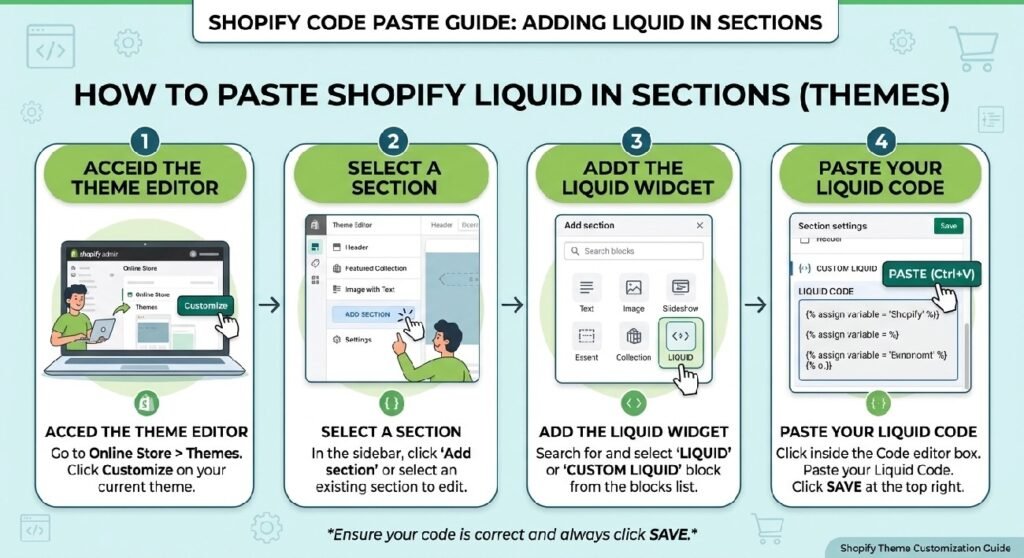
For a reusable Product Tabs Section Liquid implementation, add the snippet as a Shopify section.
Open Shopify Admin → Online Store → Themes, find the theme you want to modify, and choose Edit code.
Inside the Sections directory:
- Click Add a new section.
- Name it
product-tabs-section. - Paste the supplied code into the file.
- Save your changes.
The exact method for placing a custom section on a product template depends on your theme and how its JSON templates are configured. If your theme supports adding the new section through the Theme Editor, open Customize, select a product template, and add it there.
For a quick test, the markup can also be adapted for a Custom Liquid block if your theme provides one.
Before editing a live theme, duplicate it first. That gives you a safe copy to restore if another theme style conflicts with the section.
How Product Tabs Section Liquid Works
Despite the filename, this particular snippet behaves as an accordion, not a traditional horizontal tab interface.
That’s an important distinction.
Traditional tabs usually display several buttons across a row and switch one content panel for another. This snippet instead uses three native <details> elements stacked vertically. Clicking each <summary> expands or collapses its associated information.
That approach keeps the implementation remarkably lean.
Native HTML Handles the Opening and Closing
Each panel follows this structure:
<details>
<summary>Heading</summary>
<div>Content</div>
</details>
The browser provides the basic expand-and-collapse behavior, so the section doesn’t need custom JavaScript.
The first <details> element also contains the open attribute. That’s why Product Description appears expanded when the page initially loads.
CSS Creates the Luxury Appearance
The .zx-tabs container stacks each accordion vertically with an 18px gap.
Individual panels use:
- A light gradient background
- 24px rounded corners
- Subtle borders
- Soft shadows
- Hover movement
- Gold vertical accents
The gold accent comes from the details::before pseudo-element and uses the colors #D4AF37 and #E9D18B.
The Plus Icon Changes When a Panel Opens
The circular control on the right isn’t a separate image.
CSS creates it through:
summary::after
A closed panel displays a +. When the <details> element receives its open state, CSS changes that symbol to −, switches its background to gold, and applies rotation.
Content Gets a Small Entrance Animation
When content becomes visible, the fade keyframe animation changes its opacity and vertical position.
The effect lasts .35s, so it adds movement without making shoppers wait for the information.
Shopify Liquid Code
<style>

/*==============================
LUXURY ACCORDION
==============================*/

.zx-tabs{
    display:flex;
    flex-direction:column;
    gap:18px;
    margin:30px 0;
}

.zx-tabs details{

    position:relative;

    overflow:hidden;

    background:
    linear-gradient(180deg,#ffffff,#fafafa);

    border:1px solid rgba(0,0,0,.08);

    border-radius:24px;

    transition:.4s;

    box-shadow:
    0 12px 35px rgba(0,0,0,.05);

}

.zx-tabs details:hover{

    transform:translateY(-3px);

    box-shadow:
    0 20px 45px rgba(0,0,0,.10);

}

.zx-tabs details::before{

    content:"";

    position:absolute;

    left:0;
    top:0;

    width:4px;
    height:100%;

    background:
    linear-gradient(180deg,#D4AF37,#E9D18B,#D4AF37);

}

.zx-tabs summary{

    position:relative;

    cursor:pointer;

    list-style:none;

    padding:26px 80px 26px 28px;

    font-size:18px;

    font-weight:700;

    color:#111;

    letter-spacing:.2px;

}

.zx-tabs summary::-webkit-details-marker{

display:none;

}

.zx-tabs summary::after{

content:"+";

position:absolute;

right:22px;

top:50%;

transform:translateY(-50%);

width:46px;

height:46px;

border-radius:50%;

background:#111;

color:#fff;

display:flex;

align-items:center;

justify-content:center;

font-size:28px;

font-weight:300;

transition:.35s;

}

.zx-tabs details[open] summary::after{

content:"−";

background:#D4AF37;

color:#111;

transform:translateY(-50%) rotate(180deg);

}

.zx-tab-content{

padding:0 28px 26px;

font-size:15px;

line-height:1.9;

color:#666;

animation:fade .35s ease;

}

@keyframes fade{

from{

opacity:0;

transform:translateY(-10px);

}

to{

opacity:1;

transform:none;

}

}

@media(max-width:768px){

.zx-tabs summary{

padding:22px 70px 22px 20px;

font-size:17px;

}

.zx-tab-content{

padding:0 20px 20px;

}

}

</style>

<div class="zx-tabs">

<details open>

<summary>
Product Description
</summary>

<div class="zx-tab-content">

Made from premium-quality materials and crafted with attention to every detail. Designed to provide exceptional comfort, durability, and a timeless aesthetic for everyday use.

</div>

</details>

<details>

<summary>
Shipping & Delivery
</summary>

<div class="zx-tab-content">

Orders are dispatched within 24 hours. Delivery typically takes <strong>3–5 business days</strong>, and every shipment includes end-to-end tracking.

</div>

</details>

<details>

<summary>
Returns & Warranty
</summary>

<div class="zx-tab-content">

If your product arrives damaged or defective, our support team will help resolve the issue quickly. Customer satisfaction remains our highest priority.

</div>

</details>

</div>
7 Practical Ways to Improve Product Tabs on Shopify
The code already provides a solid visual foundation. The bigger question is what information belongs inside it.
A beautiful accordion filled with vague copy won’t help a customer make a purchase. Product information should answer real questions shoppers have before ordering.
1. Put the Most Important Product Information First
The supplied section opens Product Description by default.
That’s a sensible choice when the description contains information customers need immediately. The open attribute controls this behavior.
You don’t have to keep the same order for every store, though.
A furniture shop might prioritize dimensions and materials. A clothing store might put sizing information near the top. A technical product could require compatibility details before shipping information.
Think about the questions customers ask before purchasing, then arrange the panels in that order.
2. Keep Shipping Information Specific
The example includes:
Shipping & Delivery
and states that orders are dispatched within 24 hours with delivery typically taking 3–5 business days.
Those details should only remain if they’re accurate for the store using the snippet.
If processing varies by product, destination, carrier, stock status, or season, update the wording accordingly. Shipping copy is operational information, not decoration.
A useful shipping panel can cover dispatch time, estimated delivery, tracking availability, and any important geographical restrictions without turning into a wall of text.
3. Write a Clear Returns and Warranty Panel
Returns are another area where clarity matters.
The supplied third panel is titled Returns & Warranty, but its example copy mainly discusses damaged or defective products. If a store has a broader return policy or a formal warranty, the panel should reflect the actual terms rather than implying coverage that doesn’t exist.
For lengthy policies, use the accordion for a concise explanation and link customers to the complete policy page.
That keeps the product page readable while giving shoppers access to the details they need.
4. Add Panels That Match the Product
There’s no reason every Shopify store needs the same three accordion items.
A better approach is to choose information based on what you’re selling.
A fashion store could use Description, Size & Fit, Materials & Care, and Shipping & Returns.
A homeware store might prefer Product Details, Dimensions, Materials, and Delivery.
A technology accessory store could use Specifications, Compatibility, What’s Included, and Warranty.
This is where product tabs become genuinely useful. They organize information around the customer’s buying decision instead of simply making the page look sophisticated.
5. Keep the Accordion Easy to Scan
Notice how short the supplied headings are:
Product Description
Shipping & Delivery
Returns & Warranty
That’s good interface writing.
A shopper should understand what they’ll find inside a panel before opening it. Headings such as “Additional Information” are less useful because they don’t explain what the information actually covers.
The same principle applies to the content. Start with the answer shoppers need, then provide supporting detail.
6. Use the Luxury Styling Consistently
The gold accent gives this snippet a specific visual personality. It works naturally with premium, luxury, jewelry, fashion, beauty, and high-end lifestyle designs.
But don’t assume gold works for every brand.
The main accent appears in the vertical gradient and the open-state button. If your storefront uses another brand color, those values are natural places to begin customizing.
Consistency matters more than using a particular color.
If your homepage already uses the darker premium design from [INTERNAL LINK NEEDED: Premium Hero Banner Liquid], adjusting these accordion colors to complement that section can make the storefront feel more intentional.
7. Test the Mobile Experience
The supplied code includes a breakpoint at 768px.
On smaller screens, summary padding changes from:
26px 80px 26px 28px
to:
22px 70px 22px 20px
The heading size also drops from 18px to 17px, while the content receives tighter horizontal spacing.
Those adjustments help, but real testing still matters.
Long headings can wrap differently than the supplied examples. Product descriptions can also become considerably longer than the sample text. Test the section with your actual content on both narrow and wide screens before publishing it.
Why an Accordion Works Well for Detailed Product Pages
Product pages often need to communicate a surprising amount of information.
You have the main description, specifications, materials, shipping expectations, returns, warranty information, care instructions, sizing, compatibility, and sometimes FAQs.
Displaying everything as several long paragraphs creates a page that feels heavier than necessary.
An accordion introduces progressive disclosure: shoppers see the available information categories first and open the details they care about.
Someone concerned about delivery can jump straight to shipping. Another shopper can check warranty information without scrolling through unrelated paragraphs.
That’s the real value of this layout. The visual styling is useful, but information architecture matters more.
Product Tabs Section Liquid Without JavaScript
One of the strongest technical characteristics of this particular snippet is what it doesn’t contain.
There’s no JavaScript.
The opening and closing behavior comes from native <details> and <summary> HTML elements. CSS handles presentation and animation.
That reduces the amount of custom scripting required for a relatively simple interface.
It also means you don’t need to write click handlers just to toggle the supplied panels.
For a basic product accordion, that’s a sensible implementation.
Important Limitation: The Content Is Static
There’s one technical limitation store owners should understand before installing the code.
The supplied text is hard-coded.
For example, the Product Description panel doesn’t automatically output Shopify’s product description. Likewise, shipping and returns aren’t being pulled from Shopify settings or metafields.
If you paste the snippet exactly as supplied, every page where that same section is rendered will contain the text written directly in the markup.
For a single-purpose design, that can be acceptable. For a reusable product-page system, a stronger next step is connecting the content to Shopify section settings, product data, metafields, or metaobjects where appropriate.
This distinction matters because a polished frontend doesn’t automatically make a section dynamic.
Product Accordion vs. Product Tabs
The filename is product-tabs-section.liquid, but the visual behavior is accordion-based.
Which approach is better?
Horizontal tabs can work well on wide screens when there are only a few short labels. Accordions are often easier to adapt to narrow screens because headings naturally stack vertically.
This implementation also lets more than one <details> element remain open at the same time. Opening a second panel doesn’t automatically close the first.
If you specifically need only one panel open at once, that requires different markup or additional behavior beyond what the supplied snippet currently provides.
Understanding that behavior before publishing prevents a common mismatch between the section name and what shoppers actually experience.
Pair Product Information With Trust Elements
Product information answers practical questions. Trust-oriented sections answer a different question: “Why should I buy from this store?”
That’s why these elements can complement each other.
For example, your product or landing-page structure could use:
Product information → Product accordion → Store statistics → Social content
The [INTERNAL LINK NEEDED: Statistics Counter Liquid] section can highlight genuine store metrics, while [INTERNAL LINK NEEDED: Instagram Reels section Liquid] can provide a visual content area when social video is relevant.
For promotional campaigns, [INTERNAL LINK NEEDED: Announcement Bar Pro Liquid] can direct visitors toward a current offer before they reach the product information.
Each section should have its own job. That’s cleaner than forcing every trust message, policy, promotion, and product detail into one oversized component.
Common Customization Mistakes to Avoid
The first mistake is filling every accordion with too much text. Collapsing a 700-word policy doesn’t suddenly make that information easy to understand. Keep the summary useful and link to a dedicated policy page when necessary.
Another problem is using generic information across products that actually have different requirements. Sizing, materials, compatibility, and care instructions should match the item being viewed.
Finally, don’t publish placeholder claims. Delivery estimates, warranty coverage, ratings, return conditions, and similar information should reflect the store’s real policies and operations.
Useful product content earns trust because it’s accurate.
Frequently Asked Questions
What is Product Tabs Section Liquid?
Product Tabs Section Liquid is a custom Shopify section for organizing product-related information into expandable panels. The supplied implementation is technically an accordion built with HTML <details> and <summary> elements.
Does this Shopify product accordion require JavaScript?
No. The supplied code uses native HTML for its expand-and-collapse functionality and CSS for styling and animation.
Can I add more accordion panels?
Yes. Additional <details> blocks can follow the same structure as the three supplied panels.
Can I change the gold color?
Yes. The gold styling comes primarily from #D4AF37 and #E9D18B in the CSS. These values can be changed to colors that better match your theme.
Why is Product Description already open?
The first <details> element contains the open attribute. Removing that attribute will prevent it from starting in the expanded state.
Does the code automatically use my Shopify product description?
No. The supplied content is static HTML. Dynamic product data would need to be connected separately through Liquid, metafields, section settings, or another appropriate Shopify data source.
Can multiple panels stay open?
Yes. In the supplied implementation, each <details> element operates independently, so opening one doesn’t automatically close another.
Is the section responsive?
Yes. The code includes a media query for screens up to 768px wide that adjusts the typography and spacing.
Explore More Shopify Code
Statistics Counter Liquid
A Statistics Counter Liquid section is a simple way to display Important store numbers like customer count, ratings, support availability, orders or other business statistics can be displayed using a Statistics Counter Liquid section.
https://css-liquids-for-shopify.site/statistics-counter-liquid-shopify/
Announcement Bar Pro Liquid
The Announcement Bar Pro Liquid section will allow Shopify stores to boldly and clearly promote a promotion, important information, short-term offers, shipping information and any call to action. This custom section is designed to generate a professional announcement block without the need for a separate app, using HTML and CSS.
https://css-liquids-for-shopify.site/announcement-bar-pro-liquid-shopify/
For more help, you can read Shopify’s official theme customization guide :Shopify Theme Customization Guide
3 Responses