
A Contact CTA Section Liquid block is useful when a shopper has reached the point where one unanswered question could stop the sale. Maybe they are unsure about sizing, compatibility, delivery, or which product suits them best. Instead of making them hunt through a footer or contact page, this section puts a clear support option directly in the shopping flow.
The supplied snippet is built as a premium support banner rather than a basic contact box. It uses a dark layered background, a glass-style message icon, three reassurance labels, and a bright WhatsApp button. There is no JavaScript and no app dependency in the code itself. The visual polish comes from CSS: gradients, shadows, a subtle background highlight, button movement, and a small arrow animation.
Where to Paste This Shopify Code
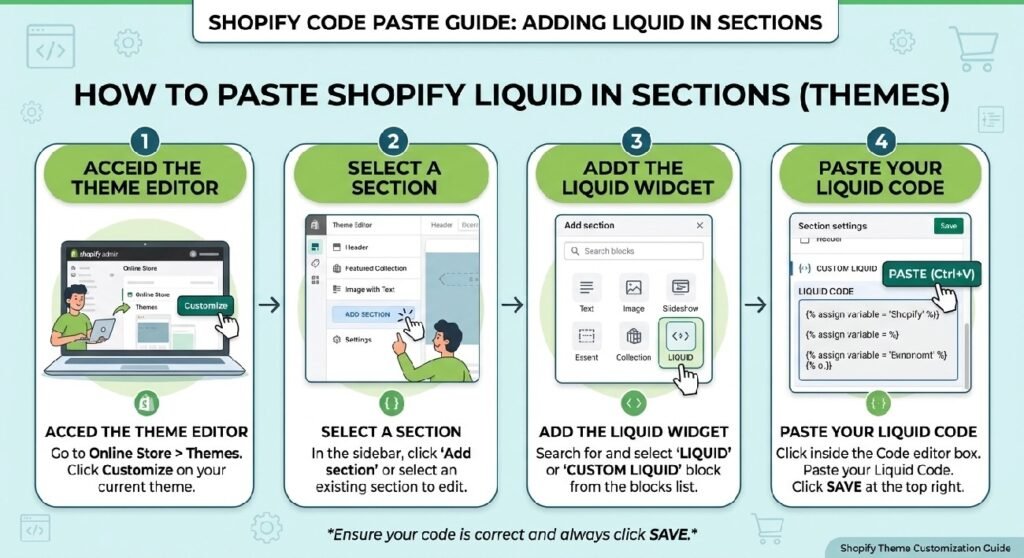
The cleanest approach is to add the snippet as a reusable Shopify section.
Open Shopify Admin → Online Store → Themes, duplicate the live theme first, then choose Edit code on the copy you want to work with. Inside the Sections folder, create a new file named:
contact-cta-section.liquid
Paste the supplied code into that file and save it.
If your theme lets you add custom sections through the Theme Editor, open Customize, select the template where you want the support CTA to appear, and add the section there.
There is one practical detail to check before publishing: the WhatsApp button contains a hard-coded wa.me destination. Replace that destination with the support number you actually use for the store. WhatsApp click-to-chat links normally use the full international number as digits only, without spaces, brackets, or a plus sign.
How Contact CTA Section Liquid Works
There is no Liquid logic in this particular snippet yet. Despite the .liquid filename, the section is currently made from regular HTML and CSS.
The main wrapper, .zx-cta, uses Flexbox to place two areas side by side: the support message on the left and the WhatsApp button on the right. A 40px gap keeps those pieces visually separate on larger screens.
The background is more interesting than it first appears. It combines a dark linear gradient with a soft radial highlight in the upper-right corner. A second decorative glow is created with .zx-cta::before, which positions a large blurred-looking circle partly outside the section. Because the wrapper uses overflow:hidden, that shape stays neatly clipped inside the rounded card.
On the left, .zx-cta-left groups the speech-bubble icon with the heading, supporting copy, and reassurance labels. The icon box uses backdrop-filter: blur(18px) and a translucent background, which gives it the glass-style effect.
The green action button is intentionally the strongest color on the page. Its hover state lifts it upward by four pixels, while the arrow shifts six pixels to the right. Small touches like that make the control feel responsive without adding scripting.
On screens below 768px, the layout changes direction. The content becomes centered, the left side stacks vertically, and the WhatsApp button stretches to the full available width.
Shopify Liquid Code
<style>

/* ==========================================
   LUXURY SUPPORT CTA
========================================== */

.zx-cta{
    position:relative;
    overflow:hidden;

    display:flex;
    align-items:center;
    justify-content:space-between;
    gap:40px;

    margin:32px 0;
    padding:36px;

    border-radius:30px;

    background:
        radial-gradient(circle at top right,rgba(255,255,255,.08),transparent 35%),
        linear-gradient(135deg,#0f0f10 0%,#18181b 45%,#222225 100%);

    border:1px solid rgba(255,255,255,.08);

    box-shadow:
        0 30px 70px rgba(0,0,0,.25);

    color:#fff;

    isolation:isolate;
}

.zx-cta::before{

    content:"";

    position:absolute;

    width:420px;
    height:420px;

    right:-180px;
    top:-180px;

    border-radius:50%;

    background:radial-gradient(circle,
    rgba(255,255,255,.08),
    transparent 70%);

}

.zx-cta-left{

    display:flex;
    align-items:center;
    gap:22px;

    z-index:2;

}

.zx-cta-icon{

    width:82px;
    height:82px;

    border-radius:24px;

    display:flex;
    align-items:center;
    justify-content:center;

    background:rgba(255,255,255,.08);

    backdrop-filter:blur(18px);

    border:1px solid rgba(255,255,255,.08);

    font-size:38px;

    flex-shrink:0;
}

.zx-cta-text h2{

    margin:0;

    font-size:32px;

    font-weight:800;

    letter-spacing:-0.5px;

    color:#fff;

}

.zx-cta-text p{

    margin:10px 0 0;

    color:rgba(255,255,255,.72);

    font-size:16px;

    line-height:1.8;

    max-width:520px;

}

.zx-cta-list{

    display:flex;
    gap:12px;
    flex-wrap:wrap;

    margin-top:18px;

}

.zx-cta-list span{

    padding:9px 16px;

    border-radius:999px;

    background:rgba(255,255,255,.08);

    border:1px solid rgba(255,255,255,.08);

    font-size:13px;

    font-weight:600;

}

.zx-cta-btn{

    display:inline-flex;
    align-items:center;
    gap:12px;

    padding:18px 30px;

    border-radius:999px;

    background:#25D366;

    color:#fff !important;

    text-decoration:none;

    font-size:16px;

    font-weight:800;

    transition:.35s;

    box-shadow:
        0 18px 35px rgba(37,211,102,.28);

    white-space:nowrap;

    z-index:2;

}

.zx-cta-btn:hover{

    transform:translateY(-4px);

    box-shadow:
        0 25px 45px rgba(37,211,102,.38);

}

.zx-cta-arrow{

    transition:.35s;

}

.zx-cta-btn:hover .zx-cta-arrow{

    transform:translateX(6px);

}

@media(max-width:768px){

.zx-cta{

flex-direction:column;

text-align:center;

padding:28px 22px;

gap:28px;

}

.zx-cta-left{

flex-direction:column;

}

.zx-cta-text h2{

font-size:26px;

}

.zx-cta-list{

justify-content:center;

}

.zx-cta-btn{

width:100%;

justify-content:center;

}

}

</style>

<section class="zx-cta">

<div class="zx-cta-left">

<div class="zx-cta-icon">
💬
</div>

<div class="zx-cta-text">

<h2>Need Expert Assistance?</h2>

<p>
Have questions before placing your order? Our support specialists are available to help you choose the right product and answer any concerns.
</p>

<div class="zx-cta-list">

<span>✓ Instant Replies</span>

<span>✓ Product Guidance</span>

<span>✓ Secure Ordering</span>

</div>

</div>

</div>

<a class="zx-cta-btn" href="https://wa.me/923292303947">

Message on WhatsApp

<span class="zx-cta-arrow">→</span>

</a>

</section>
7 Smart Ways to Use This Contact CTA on Shopify
The code is visually finished, but the copy still needs to match the store using it. That matters more than the gradient or rounded corners.
1. Put it where shoppers actually hesitate
A support CTA is most useful close to a decision point.
On a product page, that can be after the main product information or directly below a section covering specifications, delivery, sizing, or returns. If you already use the [INTERNAL LINK NEEDED: Product Tabs Section Liquid], placing this CTA shortly after those details creates a natural next step: read the information first, then contact support if something is still unclear.
Dropping the same box randomly into every page is less useful. The section should appear where a conversation can genuinely help the shopper move forward.
2. Rewrite the heading around a real customer question
The current heading says:
Need Expert Assistance?
It works, but it is broad. A more specific line often feels more useful.
A furniture store could use “Need help choosing the right size?” A parts store might ask “Not sure this fits your model?” A fashion store could make the CTA about sizing or fabric.
The best wording sounds like the question a real customer would ask before opening WhatsApp.
3. Be careful with reassurance labels
The three labels in the supplied design are:
Instant Replies
Product Guidance
Secure Ordering
They look good because they are short, but they also make promises.
Keep them only if the store can stand behind them. “Instant Replies” is a poor fit for a support team that answers several hours later. “Secure Ordering” can also be misleading if the WhatsApp conversation itself is not where payment takes place.
A safer version is to use verifiable service details such as “Product Help,” “Order Questions,” or “Human Support.”
Good trust copy is specific. It does not need to sound exaggerated.
4. Use WhatsApp for the right kind of conversation
WhatsApp is especially useful when the customer needs a quick back-and-forth exchange rather than a long support ticket.
Think product compatibility, stock questions, delivery clarification, color choices, custom orders, or pre-purchase guidance.
For policy-heavy issues, a dedicated page is still better. A returns policy should not exist only inside a chat conversation. The CTA should help the customer reach a person, not replace information that belongs on the website.
5. Keep the button destination under control
The current anchor points directly to a WhatsApp click-to-chat URL. That is simple and effective, but it is static.
If the same code is reused across several stores, remember that the destination number lives directly inside the markup. Copying the section without changing that link can send customers to the wrong account.
For a more reusable version later, the phone number, heading, paragraph, labels, and button text can be moved into Shopify section settings. That would let a store owner edit them from the Theme Editor instead of opening the code file each time.
6. Match the design to the rest of the storefront
This CTA has a distinct look: near-black gradients, white text, glass effects, and a bright green WhatsApp button.
That works nicely with premium or modern themes. It also pairs naturally with the darker visual language used in [INTERNAL LINK NEEDED: Premium Hero Banner Liquid].
If the rest of the store is light, playful, or heavily pastel, the section can feel like it came from another website. In that case, change the surrounding background, border, shadow, or icon treatment while keeping WhatsApp green recognizable.
Consistency usually looks more professional than adding one impressive section that ignores the rest of the theme.
7. Test the mobile version with real copy
The mobile CSS is sensible. At 768px and below, the section stacks, centers the content, and gives the CTA button full width.
What still needs testing is the content itself.
Longer translations, longer headings, or additional reassurance labels can make the card much taller than the demo. Open the page on a narrow phone and look at the actual text you plan to publish. The layout should still feel intentional rather than squeezed.
What I Would Change Before Using It on a Live Store
The visual work is already strong. The main improvements are about maintainability and accuracy.
First, I would move the editable text into Shopify section settings. Hard-coded support copy is fine for a quick snippet, but it becomes inconvenient as soon as the merchant wants to change a heading, update the WhatsApp number, or test different wording.
Second, I would review the speech-bubble emoji from an accessibility point of view. Right now it is real text inside the markup, so some screen readers can announce it. If it is purely decorative, a future version could hide that decorative element from assistive technology and keep the meaningful information in the heading and link.
I would also consider whether the button should open WhatsApp in the current tab or a new one. The supplied code uses the normal browser behavior because it does not include a target attribute. There is nothing inherently wrong with that, but it should be a deliberate choice.
Finally, I would verify every service promise in the copy. That is the kind of detail that matters more than another animation.
Contact CTA vs. Announcement Bar
These two sections solve different problems.
The Announcement Bar Pro Liquid is better for a store-wide message such as a promotion, shipping update, or campaign. It is designed to broadcast something.
The Contact CTA is conversational. Its job is to give one shopper an easy route to support.
Using both can make sense: the announcement bar communicates the current offer, while the support CTA sits farther down the page for shoppers who need help before ordering.
Where This Section Fits in a Product Page
A practical layout could look like this:
Product gallery and price → Product details → Product tabs → Contact CTA → Reviews or trust content
That sequence works because each section answers a different question.
The product information explains what the item is. The accordion handles extra details. The CTA gives shoppers a way to ask about anything that remains unclear. Trust sections can then reinforce confidence without interrupting the product explanation.
If you already use [INTERNAL LINK NEEDED: Statistics Counter Liquid], keep genuine store-level statistics separate from the support message. Mixing support, reviews, sales numbers, shipping claims, and promotions into one component usually makes the page harder to scan.
A Note About Performance
This snippet is lightweight in one important sense: it does not load a JavaScript library, icon package, or external widget.
The styling lives in the page as CSS, and the interaction is limited to hover effects.
That said, “lightweight” should not be turned into a fake performance claim. A store’s real speed depends on the full theme, images, apps, tracking scripts, fonts, and many other resources. This section simply avoids adding a separate script dependency of its own.
FAQ
Is this a real Shopify Liquid section?
It can live in a .liquid section file, but the supplied version does not use Liquid variables, objects, loops, or schema settings. Its current content is static HTML and CSS.
Does the WhatsApp button work without an app?
Yes. The button is a normal link to WhatsApp’s click-to-chat URL format. No Shopify app is required for that link itself.
Can I change the WhatsApp number?
Yes. Replace the number inside the href value with the store’s correct WhatsApp number in international format.
Can I change the green button color?
Technically, yes. The button background is controlled by #25D366. Keeping the familiar WhatsApp green can make the action easier to recognize, while the surrounding section can still use your brand colors.
Is the section responsive?
The supplied CSS includes a breakpoint at 768px. Below that width, the layout stacks vertically and the button expands across the available space.
Does the section automatically use Shopify customer or product data?
No. Nothing in the current snippet pulls data from Shopify. Any dynamic behavior would need to be added separately.
Explore More Shopify Code
- Announcement Bar Pro Liquid section
The Announcement Bar Pro Liquid section will allow Shopify stores to boldly and clearly promote a promotion, important information, short-term offers, shipping information and any call to action.https://css-liquids-for-shopify.site/announcement-bar-pro-liquid-shopify/ - Product Tabs Section Liquid
Product Tabs Section Liquid gives Shopify product pages a cleaner way to organize information such as descriptions, shipping details, returns, warranties, materials, care instructions, and other buying information.https://css-liquids-for-shopify.site/product-tabs-section-liquid/For more help, you can read Shopify’s official theme customization guide :Shopify Theme Customization Guide
2 Responses