
Announcement Bar Pro Liquid section will allow Shopify stores to boldly and clearly promote a promotion, important information, short-term offers, shipping information and any call to action. This custom section is designed to generate a professional announcement block without the need for a separate app, using HTML and CSS. The Announcement Bar Pro Liquid code provides a dark gradient announcement bar with a fire icon, promotional title, supporting text and a Shop Now button. It’s also implementing subtle animated shine, glass-style icon background, hover animation, shadows, rounded corners and responsive mobile behavior. This section will help stores get a really catchy message when they want to promote it without being too intrusive with their JavaScript or external technologies.
Where to Paste This Shopify Code
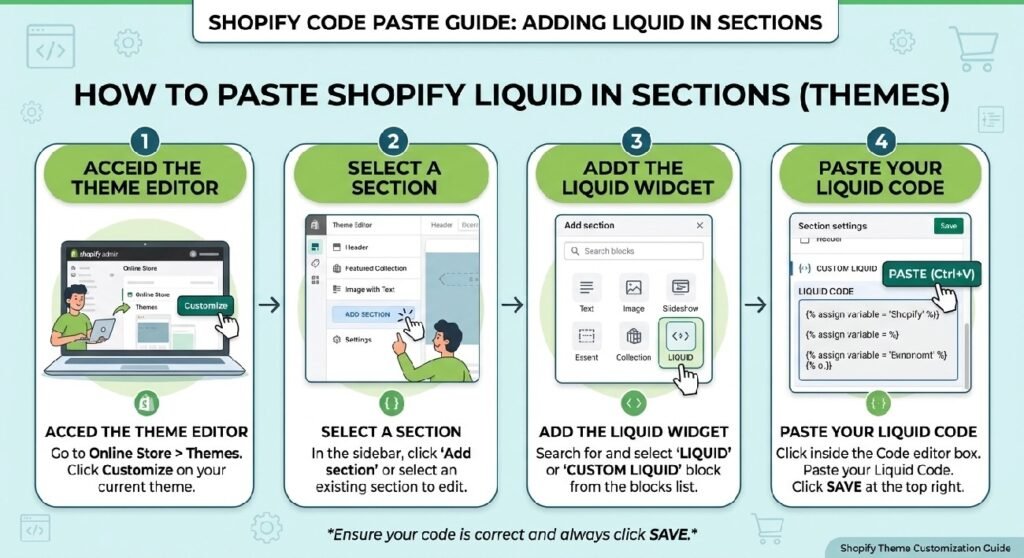
You can add this Announcement Bar Pro Liquid code directly to your Shopify theme.
Recommended method
- Open Shopify Admin.
- Go to Online Store → Themes.
- Select the theme you want to edit.
- Click Edit code.
- Open the Sections folder.
- Select Add a new section.
- Name the file:
announcement-bar-pro - Paste the provided code into the new
.liquidfile. - Save the file.
- Open the Shopify theme Customize editor.
- Add the new announcement section where you want it to appear.
You can also adapt the code for a Custom Liquid block if your theme structure allows it.
How This Shopify Code Works
The Announcement Bar Pro Liquid section is primarily built with HTML and CSS.
The .zx-ann class creates the main announcement container using Flexbox. It centers the content horizontally and provides spacing between the icon, promotional text, and button.
The background uses a three-color linear gradient to create a dark premium appearance.
The ::before pseudo-element creates a soft circular highlight in the upper-right area of the announcement bar.
The ::after pseudo-element creates the moving shine effect. The zxShine animation moves the highlight across the bar continuously.
The .zx-ann-icon class creates the rounded icon container.
The .zx-ann-content area contains the promotional title and supporting message.
The .zx-ann-btn class styles the call-to-action button and adds a small hover movement.
Finally, the media query changes the layout to a vertical design on screens smaller than 768px, making the announcement easier to use on mobile devices.
Shopify Liquid Code
<style>

/* =====================================
PREMIUM ANNOUNCEMENT BAR
===================================== */

.zx-ann{
    position:relative;
    display:flex;
    align-items:center;
    justify-content:center;
    gap:16px;

    padding:16px 24px;
    margin:24px 0;

    border-radius:22px;

    background:
    linear-gradient(135deg,#0f172a 0%,#1f2937 50%,#111827 100%);

    color:#fff;

    overflow:hidden;

    box-shadow:
    0 18px 40px rgba(0,0,0,.18);

    border:1px solid rgba(255,255,255,.08);

}

.zx-ann::before{

content:"";

position:absolute;

top:-60px;
right:-60px;

width:180px;
height:180px;

background:
radial-gradient(circle,
rgba(255,255,255,.12),
transparent 70%);

border-radius:50%;

}

.zx-ann::after{

content:"";

position:absolute;

left:-40%;

width:35%;

height:100%;

background:
linear-gradient(
90deg,
transparent,
rgba(255,255,255,.15),
transparent);

transform:skewX(-20deg);

animation:zxShine 4s linear infinite;

}

@keyframes zxShine{

100%{

left:140%;

}

}

.zx-ann-icon{

width:46px;
height:46px;

display:flex;
align-items:center;
justify-content:center;

border-radius:14px;

background:rgba(255,255,255,.10);

backdrop-filter:blur(12px);

font-size:22px;

flex-shrink:0;

}

.zx-ann-content{

display:flex;

flex-direction:column;

gap:3px;

}

.zx-ann-title{

font-size:16px;

font-weight:800;

letter-spacing:.3px;

}

.zx-ann-sub{

font-size:13px;

opacity:.75;

}

.zx-ann-btn{

margin-left:auto;

padding:11px 22px;

border-radius:999px;

background:#fff;

color:#111;

text-decoration:none;

font-weight:800;

transition:.3s;

white-space:nowrap;

}

.zx-ann-btn:hover{

background:#f3f3f3;

transform:translateY(-2px);

}

@media(max-width:768px){

.zx-ann{

flex-direction:column;

text-align:center;

padding:20px;

}

.zx-ann-btn{

margin:10px 0 0;

width:100%;

}

}

</style>

<div class="zx-ann">

    <div class="zx-ann-icon">
        🔥
    </div>

    <div class="zx-ann-content">

        <div class="zx-ann-title">
            Limited Time Offer
        </div>

        <div class="zx-ann-sub">
            Don't miss today's exclusive savings before they're gone.
        </div>

    </div>

    <a href="#" class="zx-ann-btn">
        Shop Now
    </a>

</div>
7 Powerful Ways to Use an Announcement Bar on Shopify
An announcement bar can be one of the simplest ways to communicate important information to shoppers. Because it is visually separated from the rest of the page, it can attract attention without requiring a large homepage section.
Here are seven practical ways to use this Shopify announcement design.
1. Promote Limited-Time Offers
The supplied example uses:
Limited Time Offer
This type of message is useful for genuine promotions that have a specific end date or limited availability.
You can adapt the title and supporting text for campaigns such as:
- Seasonal promotions
- Weekend offers
- New product launches
- Special store events
- Limited-time discounts
- Holiday campaigns
For example, the title could be changed to:
Summer Sale
And the supporting text could explain the actual promotion.
Avoid creating artificial urgency. The announcement should accurately describe the offer available to customers.
2. Add a Strong Shopify Call to Action
The supplied design includes a Shop Now button.
This is controlled by the .zx-ann-btn class and uses an anchor element:
<a href="#" class="zx-ann-btn">
You should replace the # with the actual destination URL.
For example, the button could lead to:
- A collection
- A product
- A sale page
- A new arrivals page
- A promotional landing page
A clear CTA makes the announcement more useful because visitors can act on the information immediately.
3. Highlight Free Shipping
Announcement bars are excellent for shipping messages because visitors often look for delivery information before purchasing.
You could use the same design to communicate an accurate offer such as:
Free Shipping
Supporting text can explain the qualifying order value or locations.
For example:
Free Shipping Over $50
with a button directing shoppers to the relevant collection.
This type of message can be especially useful near the top of a Shopify storefront.
4. Announce New Products
A new product announcement can help direct existing visitors toward recently launched products.
For example, the title could communicate:
New Collection
The supporting text can briefly explain what has been added, while the button can send visitors to the new collection.
This keeps the announcement compact while still providing a direct navigation path.
If the rest of your homepage already includes a premium hero section, you can combine this announcement with [INTERNAL LINK NEEDED: Premium Hero Banner Liquid] for a stronger promotional layout.
5. Use the Shine Animation Carefully
One of the distinctive features of this code is its animated shine effect.
The .zx-ann::after pseudo-element creates the shine, while the zxShine keyframes move it across the announcement bar.
The animation runs continuously over four seconds.
This creates visual movement without JavaScript.
However, the effect should remain subtle. An announcement bar is meant to communicate information, so excessive animation could distract visitors from the actual message.
The supplied implementation keeps the effect relatively simple with a transparent-to-white gradient.
6. Make the Announcement Mobile-Friendly
The desktop layout places the icon, content, and button in a horizontal row.
On smaller screens, the media query changes the layout:
flex-direction:column;
The button also expands to the available width.
This is important because a long promotional message can become cramped if the desktop layout is simply forced onto a phone screen.
The responsive version gives each element more room and makes the CTA easier to interact with.
7. Use Announcement Bars to Support Your Homepage
A good Shopify homepage usually has several layers of information.
An announcement bar can communicate an immediate message, while other sections handle deeper information.
For example:
Announcement Bar → Hero Banner → Statistics → Products → Reviews
You could use your [INTERNAL LINK NEEDED: Statistics Counter Liquid] section after the hero area to display genuine customer or business statistics.
You can also use [INTERNAL LINK NEEDED: Instagram Reels section Liquid] later on the page when social video content is relevant to your store.
Customizing the Announcement Text
The supplied code contains two text areas.
The first is:
Limited Time Offer
This is the main announcement title.
The second is:
Don’t miss today’s exclusive savings before they’re gone.
This provides additional context.
Both can be changed to match your actual Shopify campaign.
Example announcement types
Free Shipping
Free shipping is available on qualifying orders.
New Arrivals
Explore our latest products and collections.
Store Update
Discover what’s new in our store.
Special Offer
Explore our current promotional collection.
Use short, direct wording because announcement bars have limited space.
Customizing the Announcement Icon
The supplied code uses:
🔥
inside .zx-ann-icon.
You can replace the emoji with another suitable symbol depending on your message.
For example:
- 🚚 for shipping
- ⭐ for featured products
- 🎉 for celebrations
- 🛍️ for shopping
- ✨ for new arrivals
- 🔔 for notifications
The icon container uses a semi-transparent background and rounded corners, which gives it a glass-style appearance.
Changing the Button Destination
The button currently uses:
href="#"
This is only a placeholder destination.
Before publishing the section, replace it with the appropriate Shopify path.
For example, the CTA might point toward your sale collection or another relevant store page.
Make sure the destination matches the announcement message. If the announcement promotes a collection, the button should take the visitor directly to that collection rather than an unrelated page.
Understanding the Premium Design
The visual appearance comes from several CSS properties working together.
The announcement container uses:
- Gradient background
- Rounded corners
- Subtle border
- Box shadow
- Flexbox alignment
- Overflow control
The icon uses:
- Semi-transparent background
- Blur effect
- Rounded corners
- Fixed dimensions
The button uses:
- White background
- Dark text
- Pill-shaped border radius
- Hover transition
Together, these elements create a modern Shopify promotional component without requiring a large image or external library.
Announcement Bar Without an App
One of the main benefits of this approach is that the design is created with custom theme code.
The supplied implementation does not require a dedicated announcement-bar app.
That means you can control the:
- Text
- Icon
- CTA
- Colors
- Spacing
- Border radius
- Animation
- Responsive behavior
directly through the theme code.
For Shopify developers and freelancers, this can also make the section easier to adapt for different client stores.
Where Should You Place an Announcement Bar?
The ideal position depends on the message.
A promotional announcement can work near the top of the homepage.
A shipping message may be useful near the top of the storefront.
A product-launch message can be positioned around the relevant homepage content.
The important point is to make the message visible without allowing it to overwhelm the primary navigation or main shopping experience.
Keep Promotional Messages Clear
A good announcement should answer three basic questions quickly:
What is happening?
Explain the promotion or update.
Why does it matter?
Give visitors the key benefit.
What should they do?
Provide a relevant CTA.
The supplied structure already supports this:
Title → Supporting message → Button
That makes the section easy to adapt for different Shopify campaigns.
Frequently Asked Questions
What is Announcement Bar Pro Liquid?
Announcement Bar Pro Liquid is a custom Shopify theme section designed to display promotional messages, store announcements, shipping information, and calls to action.
Does this announcement bar require JavaScript?
No. The supplied implementation uses HTML and CSS. Its shine animation is created with CSS keyframes.
Can I change the announcement message?
Yes. You can replace the title and supporting text directly inside the HTML.
Can I change the Shop Now button?
Yes. You can change both the button text and its destination URL.
Is the announcement bar responsive?
Yes. At screen widths below 768px, the layout changes from horizontal to vertical and the CTA button expands to the available width.
Can I change the colors?
Yes. The colors are controlled through the CSS background, text, border, and button properties.
Can I use this without a Shopify app?
Yes. The supplied code is a theme-based HTML/CSS implementation and does not depend on an announcement-bar app.
Can I use this on a Shopify homepage?
Yes. It can be adapted for a homepage, landing page, collection-focused layout, or other suitable theme locations.
Explore More Shopify Code
Continue improving your Shopify storefront with these related customizations:
- Shopify guarantee section
A Shopify guarantee section builds instant trust and eliminates purchase hesitation directly on your product pages or homepage. Displaying clear trust badges—such as a 30-day money-back guarantee, free returns, secure checkout, or lifetime warranty—helps convert uncertain shoppers who might otherwise bounce without purchasing.https://css-liquids-for-shopify.site/shopify-guarantee-section/ - Statistics Counter Liquid
A Statistics Counter Liquid section is a simple way to display Important store numbers like customer count, ratings, support availability, orders or other business statistics can be displayed using a Statistics Counter Liquid section. This layout will not require a big banner; instead, it will showcase the most important figures in simple compact cards that visitors can grasp easily.https://css-liquids-for-shopify.site/statistics-counter-liquid-shopify/For more help, you can read Shopify’s official theme customization guide :Shopify Theme Customization Guide
2 Responses