
A Shopify guarantee section builds instant trust and eliminates purchase hesitation directly on your product pages or homepage. Displaying clear trust badges—such as a 30-day money-back guarantee, free returns, secure checkout, or lifetime warranty—helps convert uncertain shoppers who might otherwise bounce without purchasing.
Instead of installing heavy third-party trust badge apps that charge monthly subscription fees and inject bloatware into your theme, adding a native Shopify guarantee section directly to your code keeps your site fast, lightweight, and fully aligned with your brand aesthetics.
Where to Paste This Shopify Code
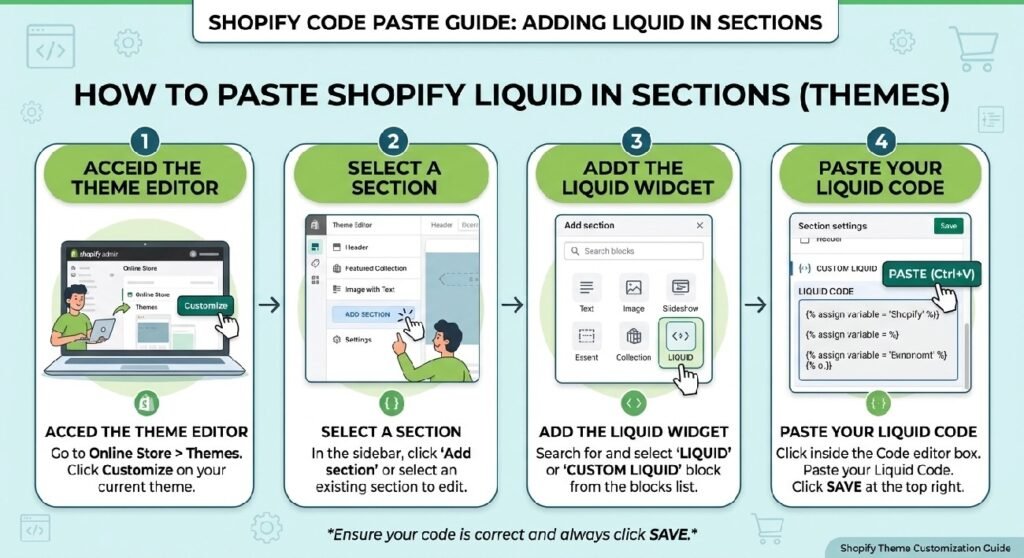
To install this custom guarantee section on any Shopify Online Store 2.0 theme (such as Dawn, Sense, or Spotlight), follow these simple steps:
-
Go to Online Store → Themes in your Shopify admin.
-
Click the three dots (
...) next to your active theme and select Edit code. -
In the Sections folder, click Add a new section and name it
guarantee-section. -
Clear out all default boilerplate code from the new file and paste the complete Liquid snippet provided below.
-
Click Save.
-
Open your Theme Editor (Customize), navigate to your Default product template or Homepage, click Add section in the sidebar, and select Guarantee Section.
How This Shopify Code Works
This section uses standard Shopify Liquid schema settings paired with clean CSS grid layouts to deliver a responsive trust bar:
-
Liquid Schema Blocks: Uses modular block settings so you can add, remove, and reorder individual guarantee cards directly from the Theme Editor without touching any code.
-
Custom Icon Options: Supports native Shopify image uploads or clean inline SVG icons for badges like shipping, money-back guarantees, and SSL security.
-
Responsive CSS Grid: Automatically adapts the column layout—displaying a clean horizontal row on desktop viewports and stacking neatly into a 1–2 column view on mobile screens.
-
Theme Editor Customization: Lets you customize background colors, border styles, icon sizes, and typography alignment live within the Shopify visual customizer.
Shopify Liquid Code
<style>

/* ===============================
PREMIUM GUARANTEE SECTION
===============================*/

.zx-guarantee{
    position:relative;
    overflow:hidden;

    display:flex;
    align-items:center;
    justify-content:space-between;
    gap:40px;

    padding:34px;

    margin:28px 0;

    border-radius:30px;

    background:
    radial-gradient(circle at top right,#ffffff 0%,#fbfbfb 45%,#f5f5f5 100%);

    border:1px solid rgba(0,0,0,.06);

    box-shadow:
    0 30px 60px rgba(0,0,0,.06),
    inset 0 1px 0 rgba(255,255,255,.9);

    transition:.45s ease;
}

.zx-guarantee:hover{

transform:translateY(-6px);

box-shadow:
0 40px 80px rgba(0,0,0,.12);

}

.zx-guarantee:before{

content:"";

position:absolute;

right:-120px;
top:-120px;

width:280px;
height:280px;

background:radial-gradient(circle,#00000008,transparent 70%);

border-radius:50%;

}

.zx-g-left{

display:flex;

align-items:center;

gap:22px;

z-index:2;

}

.zx-g-icon{

width:92px;
height:92px;

border-radius:28px;

background:linear-gradient(145deg,#111,#2d2d2d);

display:flex;

align-items:center;
justify-content:center;

font-size:42px;

color:#fff;

box-shadow:
0 18px 35px rgba(0,0,0,.20);

flex-shrink:0;

}

.zx-g-content h3{

margin:0;

font-size:30px;

font-weight:900;

color:#111;

letter-spacing:-0.6px;

}

.zx-g-content p{

margin-top:10px;

font-size:16px;

line-height:1.8;

color:#666;

max-width:620px;

}

.zx-g-right{

display:flex;

flex-direction:column;

align-items:flex-end;

gap:12px;

z-index:2;

}

.zx-g-badge{

padding:12px 22px;

background:#111;

color:#fff;

border-radius:999px;

font-weight:800;

font-size:14px;

letter-spacing:.4px;

}

.zx-g-small{

font-size:14px;

color:#777;

font-weight:600;

}

.zx-g-line{

margin-top:18px;

display:flex;

gap:12px;

flex-wrap:wrap;

}

.zx-g-chip{

padding:9px 16px;

border-radius:999px;

background:#fff;

border:1px solid #ececec;

font-size:13px;

font-weight:700;

color:#444;

box-shadow:0 6px 18px rgba(0,0,0,.04);

}

@media(max-width:768px){

.zx-guarantee{

flex-direction:column;

text-align:center;

padding:28px 22px;

gap:24px;

}

.zx-g-left{

flex-direction:column;

}

.zx-g-right{

align-items:center;

}

.zx-g-content h3{

font-size:24px;

}

.zx-g-content p{

font-size:15px;

}

.zx-g-line{

justify-content:center;

}

}

</style>

<div class="zx-guarantee">

<div class="zx-g-left">

<div class="zx-g-icon">

🛡️

</div>

<div class="zx-g-content">

<h3>Customer Satisfaction Promise</h3>

<p>

Every order is backed by dedicated customer support.
We're committed to ensuring a smooth shopping experience from purchase to delivery.

</p>

<div class="zx-g-line">

<div class="zx-g-chip">✓ Trusted Support</div>

<div class="zx-g-chip">✓ Fast Response</div>

<div class="zx-g-chip">✓ Secure Shopping</div>

</div>

</div>

</div>

<div class="zx-g-right">

<div class="zx-g-badge">

100% Customer Focused

</div>

<div class="zx-g-small">

We're here before & after your purchase.

</div>

</div>

</div>
Why Add This to Your Shopify Store?
Reassuring customers right before they buy is one of the easiest ways to improve your store’s conversion rate:
-
Reduces Cart Abandonment: Addressing concerns about return policies and payment security at the point of purchase keeps buyers in the checkout flow.
-
Improves Brand Credibility: Professional trust badges make new or lesser-known e-commerce stores look established and trustworthy.
-
App-Free Speed: Eliminates third-party JavaScript files, ensuring your page loads fast and maintains high Google PageSpeed scores.
Tips for Customizing the Code
You can easily adapt the styling and layout inside the section settings and CSS properties:
-
Adjusting Grid Columns: Modify the
.guarantee-gridCSS class to switch between a 2-column, 3-column, or 4-column display on desktop screens. -
Customizing Badge Colors: Match the icon tint and background card shades to your primary brand palette using theme schema color pickers.
-
Adding Border Dividers: Add subtle border lines (
border-right: 1px solid #e8e8e8;) between guarantee cards for a polished modern layout.
Common Problems and Fixes
-
Icons appear misaligned or blurry: Ensure all uploaded guarantee icons share identical square aspect ratios (e.g., 64x64px) or use scalable SVGs.
-
Section looks cramped on mobile: Set
flex-wrap: wrapor adjust grid breakpoints inside your CSS media queries for smaller viewports. -
Text wraps awkwardly: Keep guarantee titles short and concise (e.g., “30-Day Money Back” instead of long sentences) to maintain clean alignment.
Frequently Asked Questions
Can I add a guarantee section to Shopify without an app?
Yes, this code runs natively inside your Shopify theme using Liquid, standard CSS, and HTML without requiring any app installations.
Will this guarantee section work on all Shopify 2.0 themes?
Yes, it is designed specifically as a modular section compatible with Dawn, Sense, Craft, Spotlight, and all standard OS 2.0 themes.
Can I use custom SVG icons for each guarantee block?
Yes, you can upload custom SVG/PNG icons or pick icons directly through the Shopify Theme Editor block settings.
Explore More Shopify Code
Shopify Before After Image Slider section
A Shopify Before After Image Slider section is an essential visual tool for stores selling skincare, fitness gear, cleaning supplies, or home transformation products.
https://css-liquids-for-shopify.site/shopify-before-after-image-slider/
Shopify size guide box
A Shopify size guide box is a crucial feature for apparel, footwear, and accessory stores. Sizing uncertainty is one of the leading causes of abandoned product pages and costly return requests.
https://css-liquids-for-shopify.site/shopify-size-guide-box/
For more help, you can read Shopify’s official theme customization guide :Shopify Theme Customization Guide
2 Responses