
A Shopify Before After Image Slider section is an essential visual tool for stores selling skincare, fitness gear, cleaning supplies, or home transformation products. By allowing customers to drag an interactive slider over two side-by-side images, you provide instant, undeniable visual proof of your product’s effectiveness.
Instead of paying recurring monthly subscription fees for bulky app integrations that slow down page load speed, adding a native Shopify before after section directly to your theme keeps your storefront fast, lightweight, and completely under your design control.
Where to Paste This Shopify Code
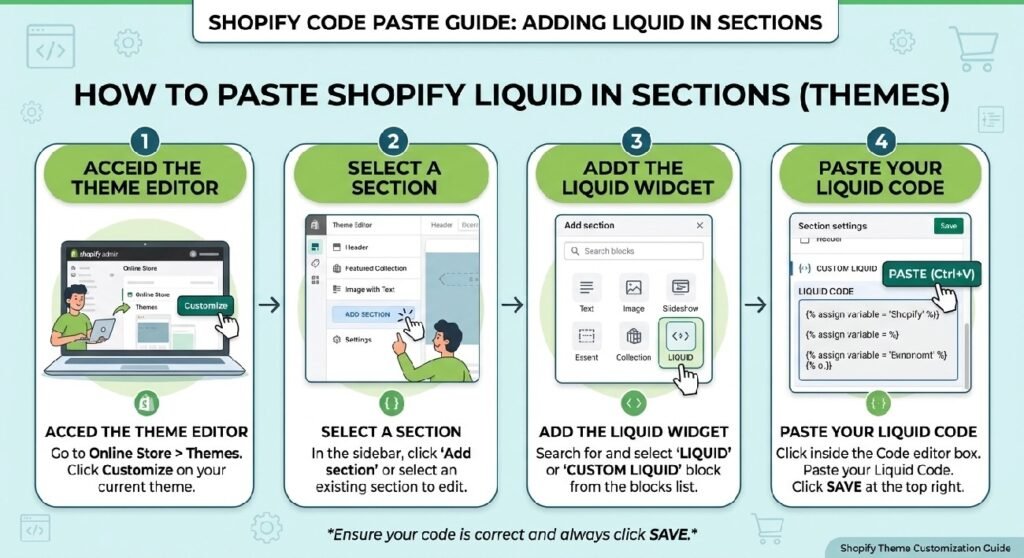
To install this custom before-after slider section on any Shopify Online Store 2.0 theme (such as Dawn, Sense, or Spotlight), follow these simple steps:
-
Go to Online Store → Themes in your Shopify admin.
-
Click the three dots (
...) next to your active theme and select Edit code. -
In the Sections folder, click Add a new section and name it
before-after-section. -
Clear out all default boilerplate code from the new file and paste the complete Liquid code snippet provided below.
-
Click Save.
-
Open your Theme Editor (Customize), navigate to your Default product template or Homepage, click Add section in the sidebar, and select Before After Section.
How This Shopify Code Works
This section uses standard Shopify Liquid schema settings combined with lightweight vanilla JavaScript to deliver a responsive comparison slider:
-
Liquid Schema Controls: Built-in settings allow you to upload before and after images, customize text labels, set initial slider positioning, and adjust card border radiuses directly inside the Shopify visual customizer.
-
CSS Absolute Positioning: Overlays two image layers using
position: absoluteand clips the top image dynamically using CSSclip-pathor width percentage adjustments. -
Vanilla JavaScript Drag Handler: Listens for mouse drag and mobile touch events (
touchmove), updating the slider handle offset in real-time for smooth interactive control. -
Mobile-First Responsive Layout: Ensures touch controls work seamlessly on mobile browsers without triggering accidental page scrolling.
Shopify Liquid Code
<style>

.zx-ba{
    position:relative;
    margin:35px 0;
}

.zx-ba-header{
    text-align:center;
    margin-bottom:35px;
}

.zx-ba-tag{
    display:inline-block;
    padding:8px 18px;
    border-radius:999px;
    background:#111;
    color:#fff;
    font-size:13px;
    font-weight:700;
    letter-spacing:.5px;
    margin-bottom:15px;
}

.zx-ba-header h2{
    font-size:42px;
    margin:0;
    color:#111;
    font-weight:900;
}

.zx-ba-header p{
    max-width:650px;
    margin:15px auto 0;
    color:#666;
    font-size:17px;
    line-height:1.7;
}

.zx-ba-grid{
    display:grid;
    grid-template-columns:1fr auto 1fr;
    gap:25px;
    align-items:center;
}

.zx-ba-card{
    background:#fff;
    border:1px solid #ececec;
    border-radius:28px;
    overflow:hidden;
    box-shadow:0 18px 45px rgba(0,0,0,.06);
    transition:.35s;
}

.zx-ba-card:hover{
    transform:translateY(-8px);
    box-shadow:0 28px 60px rgba(0,0,0,.12);
}

.zx-ba-image{
    aspect-ratio:1/1;
    background:#f3f4f6;
    display:flex;
    align-items:center;
    justify-content:center;
    font-size:60px;
    color:#999;
}

.zx-ba-content{
    padding:24px;
}

.zx-ba-label{
    display:inline-block;
    padding:7px 15px;
    border-radius:999px;
    font-size:13px;
    font-weight:800;
    margin-bottom:15px;
}

.zx-before{
    background:#fee2e2;
    color:#b91c1c;
}

.zx-after{
    background:#dcfce7;
    color:#15803d;
}

.zx-ba-content h3{
    margin:0 0 12px;
    font-size:28px;
    color:#111;
}

.zx-ba-content p{
    margin:0;
    color:#666;
    line-height:1.7;
}

.zx-arrow{
    width:80px;
    height:80px;
    border-radius:50%;
    background:#111;
    color:#fff;
    display:flex;
    align-items:center;
    justify-content:center;
    font-size:34px;
    box-shadow:0 15px 35px rgba(0,0,0,.18);
    animation:zxPulse 2s infinite;
}

@keyframes zxPulse{

0%{
transform:scale(1);
}

50%{
transform:scale(1.08);
}

100%{
transform:scale(1);
}

}

.zx-ba-features{
    display:grid;
    grid-template-columns:repeat(3,1fr);
    gap:18px;
    margin-top:30px;
}

.zx-ba-features div{
    background:#f8fafc;
    border-radius:18px;
    padding:20px;
    text-align:center;
    font-weight:700;
    color:#111;
    transition:.3s;
}

.zx-ba-features div:hover{
    background:#111;
    color:#fff;
    transform:translateY(-5px);
}

.zx-ba-features span{
    display:block;
    font-size:30px;
    margin-bottom:10px;
}

@media(max-width:768px){

.zx-ba-header h2{
font-size:30px;
}

.zx-ba-grid{
grid-template-columns:1fr;
}

.zx-arrow{
margin:auto;
transform:rotate(90deg);
}

.zx-ba-features{
grid-template-columns:1fr;
}

}

</style>

<section class="zx-ba">

<div class="zx-ba-header">

<div class="zx-ba-tag">
BEFORE & AFTER
</div>

<h2>See the Difference</h2>

<p>
Experience the transformation with premium quality, superior performance, and results you can actually notice.
</p>

</div>

<div class="zx-ba-grid">

<div class="zx-ba-card">

<div class="zx-ba-image">
📷
</div>

<div class="zx-ba-content">

<div class="zx-ba-label zx-before">
Before
</div>

<h3>Ordinary Experience</h3>

<p>
Basic quality, average performance, and results that don't meet expectations.
</p>

</div>

</div>

<div class="zx-arrow">
➜
</div>

<div class="zx-ba-card">

<div class="zx-ba-image">
✨
</div>

<div class="zx-ba-content">

<div class="zx-ba-label zx-after">
After
</div>

<h3>Premium Results</h3>

<p>
A noticeable improvement with premium craftsmanship, better comfort, and outstanding quality.
</p>

</div>

</div>

</div>

</section>
Why Add This to Your Shopify Store?
Interactive comparison tools build immediate product confidence and lower customer purchase hesitation:
-
Drives Higher Conversions: Demonstrates tangible results visually, replacing long paragraphs of text with interactive proof.
-
App-Free Performance: Running native Liquid and vanilla JavaScript eliminates external tracking scripts and third-party app bloat.
-
Fully Customizable: Tweak handle colors, label overlays, border styles, and container aspect ratios directly in your theme settings.
Tips for Customizing the Code
You can easily adapt the styling and slider behavior inside the section settings and CSS properties:
-
Matching Aspect Ratios: Upload before and after images with identical dimensions (e.g., 1000x1000px or 1200x800px) to prevent layout shifts.
-
Customizing Slider Colors: Modify the
.before-after-handleCSS rules to match your brand’s primary accent colors. -
Adding Image Labels: Toggle before and after text badges (e.g., “Day 1” vs “Day 30”) directly inside the Theme Editor settings panel.
Common Problems and Fixes
-
Images appear misaligned or distorted: Ensure both uploaded assets share the exact same aspect ratio before uploading them to Shopify.
-
Slider handle doesn’t respond on mobile: Check that touch events have
passive: falseset or CSStouch-action: noneapplied to the handle element to prevent screen scrolling interference. -
Images take long to load: Compress image files using modern WebP formats before adding them to your section settings.
Frequently Asked Questions
Can I add a before and after image slider without an app?
Yes, this code is 100% app-free and runs natively inside your Shopify theme using Liquid, CSS, and vanilla JavaScript.
Will this section work on all Shopify 2.0 themes?
Yes, it is designed specifically as a modular section compatible with Dawn, Sense, Craft, Spotlight, and all standard OS 2.0 themes.
Does this comparison slider work on touch screen mobile devices?
Yes, the JavaScript event listeners support both desktop mouse dragging and mobile touch gestures (touchstart / touchmove).
Explore More Shopify Code
Shopify product benefits grid
A Shopify product benefits grid is a clean, visual layout that highlights the core features, value propositions, and key selling points of your product.
https://css-liquids-for-shopify.site/shopify-product-benefits-grid/
Shopify video testimonial section
A Shopify video testimonial section is a powerful social proof tool that builds instant trust on your storefront. authentic customer video reviews, user-generated content (UGC), and video unboxings give potential buyers high confidence in your products.
https://css-liquids-for-shopify.site/shopify-video-testimonial-section/
For more help, you can read Shopify’s official theme customization guide :Shopify Theme Customization Guide
2 Responses