
A Statistics Counter Liquid section is a simple way to display Important store numbers like customer count, ratings, support availability, orders or other business statistics can be displayed using a Statistics Counter Liquid section. This layout will not require a big banner; instead, it will showcase the most important figures in simple compact cards that visitors can grasp easily. The code supplied provides a premium 3 column statistics section with HTML and CSS. Every card features a big number, an upper case text and some text. Hover effects give movement and visual feedback and the responsive CSS automatically changes to a single column on smaller screens. This is a great section to use on Shopify homepages, landing pages, product pages and anywhere else you need to build trust in your store.
Where to Paste This Shopify Code
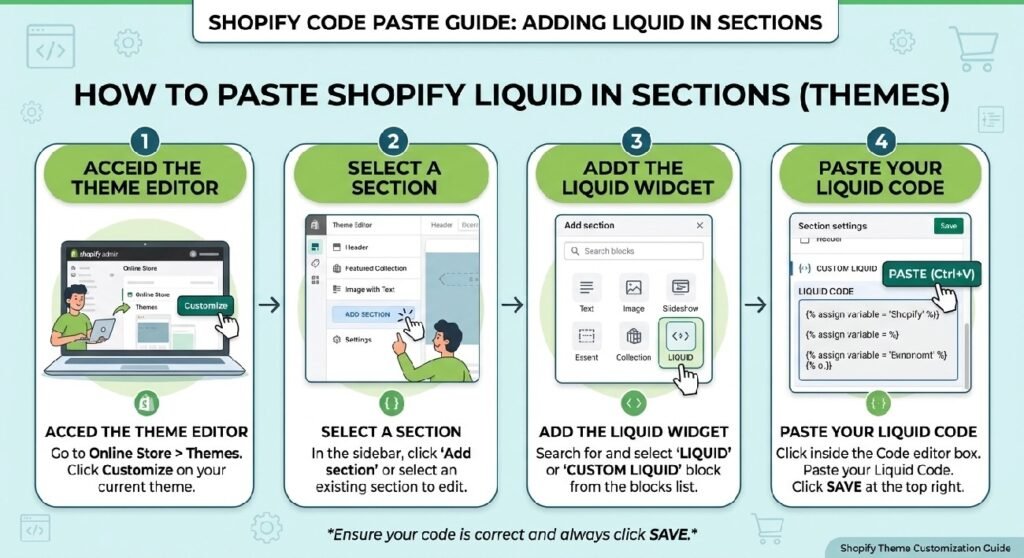
You can add this Statistics Counter Liquid code to a Shopify theme as a custom Liquid section.
Recommended method
- Log in to your Shopify Admin.
- Go to Online Store → Themes.
- Open the theme you want to customize.
- Select Edit code.
- Open the Sections folder.
- Click Add a new section.
- Name the file something like:
statistics-counter - Paste the provided code into the new
.liquidfile. - Save the file.
- Open Customize from your theme editor.
- Add the new Statistics Counter section where you want it to appear.
Because this snippet uses regular HTML and CSS rather than Liquid objects, it can also be adapted for a Custom Liquid block when appropriate.
How This Shopify Code Works
The Statistics Counter Liquid design is built from three main parts: the section container, statistic cards, and responsive CSS.
The .zx-stats class creates a CSS Grid layout with three equal columns:
Customer statistics Average rating Customer support information Each .zx-stat is a single stats card.
All the numbers at the top of each card are controlled by the .zx-stat-number class.
For instance, the provided code includes numbers like 5K+, 4.8★, and 24/7.
The .zx-stat-label contains the main description in the stat block, the .zx-stat-sub contains a smaller supporting sentence.
There is also a hover animation on the cards.
As the visitor rolls the mouse over a card, the card slides a bit upward and the shadow becomes more pronounced. Also on the top of the card there is a small gradient bar.
The media query makes the change from 3 to 1 column layout for screens less than 768px wide. This makes it easier to read the statistics section on mobile.
Shopify Liquid Code
<style>

/*==============================
PREMIUM STATS SECTION
==============================*/

.zx-stats{
    display:grid;
    grid-template-columns:repeat(3,1fr);
    gap:18px;
    margin:28px 0;
}

.zx-stats .zx-stat{
    position:relative;
    overflow:hidden;

    background:
    linear-gradient(180deg,#ffffff,#fafafa);

    border:1px solid rgba(0,0,0,.06);

    border-radius:24px;

    padding:28px 20px;

    text-align:center;

    transition:.35s ease;

    box-shadow:
    0 10px 30px rgba(0,0,0,.05);

}

.zx-stats .zx-stat:before{

content:"";

position:absolute;

left:0;
top:0;

width:100%;
height:5px;

background:linear-gradient(90deg,#111,#666);

opacity:0;

transition:.35s;

}

.zx-stats .zx-stat:hover{

transform:translateY(-8px);

box-shadow:
0 22px 45px rgba(0,0,0,.12);

}

.zx-stats .zx-stat:hover:before{

opacity:1;

}

.zx-stat-number{

font-size:40px;

font-weight:900;

line-height:1;

color:#111;

letter-spacing:-1px;

margin-bottom:12px;

}

.zx-stat-label{

font-size:15px;

font-weight:700;

color:#666;

letter-spacing:.3px;

text-transform:uppercase;

}

.zx-stat-sub{

margin-top:8px;

font-size:13px;

color:#9a9a9a;

line-height:1.6;

}

@media(max-width:768px){

.zx-stats{

grid-template-columns:1fr;

gap:14px;

}

.zx-stat-number{

font-size:34px;

}

}

</style>

<div class="zx-stats">

<div class="zx-stat">

<div class="zx-stat-number">
5K+
</div>

<div class="zx-stat-label">
Happy Customers
</div>

<div class="zx-stat-sub">
Trusted by shoppers nationwide.
</div>

</div>

<div class="zx-stat">

<div class="zx-stat-number">
4.8★
</div>

<div class="zx-stat-label">
Average Rating
</div>

<div class="zx-stat-sub">
Based on verified customer reviews.
</div>

</div>

<div class="zx-stat">

<div class="zx-stat-number">
24/7
</div>

<div class="zx-stat-label">
Customer Support
</div>

<div class="zx-stat-sub">
We're here whenever you need us.
</div>

</div>

</div>
7 Powerful Ways to Use a Statistics Counter on Shopify
A statistics section does more than display numbers. When used correctly, it can help visitors understand your business quickly and make your storefront feel more established.
Here are seven practical ways to use this type of Shopify section.
1. Show Your Customer Count
A customer statistic can communicate social proof immediately.
The supplied example uses:
5K+ Happy Customers
This gives shoppers a quick understanding of the store’s customer reach.
You can replace this value with your own genuine business statistic, such as:
- Customers served
- Orders completed
- Products sold
- Members
- Businesses served
Only display numbers that accurately represent your business.
2. Highlight Your Average Rating
The second card displays:
4.8★ Average Rating
Ratings can be particularly useful when customers are deciding whether they can trust an unfamiliar store.
You can use this card for a genuine average rating based on your available customer reviews.
For example, a store could highlight:
- Average customer rating
- Verified reviews
- Product satisfaction
- Service rating
This can work particularly well alongside a dedicated reviews section.
If your Shopify homepage also contains visual content, you could combine this statistics section with a custom social-media section such as [INTERNAL LINK NEEDED: Instagram Reels section Liquid].
3. Promote Customer Support Availability
The third supplied statistic is:
24/7 Customer Support
This communicates when customers can receive assistance.
If your business does not actually provide 24/7 support, change this value to an accurate statement.
Possible alternatives include:
Mon–Fri12/7Fast RepliesSame Day1 Hour
The goal is to make the statistic useful rather than simply decorative.
4. Use Statistics Near Your Hero Section
Statistics work particularly well underneath a hero banner.
A hero section introduces the store, while statistics provide supporting information.
For example:
Hero → Statistics → Products → Reviews
This creates a logical visual journey:
- Introduce the store.
- Build credibility.
- Present products.
- Provide additional social proof.
If you already use a premium hero design, connect this article with [INTERNAL LINK NEEDED: Premium Hero Banner Liquid] to create a consistent Shopify homepage structure.
5. Keep Important Numbers Easy to Scan
The supplied CSS uses a large 40px font size for the main statistic.
This is intentional. Visitors should be able to identify the important number before reading the smaller supporting text.
The visual hierarchy is:
Number → Label → Supporting text
For example:
5K+
Happy Customers
Trusted by shoppers nationwide.
This structure is useful because visitors can scan the section without reading a large paragraph.
6. Take Advantage of Hover Effects
The statistics cards include a subtle hover animation.
When the visitor hovers over a card, this rule moves it upward:
transform:translateY(-8px);
The shadow also becomes stronger.
These effects make the cards feel interactive without requiring JavaScript.
The top gradient bar is controlled separately through the :before pseudo-element. Its opacity changes when the card is hovered.
This creates a polished effect while keeping the implementation lightweight.
7. Make the Section Mobile-Friendly
A three-column layout works well on desktop screens, but displaying three narrow cards beside each other on a phone would reduce readability.
The supplied media query solves this by changing:
grid-template-columns:repeat(3,1fr);
to:
grid-template-columns:1fr;
As a result, the cards appear vertically on smaller screens.
The statistic font also decreases from 40px to 34px on mobile.
This is an important part of Shopify theme customization because a section should work across desktop, tablet, and mobile layouts.
Customizing the Statistics
You can easily change the values and text inside each card.
For example, the first card contains:
5K+
Happy Customers
Trusted by shoppers nationwide.
You can replace these with statistics relevant to your store.
Possible statistics
10K+— Orders Completed98%— Customer Satisfaction4.9★— Average Rating500+— Products Available15K+— Customers Served24/7— Support Available
Again, use genuine information that accurately represents your business.
Changing the Number of Statistics Cards
The supplied design contains three cards.
If you add additional cards, the CSS Grid can be adjusted depending on the layout you want.
For example, four cards could be displayed in four columns on larger screens, while a responsive layout could reduce the number of columns as the screen becomes smaller.
The exact layout should depend on the amount of information you want to display and the available width of your Shopify theme.
Changing the Statistics Colors
The supplied design uses a clean monochrome appearance:
- Black for statistics
- Gray for labels
- Light gray for supporting text
- White/light backgrounds
- Dark gradient hover accent
This makes the section suitable for minimalist Shopify stores.
You can adapt the values in the CSS to match your brand identity.
For example, the main number is controlled by:
.zx-stat-number
while the label uses:
.zx-stat-label
and the supporting text uses:
.zx-stat-sub
Keeping these styles separated makes future customization easier.
Why This Section Works Well for Shopify Stores
A statistics section is useful because it communicates information without requiring visitors to read a long paragraph.
A customer can quickly see:
5K+ → customer reach
4.8★ → rating
24/7 → support availability
This makes the section especially useful between major homepage elements.
It can also complement other custom Shopify sections such as hero banners, video sections, product sections, testimonials, and promotional content.
Statistics Counter vs. Animated Counter
There is an important difference between a static statistics display and an animated counter.
The code supplied here is a static statistics section.
For example, 5K+ is already displayed when the page loads.
An animated counter would normally start from another value and use JavaScript to increase the number until it reaches the final value.
For this particular design, the static approach keeps the implementation simple because no JavaScript is required.
If you want a lightweight statistics display, this approach is often easier to maintain.
Best Placement for a Shopify Statistics Section
You can place this section in several locations depending on your store design.
Homepage
Place it underneath the hero banner to provide immediate credibility.
About Page
Use genuine business statistics to summarize your experience or customer reach.
Landing Page
Display relevant numbers underneath the main call-to-action.
Product-Focused Pages
Use appropriate store-level statistics near product information when they help reinforce trust.
Service Pages
Statistics can communicate service volume, customer satisfaction, or business experience.
The best placement is wherever the numbers help answer a question a visitor may have.
Keep Your Shopify Code Lightweight
One advantage of the supplied section is that it does not depend on an external app or JavaScript library.
The design uses:
- HTML
- CSS Grid
- CSS transitions
- CSS pseudo-elements
- Responsive media queries
That keeps the implementation straightforward.
If you are building multiple custom sections, you can also explore [INTERNAL LINK NEEDED: Shopify Liquid tutorials] for additional Shopify theme customization ideas.
Frequently Asked Questions
What is a Statistics Counter Liquid section in Shopify?
A Statistics Counter Liquid section is a custom Shopify theme section that displays important numbers such as customers, ratings, orders, products, or support availability.
Does this Statistics Counter require JavaScript?
No. The supplied design uses HTML and CSS. The hover animation is handled by CSS transitions.
Can I change the statistics?
Yes. You can replace the supplied numbers, labels, and descriptions with accurate statistics relevant to your store.
Is the statistics section responsive?
Yes. The supplied CSS changes the three-column desktop layout to a single-column layout on screens up to 768px wide.
Can I add more statistic cards?
Yes. You can duplicate the .zx-stat structure and adjust the grid layout if necessary.
Can I use this without a Shopify app?
Yes. The supplied design is custom HTML/CSS and can be added to a Shopify theme without requiring a dedicated statistics app.
Where should I place the statistics section?
The homepage, underneath a hero banner, is a strong option. It can also be used on landing pages, About pages, and other areas where genuine business statistics help build trust.
Explore More Shopify Code
Continue building your Shopify store with these related custom sections:
- Shopify size guide box
A Shopify size guide box is a crucial feature for apparel, footwear, and accessory stores. Sizing uncertainty is one of the leading causes of abandoned product pages and costly return requests. By providing a clean, accessible sizing modal or popup right next to the variant selectors, you give shoppers the confidence they need to select the right size on their first try.https://css-liquids-for-shopify.site/shopify-size-guide-box/ - Shopify guarantee section
A Shopify guarantee section builds instant trust and eliminates purchase hesitation directly on your product pages or homepage. Displaying clear trust badges—such as a 30-day money-back guarantee, free returns, secure checkout, or lifetime warranty—helps convert uncertain shoppers who might otherwise bounce without purchasing.https://css-liquids-for-shopify.site/shopify-guarantee-section/For more help, you can read Shopify’s official theme customization guide :Shopify Theme Customization Guide
3 Responses