
A Customer Gallery Section Liquid is a useful way to show real customer photos, project examples, user-generated content, or community submissions inside a Shopify store. The supplied design keeps the gallery deliberately simple: a heading, a short introduction, eight square gallery cards, a project count, and a View all link.
Visually, it is clean and easy to adapt. The desktop layout uses four columns, then drops to three, two, and finally one column as the screen gets narrower. Each gallery item has a subtle hover lift and image zoom effect, while the footer stays understated.
There are a few things I would fix before putting this exact snippet into Shopify, though. Most importantly, it is currently written as a complete HTML document rather than a Shopify section, and the gallery cards still contain placeholders instead of real images.
Where to Paste This Shopify Code
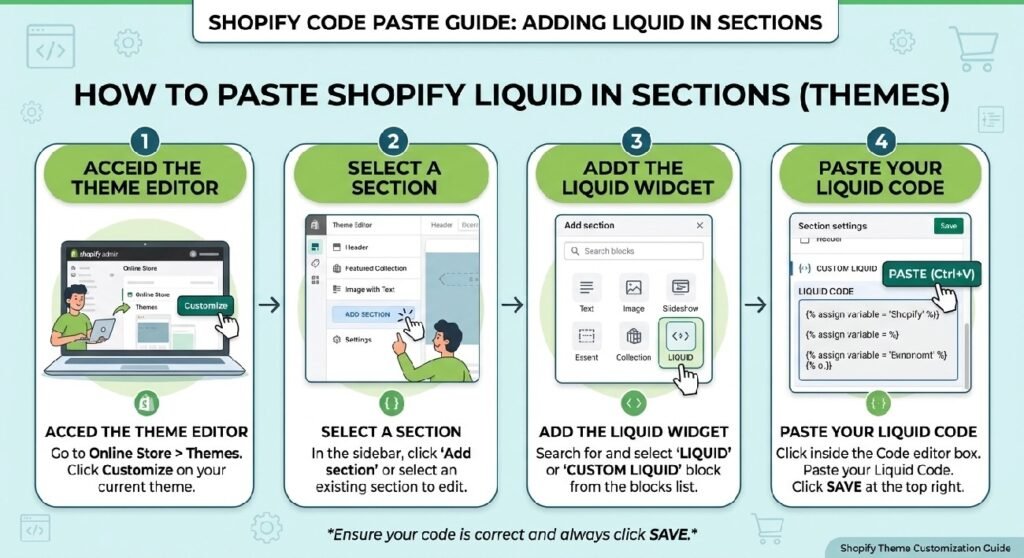
For Shopify, I would save this as:
customer-gallery-section.liquid
The supplied filename uses custamer, but customer is the correct spelling and will make the file easier to recognize later.
Open:
Shopify Admin → Online Store → Themes → Edit code
Then open the Sections folder and create:
customer-gallery-section.liquid
Before pasting the code, remove the document-level tags:
<!DOCTYPE html><html><head><meta><title></head><body></body></html>
Those belong to a complete standalone web page. A Shopify section should contain only the markup, styles, Liquid, and section schema needed for that component.
Your section should begin around the <style> block and continue through the closing </section>.
Also duplicate the live theme before making code changes. That gives you a clean rollback point if the section conflicts with existing theme styles.
How Customer Gallery Section Liquid Works
The main .modron-gallery wrapper controls the overall width and spacing.
It uses:
max-width: 1200px;
so the content stays centered rather than stretching across very large screens.
The actual gallery is created by .modron-grid, which starts with four equal columns:
grid-template-columns: repeat(4, 1fr);
Each .modron-item is square because of:
aspect-ratio: 1;
That is a good choice for a customer gallery because every image keeps the same visual footprint even when the source photos have different dimensions.
The overflow: hidden rule prevents zoomed images from spilling outside the card.
When a visitor hovers over a gallery item, two small effects happen:
- the card moves upward by 2px
- the image scales to
1.04
It is subtle enough that the section still feels calm rather than animated for the sake of animation.
Shopify Liquid Code
<!DOCTYPE html>
<html lang="en">
<head>
  <meta charset="UTF-8">
  <meta name="viewport" content="width=device-width, initial-scale=1.0">
  <title>Modron Gallery Section</title>
  <style>
    * {
      margin: 0;
      padding: 0;
      box-sizing: border-box;
    }

    body {
      font-family: -apple-system, BlinkMacSystemFont, 'Segoe UI', 'Roboto', 'Helvetica Neue', sans-serif;
      background: #ffffff;
      color: #1a1a1a;
      line-height: 1.6;
    }

    .modron-gallery {
      max-width: 1200px;
      margin: 0 auto;
      padding: 4rem 2rem;
    }

    .modron-gallery h2 {
      font-size: 28px;
      font-weight: 500;
      color: #1a1a1a;
      margin: 0 0 0.5rem;
      letter-spacing: -0.5px;
    }

    .modron-gallery .subtitle {
      font-size: 16px;
      color: #666666;
      margin: 0 0 2.5rem;
      line-height: 1.7;
      max-width: 600px;
    }

    .modron-grid {
      display: grid;
      grid-template-columns: repeat(4, 1fr);
      gap: 14px;
      margin-bottom: 2rem;
    }

    .modron-item {
      position: relative;
      overflow: hidden;
      border-radius: 6px;
      aspect-ratio: 1;
      background: #f5f5f5;
      border: 1px solid #e0e0e0;
      cursor: pointer;
      transition: all 0.25s cubic-bezier(0.4, 0, 0.2, 1);
    }

    .modron-item:hover {
      border-color: #d0d0d0;
      transform: translateY(-2px);
      box-shadow: 0 4px 12px rgba(0, 0, 0, 0.06);
    }

    .modron-item img {
      width: 100%;
      height: 100%;
      object-fit: cover;
      display: block;
      transition: transform 0.3s ease;
    }

    .modron-item:hover img {
      transform: scale(1.04);
    }

    .modron-item-placeholder {
      width: 100%;
      height: 100%;
      background: linear-gradient(135deg, #f9f9f9 0%, #f0f0f0 100%);
      display: flex;
      align-items: center;
      justify-content: center;
      font-size: 14px;
      color: #999999;
      font-weight: 500;
    }

    .modron-footer {
      display: flex;
      justify-content: space-between;
      align-items: center;
      padding-top: 1rem;
      border-top: 1px solid #e8e8e8;
    }

    .modron-count {
      font-size: 13px;
      color: #888888;
      font-weight: 500;
    }

    .modron-link {
      font-size: 13px;
      color: #666666;
      text-decoration: none;
      font-weight: 500;
      transition: color 0.2s ease;
      display: inline-flex;
      align-items: center;
      gap: 4px;
    }

    .modron-link:hover {
      color: #1a1a1a;
    }

    .modron-link::after {
      content: '→';
      transition: transform 0.2s ease;
    }

    .modron-link:hover::after {
      transform: translateX(2px);
    }

    @media (max-width: 1024px) {
      .modron-grid {
        grid-template-columns: repeat(3, 1fr);
        gap: 12px;
      }
    }

    @media (max-width: 768px) {
      .modron-gallery {
        padding: 3rem 1.5rem;
      }

      .modron-grid {
        grid-template-columns: repeat(2, 1fr);
        gap: 10px;
      }

      .modron-gallery h2 {
        font-size: 24px;
      }

      .modron-gallery .subtitle {
        font-size: 15px;
      }
    }

    @media (max-width: 480px) {
      .modron-gallery {
        padding: 2rem 1rem;
      }

      .modron-grid {
        grid-template-columns: 1fr;
        gap: 8px;
      }

      .modron-gallery h2 {
        font-size: 20px;
      }

      .modron-footer {
        flex-direction: column;
        align-items: flex-start;
        gap: 1rem;
      }
    }
  </style>
</head>
<body>
  <section class="modron-gallery">
    <h2>Customer gallery</h2>
    <p class="subtitle">Explore what our community has built. Share your own work to be featured here.</p>

    <div class="modron-grid">
      <div class="modron-item">
        <div class="modron-item-placeholder">Image 1</div>
      </div>
      <div class="modron-item">
        <div class="modron-item-placeholder">Image 2</div>
      </div>
      <div class="modron-item">
        <div class="modron-item-placeholder">Image 3</div>
      </div>
      <div class="modron-item">
        <div class="modron-item-placeholder">Image 4</div>
      </div>
      <div class="modron-item">
        <div class="modron-item-placeholder">Image 5</div>
      </div>
      <div class="modron-item">
        <div class="modron-item-placeholder">Image 6</div>
      </div>
      <div class="modron-item">
        <div class="modron-item-placeholder">Image 7</div>
      </div>
      <div class="modron-item">
        <div class="modron-item-placeholder">Image 8</div>
      </div>
    </div>

    <div class="modron-footer">
      <span class="modron-count">Showing 8 of 128 projects</span>
      <a href="#" class="modron-link">View all</a>
    </div>
  </section>
</body>
</html>
The First Thing to Fix: These Aren’t Real Gallery Images Yet
The current cards contain:
Image 1Image 2Image 3
and so on.
Those are placeholders created through .modron-item-placeholder.
There are no real <img> elements in the eight supplied gallery items.
The CSS already contains styling for:
.modron-item img
so the design is prepared for actual images, but the markup has not started using them yet.
A real gallery card would eventually need an image source and useful alt text.
For example, if a customer submitted a photo showing one of your products in use, the alt text should describe that image accurately rather than stuffing the focus keyword into every photo.
7 Practical Ways to Improve This Customer Gallery
1. Replace the placeholder cards with real customer content
This is the obvious first step, but it is also the most important.
A gallery only adds value when the content is genuine.
If this section is meant to showcase customer work, use actual approved submissions. If it is a project gallery, show real examples from the store or community.
Avoid filling it with unrelated stock photography just to make the grid look complete.
The heading currently says:
Customer gallery
while the subtitle says:
Explore what our community has built. Share your own work to be featured here.
That language creates an expectation that the content comes from real users.
Make sure the gallery actually supports that claim.
2. Remove the fake project count unless it is true
The footer currently says:
Showing 8 of 128 projects
That is hard-coded text.
There is nothing in the code counting gallery items or pulling 128 projects from Shopify.
If your site does not really contain 128 projects, change the number.
A safer temporary version would be something simple like:
Featured customer projects
Or, once the gallery becomes dynamic, you can calculate or display a real count.
Small credibility issues matter. A polished design cannot compensate for numbers that are not backed by actual content.
3. Give “View all” a real destination
The footer link currently uses:
href="#"
That does not lead to a real gallery page.
Before publishing, decide where View all should send visitors.
Possible destinations include:
- a dedicated customer gallery page
- a community page
- a lookbook
- a collection
- a project showcase page
Do not leave # in place on a live store. It looks functional but does not take the shopper anywhere useful.
4. Make gallery cards clickable only if they really do something
The .modron-item style includes:
cursor: pointer;
That visually tells desktop visitors the item is interactive.
But the current cards are <div> elements.
Clicking them does nothing.
I would either remove cursor: pointer or turn each gallery item into an actual interactive element.
For example, a gallery card could eventually open:
- a larger image
- a customer story
- a related product
- a project detail page
- a lightbox
What matters is that the visual cue matches the behavior.
A fake pointer cursor is a small usability problem, but it is exactly the kind of detail worth catching before publishing.
Customer Gallery Section Liquid and Real Images
Once you add actual images, the supplied CSS already handles the basic presentation well:
width: 100%;height: 100%;object-fit: cover;
object-fit: cover lets an image fill the square card without stretching it.
The tradeoff is cropping.
A tall portrait or wide landscape photo may lose parts of the image around the edges. That is normal with fixed square cards.
If customer submissions contain important details near the edges, preview them before publishing.
For a community gallery, image selection matters just as much as CSS.
5. Optimize the images before loading a large gallery
A grid of eight photos is very different from one hero image.
If every customer photo is several megabytes, the section can become unnecessarily heavy.
That does not mean you need tiny, blurry images. It means the files should be prepared appropriately for web use.
If you later convert this into a proper Shopify section with image picker settings, use Shopify’s image handling rather than manually inserting oversized files.
You should also consider lazy loading for images that are below the first screen.
The current placeholder version has no image-loading problem because there are no real images yet, but that changes the moment the gallery becomes photographic.
6. Use genuine customer permission
If the gallery contains photos submitted by customers, make sure you have permission to publish them.
That becomes especially important when a submission contains a recognizable person, personal environment, username, testimonial, or other identifying content.
The technical side of the gallery is easy.
The content-management side needs just as much care.
A short submission process that tells customers how their images may be used is better than pulling random content from social media and assuming it is fine to republish.
7. Decide whether this belongs on the homepage or a dedicated gallery page
Eight items work nicely as a homepage preview.
One hundred and twenty-eight items would not.
That is where the current Showing 8 of 128 projects → View all structure makes conceptual sense, provided the numbers become real.
You could use eight featured images on the homepage and send visitors to a dedicated gallery for the full archive.
This also keeps the homepage focused.
A practical flow might look like:
Hero → Collection Showcase → Featured Products → Customer Gallery → Contact CTA
Your [INTERNAL LINK NEEDED: Collection Showcase Liquid] can help shoppers browse products earlier in the page, while this gallery gives them visual proof of how customers use or present those products.
Farther down, [INTERNAL LINK NEEDED: Contact CTA Section Liquid] can provide a route for customers who have questions before ordering.
The Responsive Layout Is One of the Stronger Parts
The gallery uses three breakpoints.
On large desktop screens:
4 columns
Below 1024px:
3 columns
Below 768px:
2 columns
Below 480px:
1 column
That gradual reduction is better than jumping directly from four columns to one.
The gaps also shrink slightly as the viewport becomes smaller.
On narrow screens, the footer changes from a horizontal row to a vertical stack so the count and link do not become cramped.
For the supplied amount of content, that responsive behavior is sensible.
Customer Gallery vs. Instagram Reels Section
The [INTERNAL LINK NEEDED: Instagram Reels section Liquid] and this gallery both handle visual content, but they serve different formats.
The customer gallery is better for:
- photographs
- project screenshots
- customer submissions
- before-and-after images
- completed work
- product-in-use photos
The Instagram-style section is better when video itself is part of the experience.
There is no reason to force one component to handle both jobs.
A store with strong customer-generated content could even use the gallery on the homepage and keep video content on a separate section or page.
This Isn’t Really Liquid Yet
This is worth mentioning because the filename can be misleading.
There are currently no Liquid variables such as:
{{ ... }}
and no Liquid control-flow tags such as:
{% ... %}
There is also no {% schema %} block.
So the code can live in a .liquid file, but it is currently a static HTML/CSS component.
A more complete Shopify version could eventually allow merchants to add gallery blocks from the Theme Editor.
Each block might contain:
- image
- alt text
- optional customer name
- optional link
- optional caption
Then the section could loop over those blocks with Liquid.
That would make much more sense for long-term use than editing the HTML whenever a customer photo changes.
A Word About the Global CSS Reset
There is another important technical issue in the supplied code.
At the top, it uses:
* {
  margin: 0;
  padding: 0;
  box-sizing: border-box;
}
On a standalone demo page, that is fine.
Inside a Shopify theme, it is risky.
The universal * selector can affect elements outside the gallery because it applies across the page.
The same applies to the body styling in the supplied document.
When converting this into a Shopify section, I would remove the global body rules and avoid resetting every element on the store.
Instead, scope styles to the gallery itself.
That prevents a small section from unexpectedly changing spacing elsewhere in the theme.
What I Would Change Before Publishing
My checklist for this particular snippet would be short:
First, remove the complete-document HTML structure.
Then remove or scope the global CSS reset.
Replace the eight placeholders with real images.
Verify that every customer image is approved for publication.
Replace 128 projects with a real number or neutral wording.
Give the View all link a valid destination.
Finally, decide whether gallery cards should actually be clickable. If not, remove the pointer cursor.
None of those changes require redesigning the section. They simply make the implementation match what the interface promises.
FAQ
Does this Customer Gallery Section Liquid automatically load customer images?
No. The supplied version contains eight static placeholders. Images need to be inserted manually or connected through Shopify section settings in a more advanced version.
Can I add more than eight gallery images?
Yes. You can add additional gallery items, although a large number of images may be better handled on a dedicated gallery page.
Does the gallery use JavaScript?
No. The current layout and hover effects use HTML and CSS only.
Is the gallery responsive?
Yes. It changes from four columns to three, two, and finally one column depending on the screen width.
Does “Showing 8 of 128 projects” update automatically?
No. That text is completely static in the supplied code.
Can gallery items link to products?
Not in the current markup, but they can be changed from plain <div> elements into links pointing to relevant product or project pages.
Explore More Shopify Code
For a homepage built from custom sections, these tutorials pair naturally with a customer gallery:
- Shopify Delivery Info Box
A Shopify Delivery Info Box is a small piece of product-page UI, but it can answer an important question before a customer reaches checkout: How much do I need to spend to qualify for free delivery?https://css-liquids-for-shopify.site/shopify-delivery-info-box/
- Upsell Recommendation Box Liquid
An Upsell Recommendation Box Liquid section gives Shopify stores a simple way to guide shoppers toward related products or collections without adding another full product grid to the page.https://css-liquids-for-shopify.site/upsell-recommendation-box-liquid/
For more help, you can read Shopify’s official theme customization guide :Shopify Theme Customization Guide
One Response