
A Live Visitors Counter for Shopify displays a small message showing how many people are currently viewing a product, such as “12 people are viewing this product.”
This type of storefront element is commonly used as social proof. It can make a product page feel more active and draw attention to products that shoppers are currently considering.
The customization is especially useful for Shopify store owners who want a lightweight visitor-style notification without adding another large visual element to the product page.
One important point: a simple theme-only counter should not be described as an exact real-time visitor analytics system unless it is actually connected to a data source that tracks active visitors. If your snippet generates or estimates the displayed number in the browser, treat it as a visual/social-proof counter rather than verified live traffic data.
Where to Paste the Live Visitors Counter Code
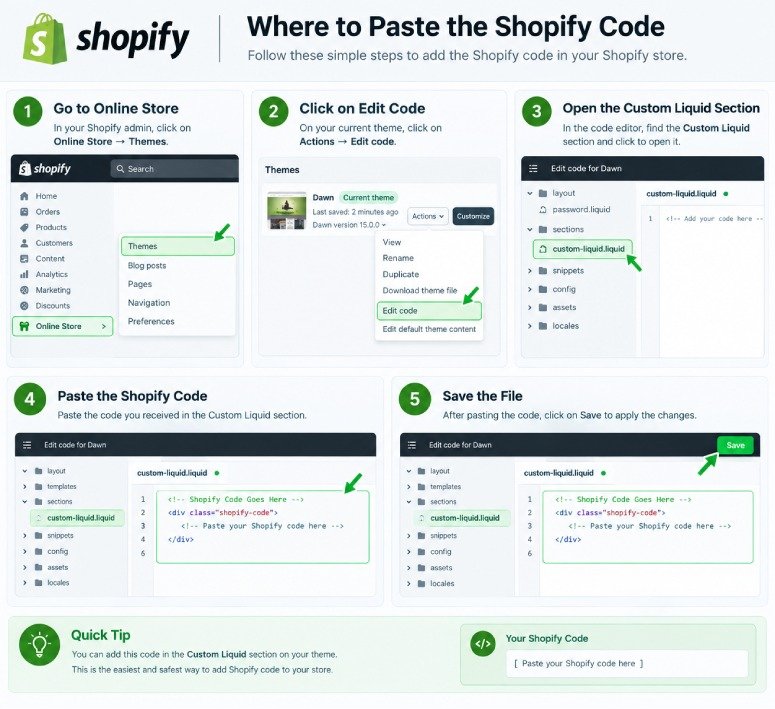
The correct location depends on how the visitor counter snippet is built.
If the code contains the counter markup, styling, and JavaScript together and is designed for Custom Liquid, you can usually add it from the Shopify Theme Editor:
Online Store → Themes → Customize → open your Product template → Add section/block → Custom Liquid
Place the block close to the product information where you want the counter to appear, such as below the product title, price, variant selector, or purchase buttons.
Shopify themes use sections and blocks to create customizable page layouts, and Custom Liquid can be available within these theme areas depending on the theme.
If your snippet is designed as a dedicated Shopify section, snippet, or theme asset instead, it needs to be added through Edit code rather than pasted blindly into a Custom Liquid block. Shopify themes separate Liquid components, CSS, and JavaScript across sections, snippets, blocks, templates, and assets.
Before editing theme files, it is a good idea to duplicate your current theme and test the counter there first.
<div class="live-viewers">
  <span class="live-dot"></span>
  <span>
    <strong id="live-viewer-count">12</strong>
    people are viewing this product just now!
  </span>
</div>

<style>
  .live-viewers {
    display: flex;
    align-items: center;
    gap: 8px;
    padding: 10px 14px;
    background: #f5f9fc;
    border-radius: 8px;
    width: fit-content;
    font-size: 13px;
    color: #333;
  }

  .live-viewers strong {
    font-weight: 700;
  }

  .live-dot {
    width: 8px;
    height: 8px;
    background: #18b66a;
    border-radius: 50%;
    display: inline-block;
    animation: livePulse 1.5s infinite;
  }

  @keyframes livePulse {
    0%, 100% {
      opacity: 1;
      transform: scale(1);
    }
    50% {
      opacity: .45;
      transform: scale(.8);
    }
  }
</style>

<script>
  document.addEventListener("DOMContentLoaded", function () {
    const viewerCount = document.getElementById("live-viewer-count");

    function updateViewers() {
      const numbers = [12, 18, 21, 25, 28, 32, 36, 42, 48, 50];
      const randomNumber = numbers[Math.floor(Math.random() * numbers.length)];

      viewerCount.textContent = randomNumber;
    }

    updateViewers();

    setInterval(updateViewers, 8000);
  });
</script>
<div class="live-viewers">
<span class="live-dot"></span>
<span>
<strong id="live-viewer-count">12</strong>
people are viewing this product just now!
</span>
</div>
<style>
.live-viewers {
display: flex;
align-items: center;
gap: 8px;
padding: 10px 14px;
background: #f5f9fc;
border-radius: 8px;
width: fit-content;
font-size: 13px;
color: #333;
}
.live-viewers strong {
font-weight: 700;
}
.live-dot {
width: 8px;
height: 8px;
background: #18b66a;
border-radius: 50%;
display: inline-block;
animation: livePulse 1.5s infinite;
}
@keyframes livePulse {
0%, 100% {
opacity: 1;
transform: scale(1);
}
50% {
opacity: .45;
transform: scale(.8);
}
}
</style>
<script>
document.addEventListener("DOMContentLoaded", function () {
const viewerCount = document.getElementById("live-viewer-count");
function updateViewers() {
const numbers = [12, 18, 21, 25, 28, 32, 36, 42, 48, 50];
const randomNumber = numbers[Math.floor(Math.random() * numbers.length)];
viewerCount.textContent = randomNumber;
}
updateViewers();
setInterval(updateViewers, 8000);
});
</script>How the Shopify Live Visitors Counter Works
A visitor counter normally combines HTML or Liquid markup, CSS, and JavaScript.
The HTML/Liquid portion creates the visible counter container and message. Depending on the snippet, Liquid may also be used to make the feature appear only on product pages or to access product-related information.
The CSS controls how the counter looks. It can define the background, text size, spacing, border radius, icon styling, animation, and responsive behavior.
The JavaScript handles the changing number or other dynamic behavior. For example, a simple social-proof implementation might generate a number within a configured range and update it periodically.
Shopify supports Liquid, CSS, and JavaScript as parts of theme functionality, and JavaScript can either be associated with theme components or stored as an asset.
Is the Visitor Number Actually Live?
This distinction matters.
JavaScript running only in a shopper’s browser does not automatically know how many other people are currently viewing the same Shopify product.
If your counter simply generates a number such as 8, 14, or 21, that number is simulated, not an exact count of active visitors.
A genuinely data-driven live counter requires a system that records visitor activity and makes the relevant count available to the storefront.
For a simple theme customization, make sure the wording and behavior of the counter accurately represent what the code actually measures.
Why Add a Visitor Counter to a Shopify Product Page?
A visitor counter can provide a small visual signal that a product is receiving attention.
Instead of adding another large banner or promotional section, the message can sit naturally around the main product information. This makes it suitable for stores that want a subtle social-proof element.
It can be particularly useful on product pages where shoppers spend time comparing variants, images, prices, shipping information, and purchase options.
The key is to keep the message secondary to the important product information. It should support the shopping experience rather than distract from the product itself.
Where Should the Counter Appear?
For most stores, the best location is somewhere around the main product information.
Common positions include:
- Below the product price
- Near the variant selector
- Above the Add to Cart button
- Below the purchase buttons
- Near other short product-status messages
Avoid placing the counter where it covers product images, buttons, variant controls, or important product information.
On mobile devices, check that the counter does not take up too much vertical space.
Customizing the Live Visitors Counter
A well-built snippet can usually be adjusted to better match the store’s design.
Change the Text
Instead of:
12 people are viewing this product
you could use wording such as:
12 shoppers are viewing this item
Keep the message short enough to scan quickly, especially on mobile screens.
Adjust the Counter Range
If the snippet uses simulated values, its JavaScript may define a minimum and maximum number.
Changing these values changes the range displayed by the counter.
Avoid unrealistic numbers. More importantly, don’t present generated numbers as verified real-time visitor data.
Change the Colors
The counter should look like part of your existing Shopify theme.
Depending on the CSS included with the snippet, you may be able to customize the:
- Background
- Text
- Icon or indicator
- Border
- Hover or animation effects
Try to maintain enough contrast for the message to remain readable.
Adjust the Spacing
Margins and padding can help the counter fit naturally between other product-page elements.
If it appears too close to the price or Add to Cart button, increase the surrounding spacing rather than changing the entire product layout.
Control How Often the Number Changes
If JavaScript updates the displayed number, the update interval can usually be adjusted.
Avoid changing the number every second. Constant movement can look distracting and make the counter harder to read.
A slower update generally creates a cleaner storefront experience.
Theme Compatibility
A Live Visitors Counter for Shopify can work with many Online Store 2.0 themes, but its exact placement and behavior depend on the theme’s structure.
Shopify themes organize pages using layouts, templates, sections, blocks, snippets, and supporting assets. Different themes can therefore place their product information and custom blocks differently.
For JSON-based templates, Shopify allows sections to be added and rearranged through the theme editor, while the actual HTML and Liquid used by those templates belongs in referenced sections.
Because of these differences, never assume that one placement method will behave identically on every Shopify theme.
Mobile Responsiveness
Always test the visitor counter on mobile as well as desktop.
Check whether:
- The text fits without awkward wrapping.
- The counter stays inside the product information area.
- It doesn’t overlap purchase controls.
- Spacing looks consistent.
- Any animation remains subtle.
- The font is readable on a smaller screen.
A counter that looks good on a desktop product page can still require minor CSS adjustments for smaller screens.
Tips Before Adding the Code
Duplicate your Shopify theme before making code-level changes. This gives you a safer version to test without immediately affecting your live storefront.
After installing the counter, test several product pages rather than checking only one.
Also test different product configurations, including products with variants, long titles, sale prices, and different purchase-button layouts.
If JavaScript is involved, check that the counter continues to behave correctly after changing variants or interacting with other dynamic product-page features.
Troubleshooting
The counter doesn’t appear
First, confirm that the code was added to the correct product template or section.
If you added it through the Theme Editor, make sure the Custom Liquid block or relevant section is enabled and placed inside the product template you are actually previewing.
The counter appears on the wrong pages
The code may have been placed in a shared theme area.
Shopify’s default theme.liquid layout acts as a base used across storefront templates, so adding an element there without a page condition can cause it to appear much more widely than intended.
For a product-specific visitor counter, placing it within the appropriate product section or template is generally cleaner.
The number never changes
Check whether the snippet contains JavaScript responsible for updating the number.
If it does, another JavaScript error or incorrect installation may be preventing that part of the snippet from running.
The styling looks different on my theme
Themes use different typography, spacing, containers, and CSS rules. Existing theme styles can therefore affect custom elements.
Inspect the counter’s CSS and adjust its font size, margins, background, width, or other styles as necessary.
It works on desktop but not mobile
Check for responsive CSS rules in both the snippet and your theme.
Pay particular attention to fixed widths, large padding values, absolute positioning, and long text that might not fit comfortably on smaller screens.
Frequently Asked Questions
What is a Live Visitors Counter for Shopify?
It is a storefront element that displays a visitor or viewer count, usually on a product page. Depending on its implementation, the number can come from actual visitor data or be generated as a visual social-proof value.
Can I add a Shopify visitor counter without an app?
Yes. A theme-based counter can be created with Liquid/HTML, CSS, and JavaScript. However, a theme-only implementation does not automatically have access to a true store-wide count of active visitors.
Does the counter show real Shopify visitors?
Only if the implementation is connected to a system that actually tracks and supplies active visitor information. A JavaScript snippet that generates random values should not be treated as real visitor analytics.
Can I show the counter only on product pages?
Yes. The best method depends on your theme. Adding the feature to the relevant product section or product template keeps it associated with product pages rather than a global layout.
Will the visitor counter work on every Shopify theme?
Not necessarily. Theme structures and CSS differ, so placement or styling might need adjustments.
Can I change the number of visitors shown?
If the snippet uses a configurable simulated range, you can normally adjust the minimum and maximum values in its JavaScript. If the counter uses actual visitor data, the displayed value should come from that data rather than a manually chosen range.
Can I customize the design?
Yes. The CSS can typically be adjusted to change typography, spacing, borders, backgrounds, icons, and other visual details.
Should I test the code before using it on my live store?
Yes. Test custom Shopify code on a duplicate or development theme first, particularly when you’re editing theme files.
2 Responses