
A Shopify recently purchased popup can display small social-proof notifications while customers browse a product page. This advanced snippet creates a floating notification card that can show recent-purchase messages, current viewers, low-stock notices, bestseller messages, popular-choice alerts, and customer-favorite notifications. It also uses real Shopify product information such as the product title, selected variant, product image, price, and inventory quantity when those values are available. The popup includes randomized timing, animated transitions, dark-mode support, mobile responsiveness, reduced-motion support, and a dismiss button. The supplied version is designed as a Custom Liquid block, making it possible to add the feature without installing a dedicated popup app.
Where to Paste This Shopify Code
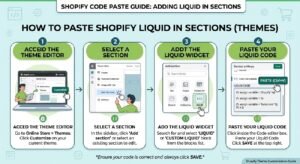
This Shopify recently purchased popup is designed to work as a Custom Liquid block, particularly on a product page where Shopify’s product object is available.
To add it:
- Log in to your Shopify admin.
- Go to Online Store → Themes.
- Select Customize for your active theme.
- Open the product template where you want the popup.
- Add a Custom Liquid block or section.
- Paste the complete supplied code.
- Save the theme.
- Open a product page and test the popup.
The code checks whether a Shopify product object is available. When it is, the snippet can read information such as the product title, selected or first available variant, featured image, price, and inventory information.
Because the component uses JavaScript and a fixed-position container, test it with your theme’s existing announcement bars, chat buttons, cookie banners, and other floating elements.
Shopify Liquid Code
<div class="recent-order-slider">

  <!-- 1 -->
  <div class="recent-order order-1">
    <span class="order-check">
      <svg width="24" height="24" viewBox="0 0 24 24" fill="none">
        <path d="M5 8H19L20 21H4L5 8Z"
          stroke="#1083C9"
          stroke-width="1.8"
          stroke-linejoin="round"/>
        <path d="M9 9V6C9 4.34 10.34 3 12 3C13.66 3 15 4.34 15 6V9"
          stroke="#1083C9"
          stroke-width="1.8"
          stroke-linecap="round"/>
      </svg>
    </span>

    <div>
      <div class="order-message">
        <strong>Ali</strong> is shopping
      </div>
      <div class="order-location">
        Lahore, Pakistan
      </div>
    </div>
  </div>


  <!-- 2 -->
  <div class="recent-order order-2">
    <span class="order-check">
      <svg width="24" height="24" viewBox="0 0 24 24" fill="none">
        <path d="M5 8H19L20 21H4L5 8Z"
          stroke="#1083C9"
          stroke-width="1.8"
          stroke-linejoin="round"/>
        <path d="M9 9V6C9 4.34 10.34 3 12 3C13.66 3 15 4.34 15 6V9"
          stroke="#1083C9"
          stroke-width="1.8"
          stroke-linecap="round"/>
      </svg>
    </span>

    <div>
      <div class="order-message">
        <strong>Ahmed</strong> is shopping
      </div>
      <div class="order-location">
        Karachi, Pakistan
      </div>
    </div>
  </div>


  <!-- 3 -->
  <div class="recent-order order-3">
    <span class="order-check">
      <svg width="24" height="24" viewBox="0 0 24 24" fill="none">
        <path d="M5 8H19L20 21H4L5 8Z"
          stroke="#1083C9"
          stroke-width="1.8"
          stroke-linejoin="round"/>
        <path d="M9 9V6C9 4.34 10.34 3 12 3C13.66 3 15 4.34 15 6V9"
          stroke="#1083C9"
          stroke-width="1.8"
          stroke-linecap="round"/>
      </svg>
    </span>

    <div>
      <div class="order-message">
        <strong>Usman</strong> is shopping
      </div>
      <div class="order-location">
        Islamabad, Pakistan
      </div>
    </div>
  </div>


  <!-- 4 -->
  <div class="recent-order order-4">
    <span class="order-check">
      <svg width="24" height="24" viewBox="0 0 24 24" fill="none">
        <path d="M5 8H19L20 21H4L5 8Z"
          stroke="#1083C9"
          stroke-width="1.8"
          stroke-linejoin="round"/>
        <path d="M9 9V6C9 4.34 10.34 3 12 3C13.66 3 15 4.34 15 6V9"
          stroke="#1083C9"
          stroke-width="1.8"
          stroke-linecap="round"/>
      </svg>
    </span>

    <div>
      <div class="order-message">
        <strong>Hamza</strong> is shopping
      </div>
      <div class="order-location">
        Rawalpindi, Pakistan
      </div>
    </div>
  </div>


  <!-- 5 -->
  <div class="recent-order order-5">
    <span class="order-check">
      <svg width="24" height="24" viewBox="0 0 24 24" fill="none">
        <path d="M5 8H19L20 21H4L5 8Z"
          stroke="#1083C9"
          stroke-width="1.8"
          stroke-linejoin="round"/>
        <path d="M9 9V6C9 4.34 10.34 3 12 3C13.66 3 15 4.34 15 6V9"
          stroke="#1083C9"
          stroke-width="1.8"
          stroke-linecap="round"/>
      </svg>
    </span>

    <div>
      <div class="order-message">
        <strong>Zain</strong> is shopping
      </div>
      <div class="order-location">
        Sialkot, Pakistan
      </div>
    </div>
  </div>

</div>


<style>

/* Main container */
.recent-order-slider {
  position: relative;
  width: 100%;
  height: 70px;
}


/* Notification */
.recent-order {
  position: absolute;
  top: 0;
  left: 0;

  width: 100%;
  box-sizing: border-box;

  display: flex;
  align-items: center;
  gap: 10px;

  background: #1083C9;
  border: 1px solid #eeeeee;
  border-radius: 8px;

  padding: 10px 14px;

  box-shadow: 0 2px 10px rgba(0,0,0,0.06);

  font-family: inherit;

  opacity: 0;
  visibility: hidden;

  transform: translateY(15px);

  animation-name: recentOrderAnimation;
  animation-duration: 25s;
  animation-iteration-count: infinite;
  animation-timing-function: ease-in-out;
}


/* Shopping bag */
.order-check {
  width: 50px;
  height: 50px;
  min-width: 50px;

  background: #ffffff;

  border-radius: 50%;

  display: flex;
  align-items: center;
  justify-content: center;
}


/* Text */
.order-message {
  font-size: 13px;
  line-height: 1.3;
  color: #ffffff;
}

.order-message strong {
  color: #ffffff;
  font-weight: 700;
}


/* Location */
.order-location {
  font-size: 11px;
  line-height: 1.3;
  color: #ffffff;

  margin-top: 3px;
}


/* Timing */
.order-1 {
  animation-delay: 0s;
}

.order-2 {
  animation-delay: 5s;
}

.order-3 {
  animation-delay: 10s;
}

.order-4 {
  animation-delay: 15s;
}

.order-5 {
  animation-delay: 20s;
}


/* Animation */
@keyframes recentOrderAnimation {

  0% {
    opacity: 0;
    visibility: hidden;
    transform: translateY(15px);
  }

  3% {
    opacity: 1;
    visibility: visible;
    transform: translateY(0);
  }

  14% {
    opacity: 1;
    visibility: visible;
    transform: translateY(0);
  }

  18% {
    opacity: 0;
    visibility: hidden;
    transform: translateY(15px);
  }

  100% {
    opacity: 0;
    visibility: hidden;
    transform: translateY(15px);
  }

}

</style>
How This Shopify Code Works
This is more than a simple CSS popup. It combines Shopify Liquid, HTML, CSS, and JavaScript to create a rotating social-proof notification system.
Shopify Liquid Reads Product Data
The Liquid section first checks whether a product is available:
if productWhen the product object exists, the code assigns values such as:
- Product title
- Selected or first available variant
- Product image
- Product price
- Inventory quantity
These values are then passed into HTML data-* attributes so JavaScript can use them later.
For example, the product title is passed through:
data-product-title="{{ p_title | escape }}"Using the escape filter is important because product data is being inserted into an HTML attribute.
Multiple Notification Types
The popup supports several notification types, including:
- Just Purchased
- Order Confirmed
- Bestseller
- Currently Viewing
- Popular Choice
- Selling Fast
- Customer Favorite
- Low Stock
JavaScript randomly selects from the enabled notification types and changes the popup content accordingly.
Real Product Data
When the code runs on a product page, it can display information from the current Shopify product.
Depending on the configuration, the popup can show:
- Product image
- Product title
- Variant title
- Product price
- Inventory quantity
This makes the component more useful than a completely generic notification.
Randomized Timing
The popup does not appear continuously.
The configuration includes separate values for:
- First appearance delay
- Minimum delay
- Maximum delay
- Minimum display duration
- Maximum display duration
For example, the supplied configuration starts the first notification after a randomized delay between 3 and 8 seconds.
Subsequent notifications use a randomized delay between 8 and 20 seconds.
This creates a less predictable notification cycle than showing the popup at the same interval every time.
Shopify Recently Purchased Popup Configuration
One of the useful features of this snippet is the configuration section near the beginning of the code.
You can change values such as:
assign cfg_position = 'bottom-left'The available position comments in the supplied code are:
bottom-leftbottom-righttop-lefttop-right
You can also change the maximum popup width, animation speed, delays, display duration, avatar gradient, and progress-bar color.
Enable or Disable Notification Types
The code provides simple configuration variables for some notification categories:
assign cfg_enable_viewer     = true
assign cfg_enable_low_stock  = true
assign cfg_enable_bestseller = true
Set these values to false if you do not want the corresponding notification category enabled.
The purchase and order notification types are included in the notification queue by default.
Shopify Recently Purchased Popup and Social Proof
Social-proof notifications can help communicate activity around products, but accuracy matters.
The supplied code contains a customer-name list such as locations and names used to generate popup messages. These names are placeholder/simulated data, as the code comments themselves explain.
That means you should not present those generated purchases as genuine customer orders unless you replace the simulated system with real order information.
For a production store, genuine social proof should come from real events or properly sourced customer activity. This is especially important when displaying statements that could make customers believe another person actually purchased a product.
The code’s own comments recommend connecting genuine purchase information to real order events rather than presenting fabricated purchases as real.
How the Customer Queue Works
The JavaScript keeps track of recently displayed customer names using:
var recentlyShown = [];The pickCustomer() function removes recently shown names from the available pool before selecting another customer.
The history is limited to the last 10 displayed names.
This prevents the same placeholder customer from appearing repeatedly within a short sequence.
The initials are then generated for the avatar using the initialsFor() function.
For example, a two-word customer name can be converted into two initials and displayed inside the gradient avatar.
Product Image and Price Display
When product data is available, the renderProduct() function controls the product information displayed inside the popup.
The configuration includes:
assign cfg_enable_image = true
assign cfg_enable_price = true
When enabled and available, the popup can show the product image and price.
The product image is requested at a width of 96 pixels through Shopify’s image_url filter, while the popup itself displays the image at a smaller size.
This helps keep the popup compact while still providing a visual connection to the product being viewed.
Low Stock Notifications
The code can also read tracked inventory quantities when the relevant product and variant information is available.
The JavaScript checks whether inventory is tracked and whether a valid quantity is available.
If real inventory cannot be read, the supplied code contains a fallback that generates a simulated low-stock quantity.
Important: Do not use simulated inventory numbers to imply that your store genuinely has only a specific number of products remaining. If displaying real stock information is important, configure the component so the message is based only on verified inventory data.
Viewer Counter
The popup can display a message such as:
Currently Viewing
and generate a viewer count between the configured minimum and maximum values.
The supplied configuration uses:
assign cfg_viewer_min = 12
assign cfg_viewer_max = 42
These values are simulated. They do not represent a live count of people currently viewing the product.
If your store needs an actual live viewer count, this functionality would require a separate data source.
Animation and Progress Indicator
The popup uses CSS transitions and a bounce-style entrance animation.
The .pdpx-proof.pdpx-on class controls the visible state, while .pdpx-leaving handles the exit animation.
A small progress bar is displayed along the bottom of the notification. JavaScript gradually changes its width from 0% to 100% during the notification’s display duration.
The animation is also designed to respect the user’s reduced-motion preference through:
@media (prefers-reduced-motion: reduce)This is a useful accessibility consideration for users who have requested reduced motion in their operating-system or browser settings.
Dark Mode and Mobile Support
The component includes a prefers-color-scheme: dark media query that changes the popup background, text, borders, and supporting colors for dark-mode environments.
It also includes a mobile breakpoint at 600px.
On smaller screens, the popup becomes wider relative to the viewport and moves upward from the bottom to avoid common mobile UI areas.
You should still test the final placement with your particular Shopify theme because floating elements such as sticky add-to-cart bars or chat buttons can occupy the same area.
Dismissing the Shopify Recently Purchased Popup
Customers can manually close the notification using the circular close button.
When the close button is used, the popup enters a snooze period controlled by:
assign cfg_snooze_ms = 60000The default value is 60,000 milliseconds, which equals 60 seconds.
After that period, the notification cycle can resume.
The code also supports the Escape key for dismissing a visible notification.
Tab Visibility Handling
The script listens for the browser’s visibilitychange event.
When the customer switches away from the browser tab, the notification timers are paused and an active popup is hidden.
When the customer returns to the tab, the notification cycle can resume.
This prevents the popup from continuing its normal display cycle while the storefront is not actively visible.
Should You Use This Shopify Popup on Every Page?
The supplied component is especially suitable for product pages because it can use the Shopify product object.
If you add it globally, make sure the popup behaves correctly on pages where no product object exists.
The code already checks for this condition and uses:
assign has_product = falsewhen product data is unavailable.
For a product-focused social-proof experience, adding it specifically to the product template is generally the more appropriate approach.
Shopify Recently Purchased Popup Without an App
This component does not require a dedicated Shopify popup app.
It combines Liquid, CSS, HTML, and JavaScript inside the theme or Custom Liquid block.
That gives you direct control over:
- Popup position
- Colors
- Timing
- Animation
- Notification types
- Product information
- Mobile behavior
- Dark-mode appearance
- Dismissal behavior
However, avoiding an app does not mean every feature is automatically dynamic. Real order-based notifications, live visitor counts, and verified customer activity require appropriate data sources.
For general information about Shopify’s theme development environment, you can refer to Shopify Developer documentation.
Best Practices Before Publishing
Before adding this popup to a live Shopify store, review the following:
Use Genuine Social Proof
Do not represent simulated names, purchases, viewer counts, or inventory numbers as real customer activity.
Keep Notifications Relevant
Too many notifications can distract customers from product information and checkout actions.
Test Floating Elements
Check the popup against sticky headers, sticky add-to-cart bars, cookie notices, WhatsApp buttons, and other fixed-position elements.
Test Mobile
Open several product pages on a phone and make sure the popup does not cover important controls.
Check Accessibility
The supplied code includes aria-live, a dismiss button, keyboard handling, and reduced-motion support. Test these behaviors with your storefront and theme.
Review Product Data
Confirm that the product image, variant, price, and inventory values displayed by the popup match the current product.
Frequently Asked Questions
What is a Shopify recently purchased popup?
A Shopify recently purchased popup is a floating notification that can display purchase-related or social-proof messages while customers browse a store. This version supports several notification types and can use product information from Shopify.
Does this popup show real customer purchases?
Not by default. The supplied customer list and purchase messages are simulated placeholder data. They should not be presented to shoppers as genuine purchases without connecting the system to verified order events.
Can this Shopify popup display real product information?
Yes. When used where the Shopify product object is available, the code can read the product title, selected variant, featured image, price, and tracked inventory information.
Does the Shopify recently purchased popup need an app?
No. The supplied implementation can be added as a Custom Liquid block and uses Shopify Liquid, CSS, HTML, and JavaScript.
Can I disable the viewer or low-stock notifications?
Yes. The configuration variables include settings for viewer, low-stock, and bestseller-related notifications. You can change enabled values from true to false as appropriate.
Explore More Shopify Code
Shopify FAQ Accordion Section
A well-structured FAQ can answer common customer questions without taking up a large amount of space on your Shopify page. This Shopify FAQ accordion uses the native HTML <details> and <summary> elements to create expandable questions and answers without JavaScript.
https://css-liquids-for-shopify.site/shopify-faq-accordion/
Shopify Free Shipping Progress Bar
A Shopify free shipping progress bar is a simple way to show customers how close they are to qualifying for free delivery.
https://css-liquids-for-shopify.site/shopify-free-shipping-progress-bar/
For more help, you can read Shopify’s official theme customization guide :Shopify Theme Customization Guide
3 Responses