
A Shopify free shipping progress bar is a simple way to show customers how close they are to qualifying for free delivery. Instead of displaying a plain shipping message, this design uses a visual progress bar, shipping status, and supporting trust points such as fast shipping, secure checkout, and cash on delivery. This Shopify snippet is built with HTML and CSS, so it does not require an additional Shopify app or JavaScript. You can place it on a product page, cart page, homepage, or another suitable theme location. The progress value and shipping amount in this version are static, making it easy to customize for your store’s own free-shipping threshold.
Where to Paste This Shopify Code
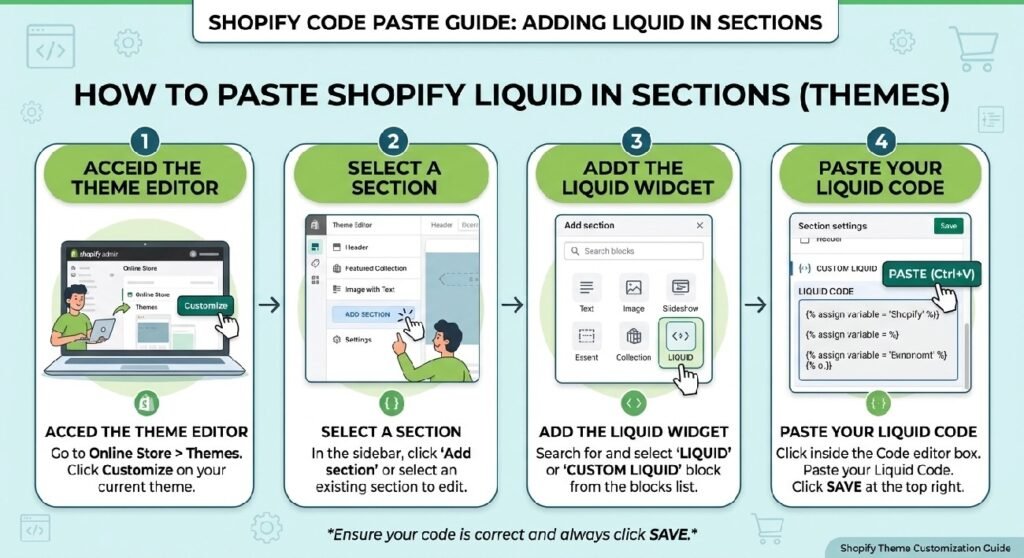
This Shopify free shipping progress bar uses standard HTML and CSS, so you can add it directly to a Shopify theme section or custom Liquid area.
For most Shopify themes:
- Open your Shopify admin.
- Go to Online Store → Themes.
- Open the theme editor with Customize.
- Select the page or template where you want the progress bar.
- Add a Custom Liquid section or block.
- Paste the complete code into the Custom Liquid field.
- Save the changes and preview the storefront.
You can also add the snippet to an appropriate .liquid theme file if you want it to appear in a specific location across a template.
Where Should You Display It?
The best placement depends on how you use free shipping:
- Cart page: Useful when customers are close to the shipping threshold.
- Product page: Helps communicate the free-shipping offer before the customer adds an item.
- Homepage: Useful for highlighting a store-wide shipping promotion.
- Announcement or promotional area: Can reinforce your free-delivery offer.
Avoid placing several copies of the same progress bar on one page because it can make the storefront feel repetitive.
How This Shopify Code Works
This Shopify free shipping progress bar is a front-end HTML and CSS component. It does not currently calculate the customer’s cart total automatically.
The main .zx-progress container creates the card-style layout with a light gradient background, rounded corners, border, and shadow.
The .zx-progress-track element creates the background track for the progress indicator, while .zx-progress-fill represents the completed portion of the bar.
The current progress is controlled by:
width:78%;That means the example visually displays the customer as being 78% of the way toward the free-shipping goal.
The animated gradient is created with the CSS @keyframes rule. You can learn more about CSS keyframe animations through MDN CSS @keyframes documentation.
Responsive Design
On smaller screens, the header changes to a vertical layout and the four supporting feature cards become a two-column grid. This prevents the component from becoming too wide on phones.
Important: This Version Is Static
This is an important distinction if you plan to use the snippet in a production Shopify store.
The supplied code is a visual free-shipping progress bar, not a dynamic cart-based calculator. It does not read the Shopify cart value or automatically calculate how much remains before free shipping.
For example, changing:
width:78%;does not make the progress bar calculate 78% dynamically. It simply displays a bar with a fixed width of 78%.
If you later want the progress bar to automatically update according to the customer’s cart subtotal, you would need additional Shopify Liquid and/or JavaScript logic.
Shopify Liquid Code
<style>
.zx-progress{
    position:relative;
    background:linear-gradient(135deg,#ffffff,#f8fafc);
    border:1px solid #e5e7eb;
    border-radius:24px;
    padding:22px;
    margin:24px 0;
    box-shadow:0 15px 40px rgba(0,0,0,.08);
    overflow:hidden;
}

.zx-progress::before{
    content:"";
    position:absolute;
    top:0;
    left:0;
    width:100%;
    height:5px;
    background:linear-gradient(90deg,#111,#444,#111);
}

.zx-progress-header{
    display:flex;
    justify-content:space-between;
    align-items:center;
    margin-bottom:14px;
}

.zx-progress-title{
    font-size:20px;
    font-weight:800;
    color:#111;
}

.zx-progress-tag{
    background:#111;
    color:#fff;
    padding:7px 16px;
    border-radius:999px;
    font-size:13px;
    font-weight:700;
}

.zx-progress-track{
    height:14px;
    background:#eceff3;
    border-radius:999px;
    overflow:hidden;
    position:relative;
}

.zx-progress-fill{
    height:100%;
    width:78%;
    border-radius:999px;
    background:linear-gradient(90deg,#111,#444,#111);
    background-size:300% 100%;
    animation:loading 3s linear infinite;
    position:relative;
}

.zx-progress-fill::after{
    content:"";
    position:absolute;
    right:-10px;
    top:50%;
    transform:translateY(-50%);
    width:22px;
    height:22px;
    border-radius:50%;
    background:#fff;
    border:4px solid #111;
    box-shadow:0 0 0 6px rgba(17,17,17,.08);
}

@keyframes loading{
    0%{
        background-position:0% 50%;
    }
    100%{
        background-position:100% 50%;
    }
}

.zx-progress-bottom{
    display:flex;
    justify-content:space-between;
    align-items:center;
    margin-top:14px;
    flex-wrap:wrap;
    gap:10px;
}

.zx-progress-left{
    font-size:15px;
    font-weight:700;
    color:#444;
}

.zx-progress-left strong{
    color:#111;
    font-size:18px;
}

.zx-progress-right{
    background:#ecfdf5;
    color:#15803d;
    padding:8px 14px;
    border-radius:999px;
    font-weight:700;
    font-size:14px;
}

.zx-progress-icons{
    display:grid;
    grid-template-columns:repeat(4,1fr);
    gap:14px;
    margin-top:22px;
}

.zx-progress-icons div{
    background:#f8fafc;
    border-radius:16px;
    padding:16px;
    text-align:center;
    transition:.3s;
}

.zx-progress-icons div:hover{
    transform:translateY(-5px);
    background:#111;
    color:#fff;
}

.zx-progress-icons span{
    font-size:28px;
    display:block;
    margin-bottom:10px;
}

.zx-progress-icons b{
    display:block;
    font-size:15px;
}

@media(max-width:768px){

.zx-progress{
padding:18px;
}

.zx-progress-header{
flex-direction:column;
align-items:flex-start;
gap:10px;
}

.zx-progress-icons{
grid-template-columns:repeat(2,1fr);
}

.zx-progress-bottom{
flex-direction:column;
align-items:flex-start;
}
}
</style>

<div class="zx-progress">

<div class="zx-progress-header">

<div class="zx-progress-title">
🚚 Almost There!
</div>

<div class="zx-progress-tag">
Free Delivery
</div>

</div>

<div class="zx-progress-track">
<div class="zx-progress-fill"></div>
</div>

<div class="zx-progress-bottom">

<div class="zx-progress-left">
Only <strong>Rs. 650</strong> away from FREE shipping.
</div>

<div class="zx-progress-right">
78% Completed
</div>

</div>

<div class="zx-progress-icons">

<div>
<span>🚚</span>
<b>Fast Shipping</b>
</div>

<div>
<span>💳</span>
<b>Cash on Delivery</b>
</div>

<div>
<span>🔒</span>
<b>Secure Checkout</b>
</div>

<div>
<span>⭐</span>
<b>Trusted by 10,000+ Customers</b>
</div>

</div>

</div>
Customizing the Free Shipping Progress Bar
You can adjust several parts of this design without changing its overall structure.
Change the Progress Percentage
The visual progress is controlled by the width of .zx-progress-fill:
width:78%;For a different static percentage, change the value accordingly.
For example, a store that wants to display 50% progress would use a 50% width.
Change the Amount Remaining
The amount shown to customers appears inside the .zx-progress-left element.
The supplied version says:
Only Rs. 650 away from FREE shipping.Replace Rs. 650 with the amount appropriate for your promotion.
Change the Free Shipping Label
The badge currently displays:
Free DeliveryYou can change this to wording such as:
- Free Shipping
- Free Delivery Available
- You’ve Unlocked Free Shipping
- Almost Free Shipping
Keep the wording short so it remains readable on smaller screens.
Change the Supporting Benefits
The bottom section contains four feature cards:
- Fast Shipping
- Cash on Delivery
- Secure Checkout
- Trusted by 10,000+ Customers
These are ordinary HTML text elements, so you can replace them with benefits that accurately represent your store.
Be careful with claims such as customer numbers. Only display a statement like “Trusted by 10,000+ Customers” if it is accurate for your business.
Why Use a Free Shipping Progress Bar?
A shipping threshold can be easy for customers to overlook when it is presented only as text.
A visual progress indicator makes the offer easier to understand at a glance. Customers can immediately see the remaining amount and the current progress toward the shipping goal.
This can be particularly useful when the free-shipping threshold is close to the customer’s current order value.
The important part is keeping the information accurate. If the store’s free-shipping rules change, update the displayed amount and percentage so customers are not given misleading information.
Shopify Free Shipping Progress Bar for Product Pages
Adding the component to a product page can communicate the shipping promotion before a customer reaches checkout.
For example, if your store provides free shipping above a specific order value, the progress bar can sit below the product information or near the add-to-cart area.
However, this static version should be treated as a promotional visual rather than a real-time cart calculation. If you need the message to change based on the customer’s cart value, the component needs dynamic logic.
[INTERNAL LINK NEEDED: Shopify product page customization guide]
Shopify Free Shipping Progress Bar for Cart Pages
The cart is another natural location for a shipping progress indicator because customers are already reviewing their order.
A dynamic version could eventually display messages such as:
- “Only Rs. 650 away from free shipping.”
- “Add Rs. 300 more to unlock free shipping.”
- “You’ve unlocked free shipping!”
The current snippet does not automatically generate these messages. The values shown in the supplied code are fixed and should be edited manually.
[INTERNAL LINK NEEDED: Shopify cart customization guide]
Does This Shopify Code Need an App?
No. The supplied progress bar is built with HTML and CSS and does not depend on an external Shopify app.
That makes it useful for stores that want a lightweight promotional component without installing another app.
However, an app or additional custom JavaScript may be appropriate if you need advanced features such as:
- Automatic cart-value calculations
- Different thresholds by market
- Multiple shipping rules
- Dynamic remaining amounts
- AJAX cart updates
- Different messages based on cart value
For a simple static promotional design, the supplied snippet is much more straightforward.
Shopify Free Shipping Progress Bar Customization Tips
Before publishing the component, check these areas:
1. Match the Shipping Threshold
Make sure the amount shown in the progress message matches your actual free-shipping policy.
2. Update the Progress Percentage
The current value is 78%. Change it if your promotional design requires a different visual percentage.
3. Keep Trust Claims Accurate
Only use claims such as “10,000+ Customers” if they accurately represent your business.
4. Test on Mobile
The design already includes responsive CSS, but you should still check it on your actual storefront and different screen sizes.
5. Avoid Excessive Animation
The progress bar uses a continuously animated gradient. If your theme already contains several animated elements, consider whether the combined effect is appropriate for the page.
Frequently Asked Questions
What is a Shopify free shipping progress bar?
A Shopify free shipping progress bar is a visual component that shows customers how close they are to reaching a free-shipping threshold. It can display a progress percentage, remaining amount, and shipping-related benefits.
Does this free shipping progress bar automatically calculate the cart total?
No. The supplied version is static. The 78% progress and Rs. 650 remaining amount are written directly into the code. Dynamic cart-based calculations would require additional logic.
Can I add this Shopify progress bar without an app?
Yes. This version uses HTML and CSS and can be added through a Shopify Custom Liquid section or an appropriate Liquid theme file.
Can I use this on the Shopify cart page?
Yes. The design can be placed on a cart page, and the cart is a logical location for a shipping-threshold message. However, this particular version does not automatically read the cart total.
Is the progress bar mobile responsive?
Yes. The supplied CSS includes a mobile breakpoint at 768px. The feature cards change from four columns to two columns, while the header and bottom content adjust for smaller screens.
Explore More Shopify Code
Shopify FAQ Accordion Section
A well-structured FAQ can answer common customer questions without taking up a large amount of space on your Shopify page. This Shopify FAQ accordion uses the native HTML <details> and <summary> elements to create expandable questions and answers without JavaScript.
https://css-liquids-for-shopify.site/shopify-faq-accordion/
Shopify Floating WhatsApp Button
A Shopify floating WhatsApp button gives store visitors a quick way to contact you without searching for a contact page or support link. This snippet creates a fixed WhatsApp button that stays visible while customers browse the storefront, with a WhatsApp-style green design, floating animation, pulse effect, and responsive mobile layout.
https://css-liquids-for-shopify.site/shopify-floating-whatsapp-button/
For more help, you can read Shopify’s official theme customization guide: Shopify Theme Customization Guide
2 Responses