
A Shopify floating WhatsApp button gives store visitors a quick way to contact you without searching for a contact page or support link. This snippet creates a fixed WhatsApp button that stays visible while customers browse the storefront, with a WhatsApp-style green design, floating animation, pulse effect, and responsive mobile layout.
The button opens a WhatsApp chat in a new browser tab using your WhatsApp number. You can place it across your Shopify storefront and customize the position, text, size, and appearance to match your theme. Because the provided code uses CSS and a standard WhatsApp link, it does not require a Shopify app or JavaScript.
Where to Paste This Shopify Code
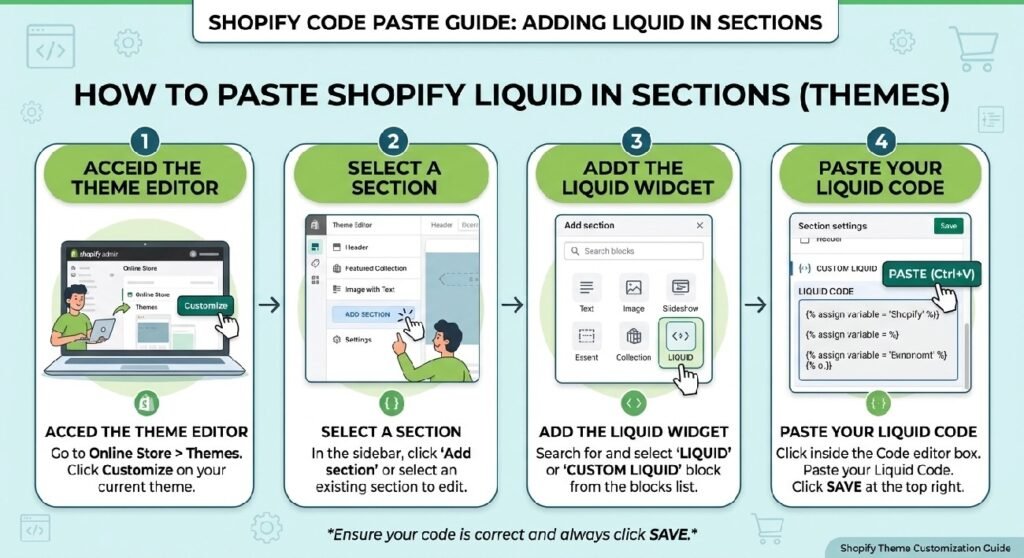
The easiest option is to add this through a Custom Liquid area if your Shopify theme supports the required HTML and CSS.
- Open Shopify Admin.
- Go to Online Store → Themes.
- Click Customize on your active theme.
- Open the page where you want the button.
- Add a Custom Liquid section or block.
- Paste the complete code.
- Save the changes.
- Open your storefront and test the WhatsApp button.
Because the button uses position: fixed, it remains positioned relative to the browser viewport rather than moving with normal page content.
For a site-wide implementation, you can also add the code to an appropriate theme-level location, such as theme.liquid, depending on how your theme is structured.
How This Shopify Code Works
This customization uses an HTML link and CSS. There is no JavaScript dependency.
The main components are:
.dg-whatsappcreates the fixed floating button.position: fixedkeeps the button visible while the visitor scrolls.href="https://wa.me/..."sends the visitor to the WhatsApp chat link.target="_blank"opens WhatsApp in a new browser tab..dg-whatsapp-iconcreates the circular chat icon area..dg-whatsapp-textdisplays the “Need Help?” and “Chat on WhatsApp” text.@keyframes dgWhatsappFloatcreates the gentle vertical floating animation.dgPulsecreates the expanding ring around the button.- The mobile media query reduces the button size and hides the smaller supporting text.
The phone number currently included in the link is the number represented by the wa.me URL. Replace it with your own WhatsApp number before publishing the code.
Shopify Liquid Code
<style>

/*=================================
      DG WHATSAPP FLOAT BUTTON
=================================*/

.dg-whatsapp{

position:fixed;

right:22px;
bottom:95px;

display:flex;
align-items:center;
gap:14px;

padding:14px 20px;

background:#25D366;

color:#fff;
text-decoration:none;

border-radius:999px;

font-size:15px;
font-weight:700;

box-shadow:
0 15px 35px rgba(37,211,102,.35);

z-index:99999;

transition:.35s ease;

animation:dgWhatsappFloat 2.5s infinite;

}

.dg-whatsapp:hover{

transform:translateY(-4px) scale(1.03);

box-shadow:
0 22px 45px rgba(37,211,102,.45);

}

.dg-whatsapp-icon{

width:46px;
height:46px;

display:flex;
align-items:center;
justify-content:center;

background:rgba(255,255,255,.18);

border-radius:50%;

font-size:24px;

backdrop-filter:blur(8px);

}

.dg-whatsapp-text{

display:flex;
flex-direction:column;
line-height:1.2;

}

.dg-whatsapp-text small{

font-size:11px;

font-weight:500;

opacity:.85;

}

.dg-whatsapp-text strong{

font-size:15px;

font-weight:800;

}

@keyframes dgWhatsappFloat{

0%{

transform:translateY(0);

}

50%{

transform:translateY(-6px);

}

100%{

transform:translateY(0);

}

}

/* Pulse Ring */

.dg-whatsapp::before{

content:"";

position:absolute;

inset:-8px;

border-radius:999px;

border:2px solid rgba(37,211,102,.35);

animation:dgPulse 2.5s infinite;

}

@keyframes dgPulse{

0%{

transform:scale(.95);

opacity:.8;

}

70%{

transform:scale(1.15);

opacity:0;

}

100%{

opacity:0;

}

}

/* Mobile */

@media(max-width:768px){

.dg-whatsapp{

right:14px;

bottom:85px;

padding:12px 16px;

}

.dg-whatsapp-icon{

width:42px;

height:42px;

font-size:22px;

}

.dg-whatsapp-text small{

display:none;

}

.dg-whatsapp-text strong{

font-size:14px;

}

}

</style>

<a
class="dg-whatsapp"
href="https://wa.me/923292303947"
target="_blank"
rel="noopener noreferrer"
aria-label="Chat with us on WhatsApp">

<div class="dg-whatsapp-icon">
💬
</div>

<div class="dg-whatsapp-text">
<small>Need Help?</small>
<strong>Chat on WhatsApp</strong>
</div>

</a>
Why Add a Floating WhatsApp Button to Your Shopify Store?
A floating WhatsApp button can make customer communication more accessible, particularly for stores where shoppers have questions before placing an order.
Instead of requiring visitors to navigate to a contact page, the button provides a persistent contact option while they browse.
Give customers a direct contact option
Some shoppers prefer asking a quick question before buying. A visible WhatsApp button can reduce the number of steps between the customer and your support channel.
For example, customers might want to ask about:
- Product availability
- Delivery times
- Product specifications
- Order questions
- Returns
- General store information
Keep the contact option visible
The button uses fixed positioning, so it doesn’t disappear when the visitor scrolls down the page.
This is particularly useful on long product pages where the original contact link may be far above the customer’s current position.
No Shopify app required
For a simple WhatsApp contact button, an app isn’t necessarily required. This implementation uses a regular WhatsApp URL with CSS styling.
That also gives you direct control over the appearance rather than relying on an app’s predefined widget design.
Tips for Customizing the Code
Replace the WhatsApp number
The most important customization is the number inside the WhatsApp URL:
https://wa.me/923292303947
Replace it with your own WhatsApp number using the international format.
For example, if your number is from Pakistan, use the country code 92 and remove the leading 0 from the local number.
Do not add spaces, brackets, or dashes to the wa.me number.
Change the button position
The desktop button currently uses:
right:22pxbottom:95px
You can increase or decrease these values depending on your theme.
The mobile version separately uses:
right:14pxbottom:85px
This is useful because mobile layouts often have less available screen space.
Change the button text
You can replace:
Need Help?
Chat on WhatsApp
with text that better fits your store, such as:
Have a Question?
Message Us
or:
Need Assistance?
Talk to Our Team
Keep the text short so the floating button doesn’t occupy too much screen space.
Change the animation
The button uses two CSS animations:
dgWhatsappFloatdgPulse
If you prefer a static button, remove the animation properties and corresponding keyframes.
For a more subtle design, you can also reduce the movement from translateY(-6px) to a smaller value.
Consider your theme’s existing floating elements
Some Shopify themes already have floating chat, accessibility, cookie, or back-to-top controls. Before publishing this button, check the bottom-right area of your storefront to make sure the elements don’t overlap.
Common Problems and Fixes
The WhatsApp button overlaps another button
The code uses a high z-index of 99999, so it is designed to remain above many theme elements.
If it overlaps your theme’s chat widget or another floating control, adjust the right or bottom values.
WhatsApp opens but the number is incorrect
Check the href value carefully. The wa.me URL must contain the correct international phone number without spaces or punctuation.
The button is too large on mobile
The included mobile media query already reduces the padding, icon, and text size. You can reduce these values further if the button takes up too much space.
The animation is distracting
Remove or modify these animation declarations:
animation:dgWhatsappFloat 2.5s infinite;
and
animation:dgPulse 2.5s infinite;
The button will still function as a normal WhatsApp link without the animations.
Can I add a pre-filled WhatsApp message?
Yes. WhatsApp supports URL parameters for pre-filled messages. The link can be modified to include a message, but special characters and spaces need to be URL-encoded correctly.
For example, the destination can be structured around a text parameter rather than relying only on the phone number.
Frequently Asked Questions
Can I add a floating WhatsApp button to Shopify without an app?
Yes. This implementation uses a standard WhatsApp wa.me link with CSS, so a dedicated Shopify app isn’t required.
Does the WhatsApp button work on mobile?
Yes. The button includes a mobile media query that adjusts its size and position for smaller screens.
Can I change the WhatsApp number?
Yes. Replace the phone number in the wa.me URL with your own WhatsApp number using the international format.
Does this Shopify WhatsApp button use JavaScript?
No. The supplied code uses HTML and CSS only. The floating and pulse effects are CSS animations.
Can I change the color of the WhatsApp button?
Yes. The main green color is defined with #25D366. You can change the background and related shadow values, although keeping a recognizable WhatsApp-style color may make the button easier for customers to identify.
Explore More Shopify Code
Shopify countdown timer
A Shopify countdown timer creates real urgency and scarcity on your product pages, sale landing pages, or promotional banners. By displaying a dynamic, ticking clock next to flash sales, limited-time discounts, or upcoming product drops, you encourage hesitant buyers to take action immediately rather than postponing their purchase decision.
https://css-liquids-for-shopify.site/shopify-countdown-timer-pro/
Shopify trust badges section
Adding a clear trust section to a Shopify store can make important reassurance information easier for shoppers to notice. This Shopify trust badges section uses Liquid-compatible HTML and CSS to create a polished three-card layout for delivery, secure checkout, and customer support.
https://css-liquids-for-shopify.site/shopify-trust-badges-section/
For more help, you can read Shopify’s official theme customization guide: Shopify Theme Customization Guide
2 Responses