
A well-structured FAQ can answer common customer questions without taking up a large amount of space on your Shopify page. This Shopify FAQ accordion uses the native HTML <details> and <summary> elements to create expandable questions and answers without JavaScript.
The section includes a clean heading area, expandable FAQ cards, a rotating plus icon, hover effects, and a responsive mobile layout. It is useful for product pages, homepages, landing pages, and other Shopify pages where customers may need quick information about ordering, delivery, payments, or support.
Where to Paste This Shopify Code
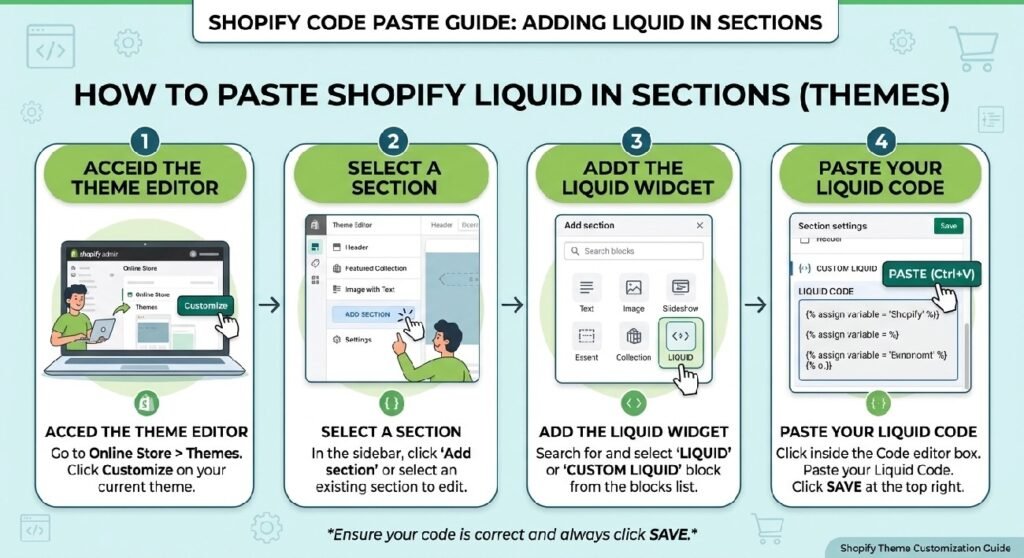
You can add this code through a Custom Liquid section if your Shopify theme supports the markup and CSS.
- Open Shopify Admin.
- Go to Online Store → Themes.
- Click Customize for your active theme.
- Select the page where you want the FAQ section.
- Add a Custom Liquid section or block.
- Paste the complete code.
- Click Save.
- Preview the FAQ on both desktop and mobile.
For a reusable theme component, you can instead create a dedicated section through Online Store → Themes → Edit code.
How This Shopify Code Works
This FAQ accordion does not depend on JavaScript. The expandable behavior comes from the browser’s native <details> and <summary> elements.
The important parts are:
.dg-faqcontrols the overall FAQ section..dg-faq-headerstyles the badge, heading, and introductory text.- Each
.dg-faq-itemrepresents an individual question and answer. - The
<summary>element acts as the clickable question. - The
<details>element automatically opens and closes the answer. .dg-faq-iconcreates the circular plus icon..dg-faq-item[open] .dg-faq-iconrotates the plus icon when the question is open.dgFadeadds a short fade-and-slide animation to the answer.- The mobile media query reduces font sizes and spacing on smaller screens.
The first FAQ contains the open attribute, so it is expanded when the page initially loads. The remaining questions start collapsed.
Shopify Liquid Code
<style>

/*==================================
        DG PREMIUM FAQ
==================================*/

.dg-faq{

margin:40px 0;

}

.dg-faq-header{

text-align:center;

margin-bottom:30px;

}

.dg-faq-badge{

display:inline-block;

padding:8px 18px;

background:#f5f5f5;

border-radius:999px;

font-size:13px;

font-weight:700;

margin-bottom:14px;

color:#111;

}

.dg-faq-header h2{

font-size:36px;

margin:0;

font-weight:800;

letter-spacing:-.5px;

color:#111;

}

.dg-faq-header p{

max-width:620px;

margin:14px auto 0;

color:#666;

font-size:16px;

line-height:1.7;

}

.dg-faq-item{

background:#fff;

border:1px solid rgba(0,0,0,.08);

border-radius:18px;

margin-bottom:16px;

overflow:hidden;

box-shadow:0 10px 30px rgba(0,0,0,.05);

transition:.3s;

}

.dg-faq-item:hover{

transform:translateY(-3px);

box-shadow:0 15px 35px rgba(0,0,0,.08);

}

.dg-faq-item summary{

list-style:none;

cursor:pointer;

padding:22px 26px;

display:flex;

justify-content:space-between;

align-items:center;

font-size:17px;

font-weight:700;

color:#111;

}

.dg-faq-item summary::-webkit-details-marker{

display:none;

}

.dg-faq-icon{

width:34px;

height:34px;

border-radius:50%;

background:#111;

color:#fff;

display:flex;

align-items:center;

justify-content:center;

font-size:22px;

font-weight:400;

transition:.3s;

flex-shrink:0;

}

.dg-faq-item[open] .dg-faq-icon{

transform:rotate(45deg);

}

.dg-faq-content{

padding:0 26px 24px;

color:#666;

font-size:15px;

line-height:1.8;

animation:dgFade .3s ease;

}

@keyframes dgFade{

from{

opacity:0;

transform:translateY(-8px);

}

to{

opacity:1;

transform:translateY(0);

}

}

@media(max-width:768px){

.dg-faq-header h2{

font-size:28px;

}

.dg-faq-item summary{

padding:18px;

font-size:16px;

}

.dg-faq-content{

padding:0 18px 20px;

}

}

</style>

<section class="dg-faq">

<div class="dg-faq-header">

<div class="dg-faq-badge">
Frequently Asked Questions
</div>

<h2>Have Questions?</h2>

<p>
Everything you need to know before placing your order.
</p>

</div>

<details class="dg-faq-item" open>

<summary>

How do I place an order?

<div class="dg-faq-icon">+</div>

</summary>

<div class="dg-faq-content">

Choose your preferred product and variant, click <strong>Add to Cart</strong>, then proceed to checkout by entering your shipping details and completing your order.

</div>

</details>

<details class="dg-faq-item">

<summary>

How long does delivery take?

<div class="dg-faq-icon">+</div>

</summary>

<div class="dg-faq-content">

Orders are typically delivered within <strong>3–5 working days</strong>, depending on your location.

</div>

</details>

<details class="dg-faq-item">

<summary>

What payment methods do you accept?

<div class="dg-faq-icon">+</div>

</summary>

<div class="dg-faq-content">

We support Cash on Delivery (where available) along with secure online payment methods supported by our checkout.

</div>

</details>

<details class="dg-faq-item">

<summary>

Can I contact customer support?

<div class="dg-faq-icon">+</div>

</summary>

<div class="dg-faq-content">

Absolutely. You can reach our support team anytime through WhatsApp or email, and we'll be happy to assist you.

</div>

</details>

</section>
Why Add an FAQ Accordion to Your Shopify Store?
An FAQ accordion is useful when your customers repeatedly ask the same questions about your products, checkout, shipping, or support process.
Instead of displaying every answer at once, the accordion lets visitors open only the information they need.
Keep product pages easier to scan
Long blocks of FAQ text can make a product page feel crowded. An accordion keeps the questions visible while hiding the longer answers until they are needed.
Answer common buying questions
The provided example covers questions such as:
- How to place an order
- Delivery times
- Accepted payment methods
- Customer support
You can replace these with questions that are actually relevant to your store.
No JavaScript required
One of the useful aspects of this implementation is that it doesn’t need a custom JavaScript accordion script.
The browser handles the open/close behavior through <details> and <summary>. This keeps the implementation relatively simple and reduces the amount of code required.
Useful on different Shopify pages
You can use this Shopify FAQ section on:
- Product pages
- Homepages
- Landing pages
- Shipping information pages
- Collection pages
- Promotional pages
- Store information pages
The best placement depends on what customers need to know before taking the next action.
Tips for Customizing the Code
Add your own questions
The included questions are examples. Replace them with genuine questions your customers ask.
For a clothing store, you might cover:
- What sizes are available?
- How do I choose my size?
- What is your return policy?
- How long does shipping take?
For an electronics store, useful questions might involve compatibility, warranty, delivery, and product specifications.
Change the FAQ heading
The current section displays:
Have Questions?
You can change this to something that fits your store, such as:
- Frequently Asked Questions
- Before You Order
- Common Questions
- Need More Information?
The supporting paragraph can also be changed to explain what visitors will find in the accordion.
Change the colors
The design currently uses a black, white, and gray color scheme.
For example, the FAQ icon uses:
background:#111;
You can replace that value with a color from your store’s branding.
The border and shadow values can also be adjusted to create a lighter or more prominent card design.
Add or remove questions
To add another FAQ, duplicate one of the <details class="dg-faq-item"> blocks and replace its question and answer.
Avoid giving every question the open attribute. Otherwise, multiple answers will appear expanded when the page loads.
Change the default open question
The first question is currently open because it contains:
<details class="dg-faq-item" open>
If you want all questions collapsed initially, remove open.
If you want another question open by default, add open to that specific <details> element instead.
Common Problems and Fixes
The accordion does not open
The expandable behavior relies on valid <details> and <summary> markup. Make sure the opening and closing tags haven’t been accidentally removed while editing the code.
Multiple FAQs are open at once
This implementation allows multiple <details> elements to remain open. If you want only one question open at a time, additional JavaScript or a different accordion implementation would be needed.
The FAQ looks too wide
The supplied code does not set a maximum width for the overall section. Your Shopify theme’s container usually determines its width.
If necessary, you can add a max-width to .dg-faq and center it with automatic margins.
The plus icon doesn’t rotate
The rotation is controlled by:
.dg-faq-item[open] .dg-faq-icon
Make sure this CSS rule remains intact. The browser’s open state is automatically applied to a <details> element when it expands.
Can I use this without JavaScript?
Yes. The supplied accordion uses native HTML <details> and <summary> elements, so JavaScript isn’t required for the basic open-and-close functionality.
Frequently Asked Questions
Can I add an FAQ accordion to Shopify without an app?
Yes. This implementation can be added directly to a Shopify theme using HTML and CSS. It does not require a dedicated FAQ app.
Does this Shopify FAQ accordion use JavaScript?
No. The expandable behavior comes from native HTML <details> and <summary> elements. CSS handles the visual styling and icon animation.
Can I change the FAQ questions and answers?
Yes. Replace the existing question and answer text with information specific to your products, shipping policy, payments, returns, or customer support.
Can I use this FAQ section on Shopify 2.0 themes?
Yes. The HTML and CSS are compatible with modern Shopify themes. You can add the code through a compatible Custom Liquid area or convert it into a dedicated theme section.
Can I have more than four FAQ questions?
Yes. Duplicate the existing <details class="dg-faq-item"> structure and change the question and answer content.
Explore More Shopify Code
Shopify Trust Badges Section
Adding a clear trust section to a Shopify store can make important reassurance information easier for shoppers to notice. This Shopify trust badges section uses Liquid-compatible HTML and CSS to create a polished three-card layout for delivery, secure checkout, and customer support.
https://css-liquids-for-shopify.site/shopify-trust-badges-section/
Shopify Floating WhatsApp Button
A Shopify floating WhatsApp button gives store visitors a quick way to contact you without searching for a contact page or support link. This snippet creates a fixed WhatsApp button that stays visible while customers browse the storefront, with a WhatsApp-style green design, floating animation, pulse effect, and responsive mobile layout.
https://css-liquids-for-shopify.site/shopify-floating-whatsapp-button/
For more help, you can read Shopify’s official theme customization guide: Shopify Theme Customization Guide
2 Responses