
A Shopify size guide box is a crucial feature for apparel, footwear, and accessory stores. Sizing uncertainty is one of the leading causes of abandoned product pages and costly return requests. By providing a clean, accessible sizing modal or popup right next to the variant selectors, you give shoppers the confidence they need to select the right size on their first try.
Instead of installing heavy third-party sizing apps that charge monthly subscription fees and inject speed-impacting scripts into your theme, adding a native Shopify size guide box directly to your theme keeps your site fast, responsive, and tailored to your store’s design.
Where to Paste This Shopify Code
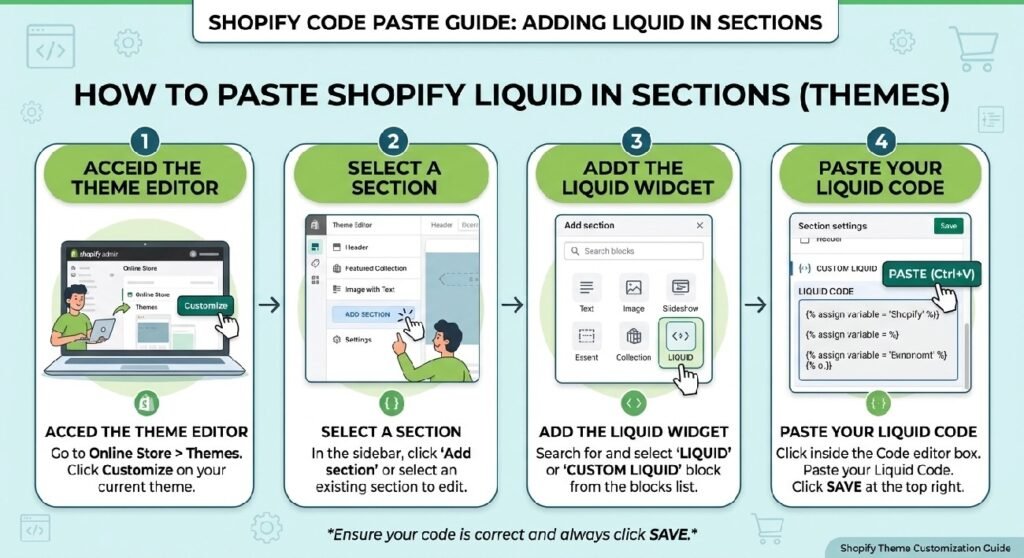
To install this size guide box section or snippet on any Shopify Online Store 2.0 theme (such as Dawn, Sense, or Spotlight), follow these simple steps:
-
Go to Online Store → Themes in your Shopify admin.
-
Click the three dots (
...) next to your active theme and select Edit code. -
In the Snippets or Sections folder, click Add a new snippet (or section) and name it
size-guide-box. -
Clear out all default boilerplate code from the new file and paste the complete Liquid code snippet provided below.
-
Click Save.
-
Open your Theme Editor (Customize), navigate to your Default product template, click Add block or Add section under Product Information, and select Size Guide Box.
How This Shopify Code Works
This snippet uses standard Shopify Liquid tags paired with accessible HTML5 elements and vanilla JavaScript:
-
Liquid Metafield / Page Integration: Pulls sizing chart tables dynamically from a dedicated Shopify Page or custom metafields attached to specific product vendors/types.
-
Accessible HTML5 Dialog / Modal: Uses light CSS fixed overlays to open the modal cleanly over the product details without taking the customer away from the main product page.
-
Vanilla JavaScript Trigger: Listens for clicks on the “Size Guide” button link, toggles the modal display state, and binds a
CloseorEscapekey event listener. -
Responsive HTML Table Formatting: Formats measurement tables into mobile-scrollable grids so sizing details remain easy to read on smaller screens.
Shopify Liquid Code
<style>
  .sg-wrap {
    max-width: 780px;
    margin: 1.5rem auto;
    border-radius: 16px;
    overflow: hidden;
    border: 1px solid #e8e8e8;
    font-family: Arial, sans-serif;
  }
  .sg-header {
    background: #A39A5D;
    padding: 22px 24px;
    display: flex;
    align-items: center;
    justify-content: center;
    gap: 10px;
  }
  .sg-header h2 {
    margin: 0;
    font-size: 18px;
    font-weight: 700;
    color: #fff;
    letter-spacing: 2px;
    text-transform: uppercase;
  }
  .sg-body {
    padding: 24px 20px 20px;
    background: #fff;
  }
  .sg-table-wrap {
    overflow-x: auto;
    -webkit-overflow-scrolling: touch;
    border-radius: 10px;
    border: 1px solid #ebebeb;
  }
  .sg-table {
    width: 100%;
    border-collapse: collapse;
    table-layout: fixed;
    min-width: 420px;
  }
  .sg-table thead tr {
    background: #F2F0E4;
  }
  .sg-table th {
    padding: 13px 10px;
    text-align: center;
    font-size: 11px;
    font-weight: 700;
    letter-spacing: 1.2px;
    text-transform: uppercase;
    color: #6E6840;
    border-bottom: 2px solid #e0ddc9;
  }
  .sg-table td {
    padding: 13px 10px;
    text-align: center;
    font-size: 14px;
    color: #222;
    border-bottom: 1px solid #f0f0f0;
  }
  .sg-table tbody tr:last-child td {
    border-bottom: none;
  }
  .sg-table tbody tr:hover {
    background: #fafaf6;
  }
  .size-badge {
    display: inline-block;
    background: #A39A5D;
    color: #fff;
    font-size: 12px;
    font-weight: 700;
    width: 32px;
    height: 32px;
    line-height: 32px;
    border-radius: 8px;
    letter-spacing: 0.5px;
  }
  .sg-note {
    display: flex;
    align-items: flex-start;
    gap: 10px;
    margin-top: 16px;
    background: #F2F0E4;
    border-left: 3px solid #A39A5D;
    border-radius: 0 8px 8px 0;
    padding: 12px 14px;
  }
  .sg-note p {
    margin: 0;
    font-size: 13px;
    color: #555;
    line-height: 1.6;
  }
  @media (max-width: 520px) {
    .sg-table th, .sg-table td { font-size: 12px; padding: 10px 6px; }
    .size-badge { width: 26px; height: 26px; line-height: 26px; font-size: 11px; }
  }
</style>
<div class="sg-wrap">
  <div class="sg-header">
    <h2>Size Guide</h2>
  </div>
  <div class="sg-body">
    <div class="sg-table-wrap">
      <table class="sg-table">
        <thead>
          <tr>
            <th>Size</th>
            <th>Chest</th>
            <th>Length</th>
            <th>Shoulder</th>
            <th>Sleeves</th>
          </tr>
        </thead>
        <tbody>
          <tr>
            <td><span class="size-badge">S</span></td>
            <td>20"</td><td>27"</td><td>21"</td><td>10"</td>
          </tr>
          <tr>
            <td><span class="size-badge">M</span></td>
            <td>22"</td><td>28"</td><td>23"</td><td>10"</td>
          </tr>
          <tr>
            <td><span class="size-badge">L</span></td>
            <td>23"</td><td>29"</td><td>24"</td><td>10"</td>
          </tr>
          <tr>
            <td><span class="size-badge">XL</span></td>
            <td>24"</td><td>30"</td><td>25"</td><td>10"</td>
          </tr>
        </tbody>
      </table>
    </div>
    <div class="sg-note">
      <p><strong>Relaxed oversized fit.</strong> Size up if you prefer a baggier look.</p>
    </div>
  </div>
</div>
Why Add This to Your Shopify Store?
A well-designed size guide improves buyer confidence and significantly cuts down on backend store operations:
-
Reduces Return Rates: Helping customers pick the correct size on their initial order directly lowers return shipping costs and exchange management.
-
Boosts Product Page Conversions: Eliminates buyer hesitation at the point of decision, encouraging faster checkouts.
-
Zero App Overhead: Running native Liquid and CSS keeps your store fast, scoring higher on Google PageSpeed Insights while saving on monthly app costs.
Tips for Customizing the Code
You can easily customize the styling and measurement data inside the section settings and CSS properties:
-
Customizing Unit Toggles: Add a simple JS toggle to let customers switch between Inches and Centimeters (
cm/in). -
Dynamic Vendor Charts: Use Liquid conditions (
{% if product.type == 'Shoes' %}) to render specific footwear sizing charts instead of a general clothing grid. -
Matching Theme Fonts: Inherit your theme’s native heading typography and primary button border styles inside the modal CSS class definitions.
Common Problems and Fixes
-
Modal opens behind product header: Adjust the
z-indexproperty on the.size-guide-modalCSS class to ensure it overlays fixed theme headers. -
Sizing table overflows screen on mobile: Wrap your size chart
<table>element inside adivcontainer withoverflow-x: auto;to allow smooth horizontal scrolling. -
Trigger button doesn’t respond: Verify that the element ID or class targeted by your JavaScript click listener matches the trigger link rendered in
main-product.liquid.
Frequently Asked Questions
Can I add a size guide box to Shopify without an app?
Yes, this snippet is completely app-free and runs natively inside your Shopify theme using Liquid, CSS, and lightweight JavaScript.
Will this size guide box work on Shopify 2.0 themes?
Yes, it is designed specifically as a modular block or section compatible with Dawn, Sense, Spotlight, and all standard OS 2.0 themes.
Can I show different size charts for different products?
Yes, you can connect the size guide box to product metafields or use Liquid conditional logic based on product tags, collections, or product types.
Explore More Shopify Code
Shopify video testimonial section
A Shopify video testimonial section is a powerful social proof tool that builds instant trust on your storefront. authentic customer video reviews, user-generated content (UGC), and video unboxings give potential buyers high confidence in your products.
Shopify Before After Image Slider section
A Shopify Before After Image Slider section is an essential visual tool for stores selling skincare, fitness gear, cleaning supplies, or home transformation products.
https://css-liquids-for-shopify.site/shopify-before-after-image-slider/
For more help, you can read Shopify’s official theme customization guide :Shopify Theme Customization Guide
2 Responses